FLEET MANAGER UTILITY DV-1 CONFIGURATION
24
Supervisor Menu:
o Set system behavior (controls when the system
powers on or off based on vehicle on or off status)
o Set microphone behavior (determines when the
microphone(s) are turned on or off)
o Manage permissions for settings (defines system
permissions for the selected officer)
o Manage DVD and hard drive (format DVD, hard drive
maintenance, reset recording state, set number of
DVDs to backup, burn DVD from backup)
o Manage Supervisor passwords ( requires
Administrator login to add, edit, or delete Supervisor
PIN numbers)
Press the MENU key again on the Front Panel of the DV-1 to exit
the Main Menu and return to the main camera display screen.
Many of the configuration settings in this section can be done easily
using WatchGuard’s Fleet Manager Utility. The Fleet Manager Utility
is a Windows 7/Vista/XP application that is used to create
configuration files that can be burned to a CD and loaded into the
DV-1. Saving multiple configuration files on a single CD simplifies the
process of loading different configurations onto different vehicles.
See Fleet Manager Utility on page 97 for further details.
Supervisor access is required unless the Enter Department Name
permission is set to YES. See Manage Permissions for Settings on
page 80 for details on setting officer permissions.
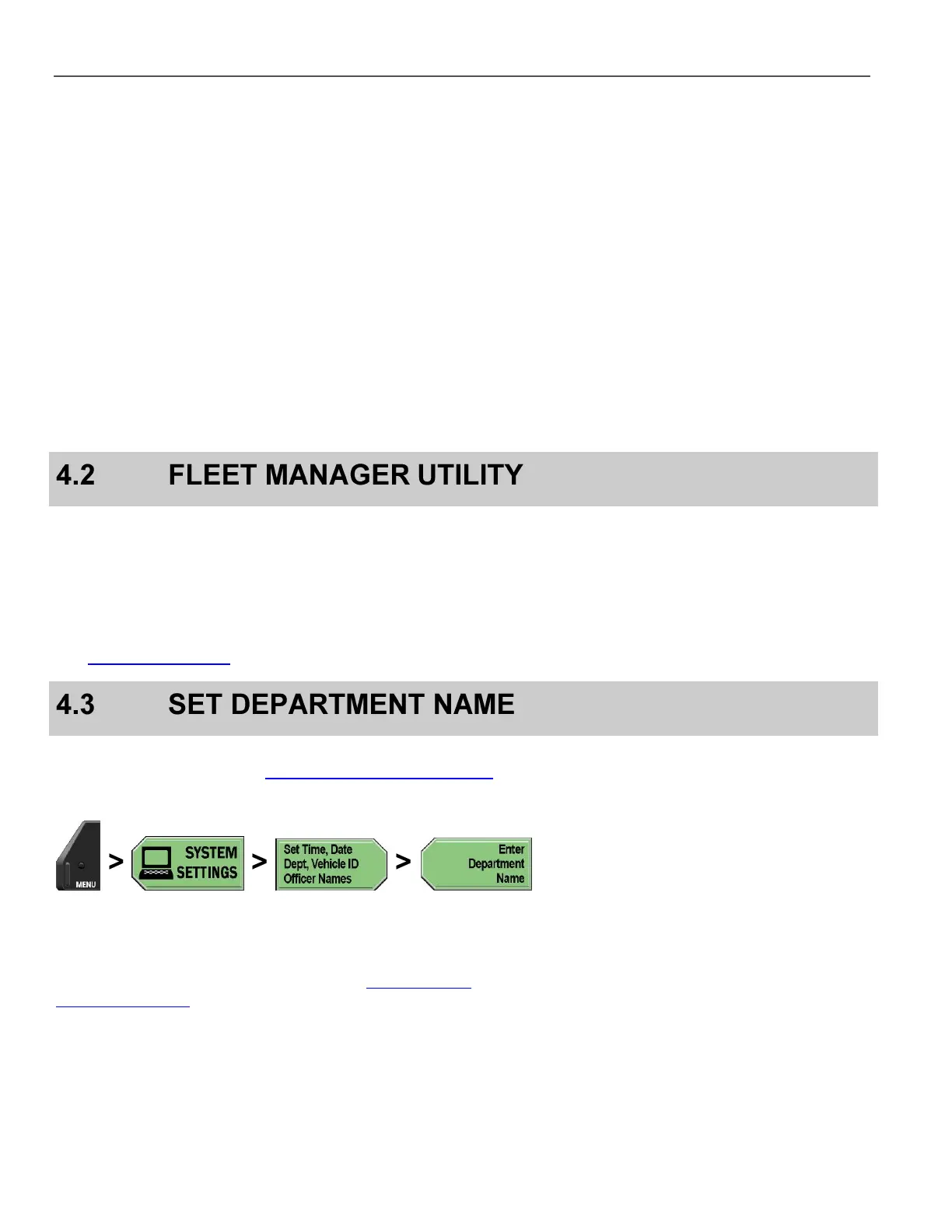
Press MENU > SYSTEM SETTINGS > Set Time, Date, Dept,
Vehicle ID, Officer Names > Enter Department Name.
If prompted to login, follow the steps listed in Supervisor and
Administrator Login on page 78.



 To Next Page