SET MICROPHONE BEHAVIOR SUPERVISOR/ADMINISTRATOR FUNCTIONS
80
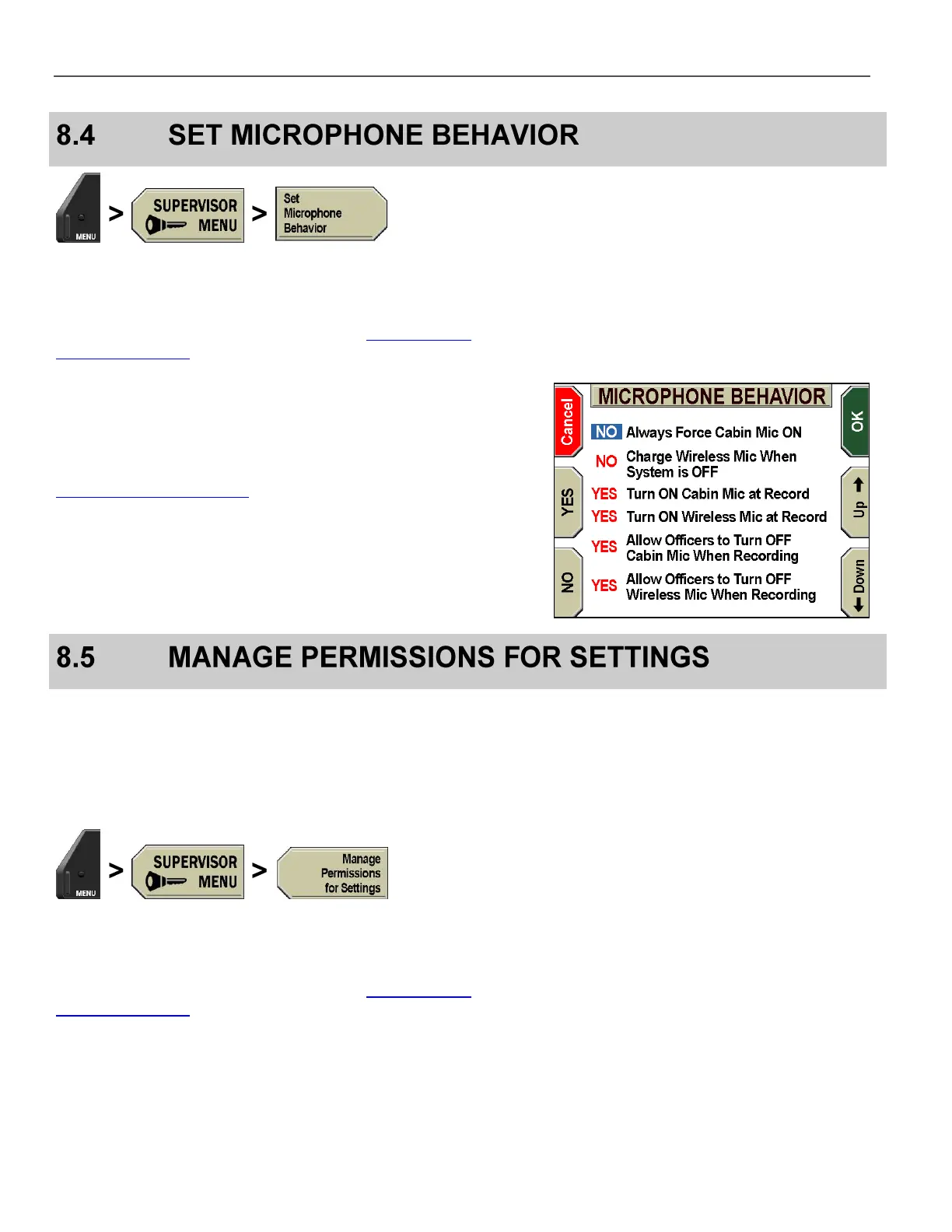
Press MENU > SUPERVISOR MENU > Set Microphone
Behavior.
If prompted to login, follow the steps listed in Supervisor and
Administrator Login on page 78.
The MICROPHONE BEHAVIOR screen is displayed.
Press the Up & Down keys to select the behavior you wish to
edit. For a description of the Microphone Behavior options, see the
Department Default Policies table on page 103.
Press the YES & NO keys to set the behavior. YES enables the
behavior. NO disables the behavior.
Press OK to confirm, or Cancel to exit without making changes.
Each of these settings is used to allow (or not allow) an officer to
configure/change a particular setting or behavior. If the permission is
set to NO, a Supervisor password is required before accessing the
associated configuration setting. If the permission is set to YES, no
Supervisor password is required to access the associated
configuration setting.
Press MENU > SUPERVISOR MENU.> Manage
Permissions for Settings.
If prompted to login, follow the steps listed in Supervisor and
Administrator Login on page 78.



 To Next Page