DV-1 CONFIGURATION SET VEHICLE ID
25
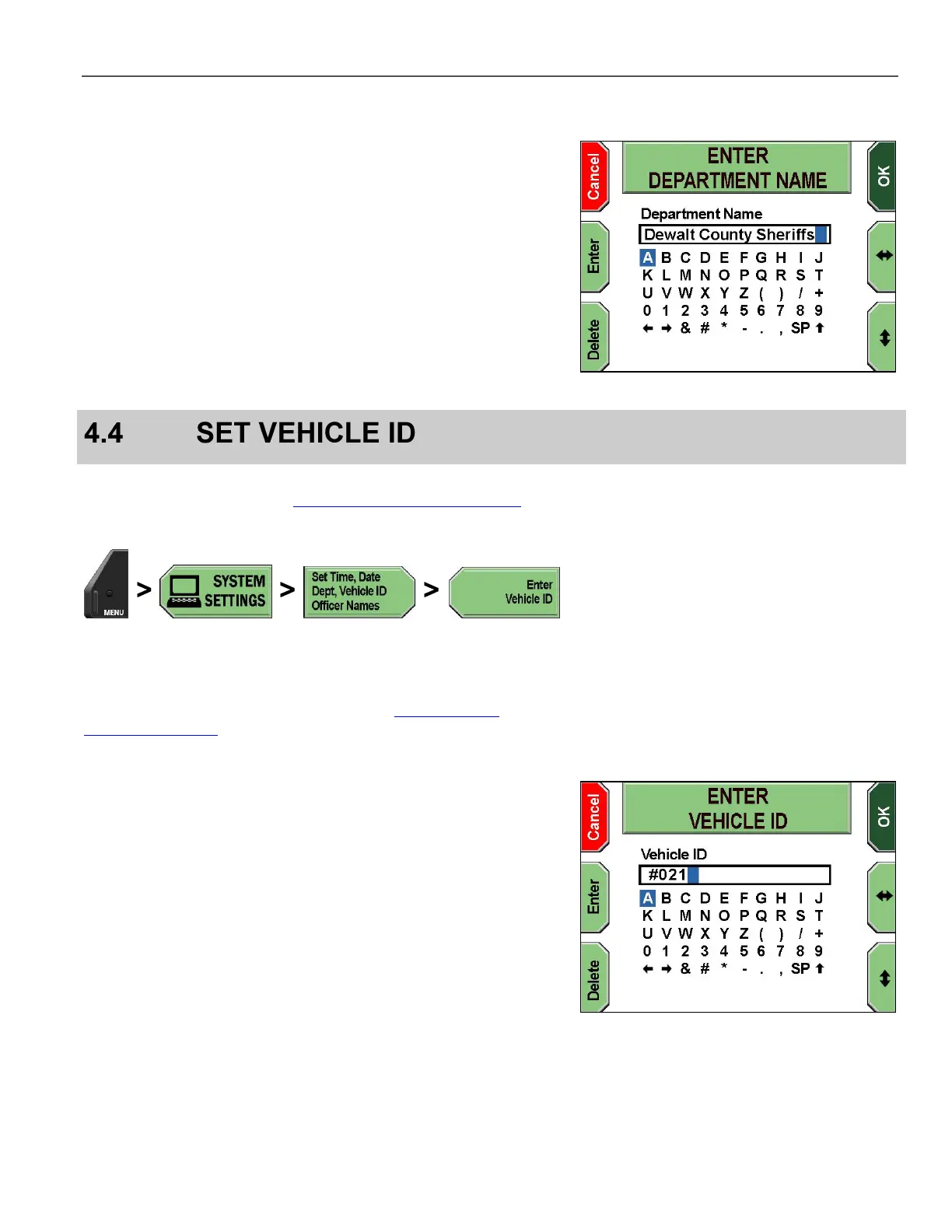
The ENTER DEPARTMENT NAME screen is displayed.
Press the and keys to navigate to the character(s) desired,
and then press Enter to select. To erase an undesired character,
press Delete.
Special characters are as follows:
SP – Space bar
– Uppercase/lowercase letters toggle
and arrows – Move the cursor left and right to allow
character insertion
Press OK to confirm, or Cancel to exit without making changes.
Supervisor access is required unless the Enter Vehicle ID
permission is set to YES. See Manage Permissions for Settings on
page 80 for details on setting officer permissions.
Press MENU > SYSTEM SETTINGS > Set Time, Date, Dept,
Vehicle ID, Officer Names > Enter Vehicle ID.
If prompted to login, follow the steps listed in Supervisor and
Administrator Login on page 78.
The ENTER VEHICLE ID screen is displayed.
Press the and keys to navigate to the character(s) desired,
and then press Enter to select. To erase an undesired character,
press Delete.
Special characters are as follows:
SP – Space bar
– Uppercase/lowercase letters toggle
and arrows – Move the cursor left and right to allow
character insertion
Press OK to confirm, or Cancel to exit without making changes.



 To Next Page