WDR Software User Manual System Setup
24-10437-3 Rev. A 2-27
This document contains confidential and proprietary information of Weldex Corporation. 9/10/08
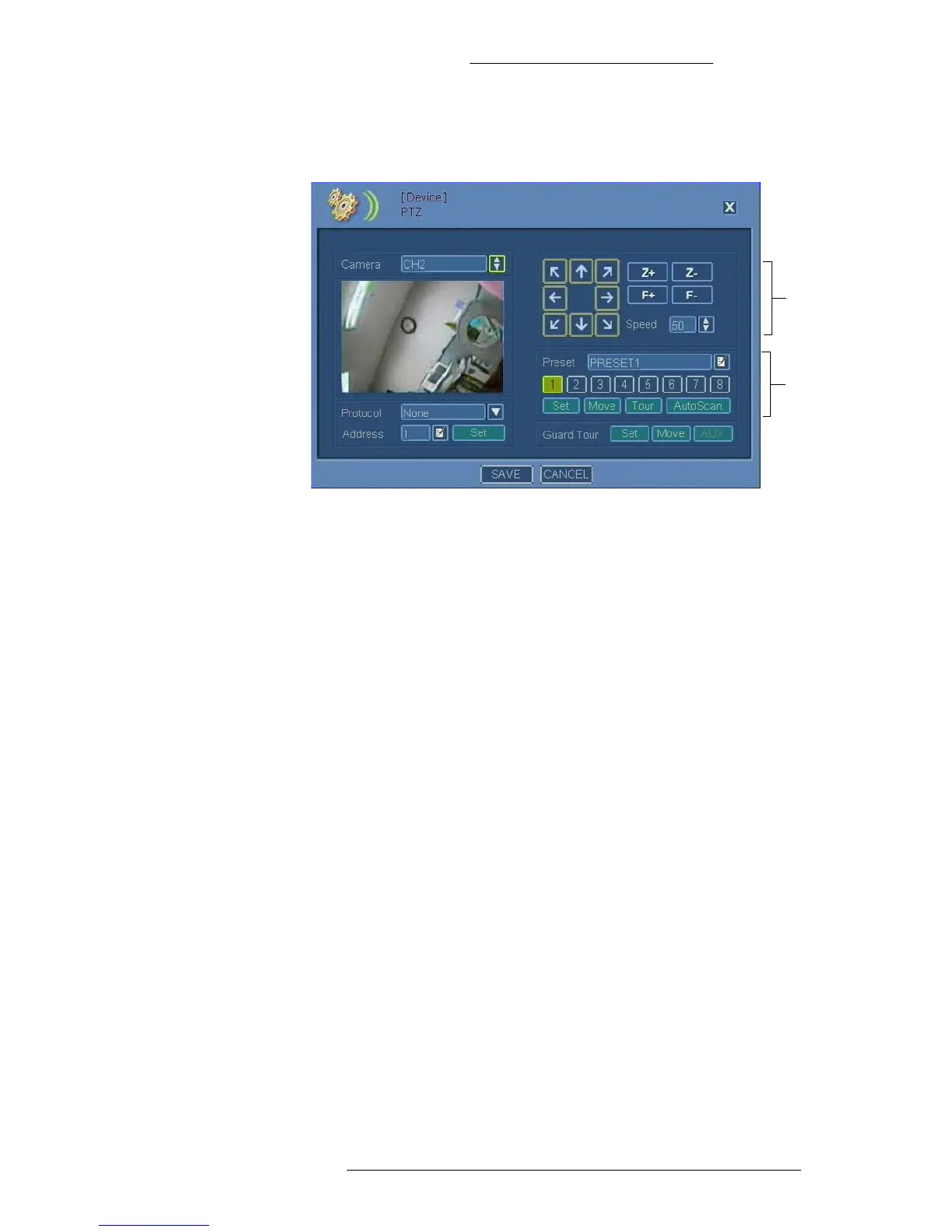
To configure PTZ cameras:
1. From the Main menu select De
vice>PTZ.
2. From the Camera list select the camera to edit. Image from the camera will
be displayed in the screen area.
3. From the Pr
otocol drop-down list select the communication protocol to be
used. Refer to the PTZ manufacturer to find out the supported protocol.
4. In the Addr
ess field use the virtual keyboard to specify camera ID.
5. Click the Set button to set camera protocol and address.
6. To test camera functioning use the fo
llowing buttons:
+ Arrow buttons - Pan and tilt functions.
+ Z+ and Z- buttons - Zoom in and out.
+ F+ and F- buttons - Focus in and out.
7. Set the speed of camera movements. The Sp
eed number represent the
percentage of the PTZ camera's maximum speed. For example, if a PTZ
camera maximum speed is 100 degrees per second, and if you choose speed
20 from the DVR, the speed will be 20% of the 100 degrees per second.
8. Click the To
ur button to activate a predefined tour embedded in the camera
(if available). Refer to the camera manufacturer’s documentation for more
details.
9. Click the AutoScan button to activ
ate a predefined autoscan embedded in the
camera (if available). Refer to the camera manufacturer’s documentation for
more details.
10. Click Save
or continue with the next procedure to configure presets.


 To Next Page