SonTek – a Xylem brand
FlowTracker2 User’s Manual (January 2019)
22
• select different options under each parameter in
configuration,
• select station type or velocity method in
measurement,
• select station in data collection.
iv). Top & Bottom arrow – The key allows the user to
perform the following actions,
• scroll through the menu options,
• select files or templates,
• display graphics during data collection,
• scroll through the measurement, station and
discharge summary reports.
b) Enter Key – The enter key (square) is situated between
the four arrow keys and allow the user to perform the
following actions,
i). Select the menu item in the menus
ii). Activate or deactivate running average during the
beam-check data collection. This information is only
displayed graphically and will not be stored in the
data files.
c) Numbers (0-9) – The keys allows the user to perform
the following actions. Numbers will default to the first
option on the key if only numerical values are required in
the entry field.
i). Menu shortcut (number next to text) associated with
each menu item.
ii). Configuration of instrument such, data collection
settings, quality control parameters and discharge
settings
iii). Enter measurement data such, station location, depth
and other information.
d) Letters (A-Z) – The keys allows the user to perform the
following actions. Letters will default to the first option on
the key if letters are required in the entry field.
i). Create file and template names,
ii). Enter comments at a station, supplement data or
overall measurement.
e) Backspace – The key allows the user to perform the
following delete actions,
i). Text or values in user entry fields,
ii). Data file folder with all content or individual data files,
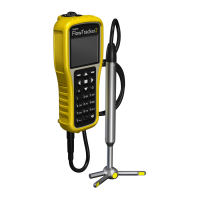
Figure 2:2 - Keypad
Layout


 To Next Page