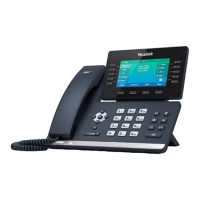
User Guide for SIP-T56A Smart Media Phone
134
Editing Device Information
To edit device information via phone user interface:
1. Swipe down from the top of the screen or swipe left/right to go to the second idle screen.
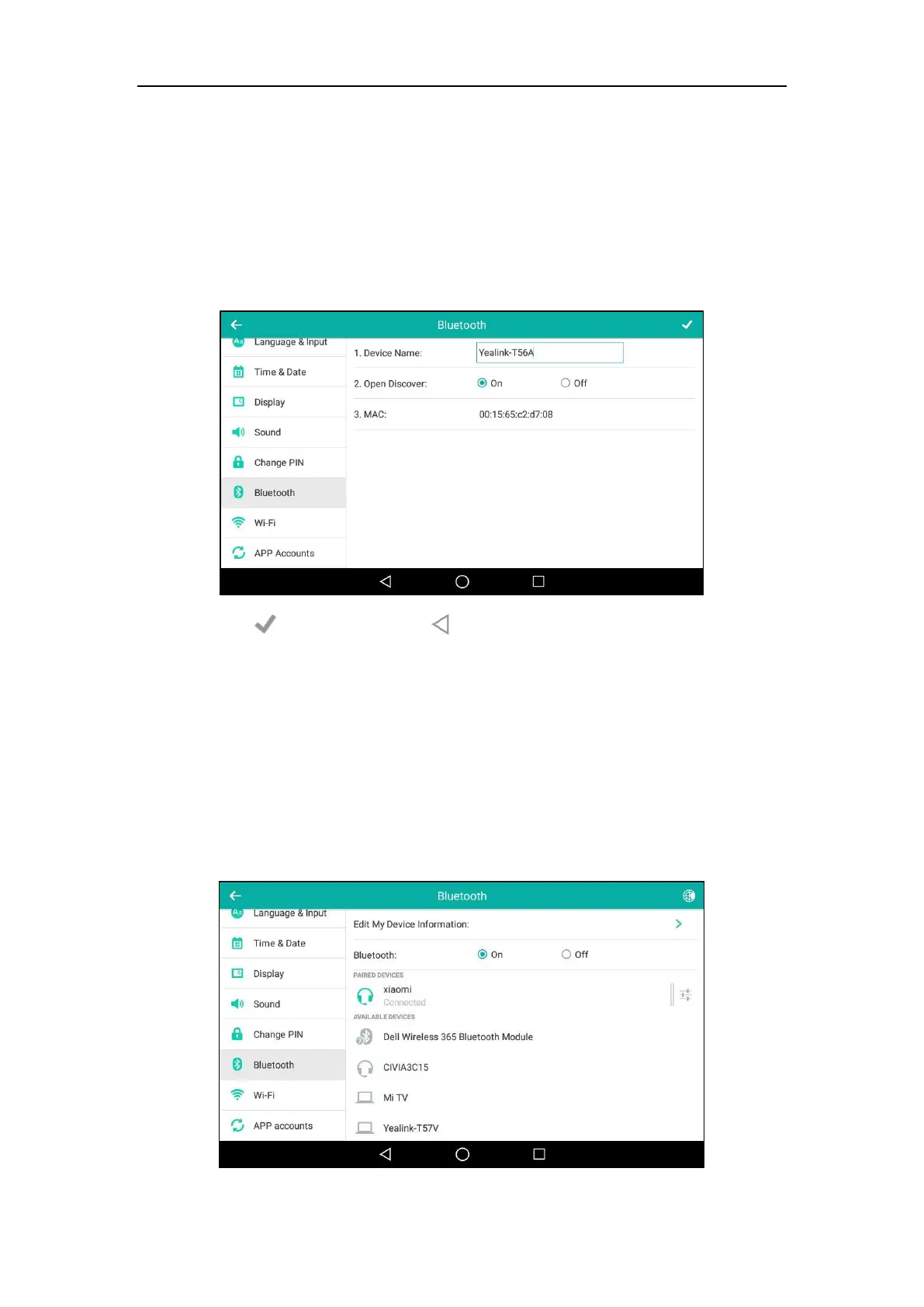
2. Tap Settings->Basic->Bluetooth->Edit My Device Information.
3. Enter the desired name in the Device Name field.
The default device name is “Yealink-T56A”.
4. Tap to accept the change or to cancel.
You should make your phone discoverable first, and then the pre-configured Bluetooth device
name will display in scanning list of other device.
Renaming the Paired Bluetooth Device
To rename the paired Bluetooth device:
1. Swipe down from the top of the screen or swipe left/right to go to the second idle screen.
2. Tap Settings->Basic->Bluetooth.
The touch screen displays the paired and connected Bluetooth headset.


 To Next Page
 Loading...