TG100 User Guide
72/75
Search Call Logs
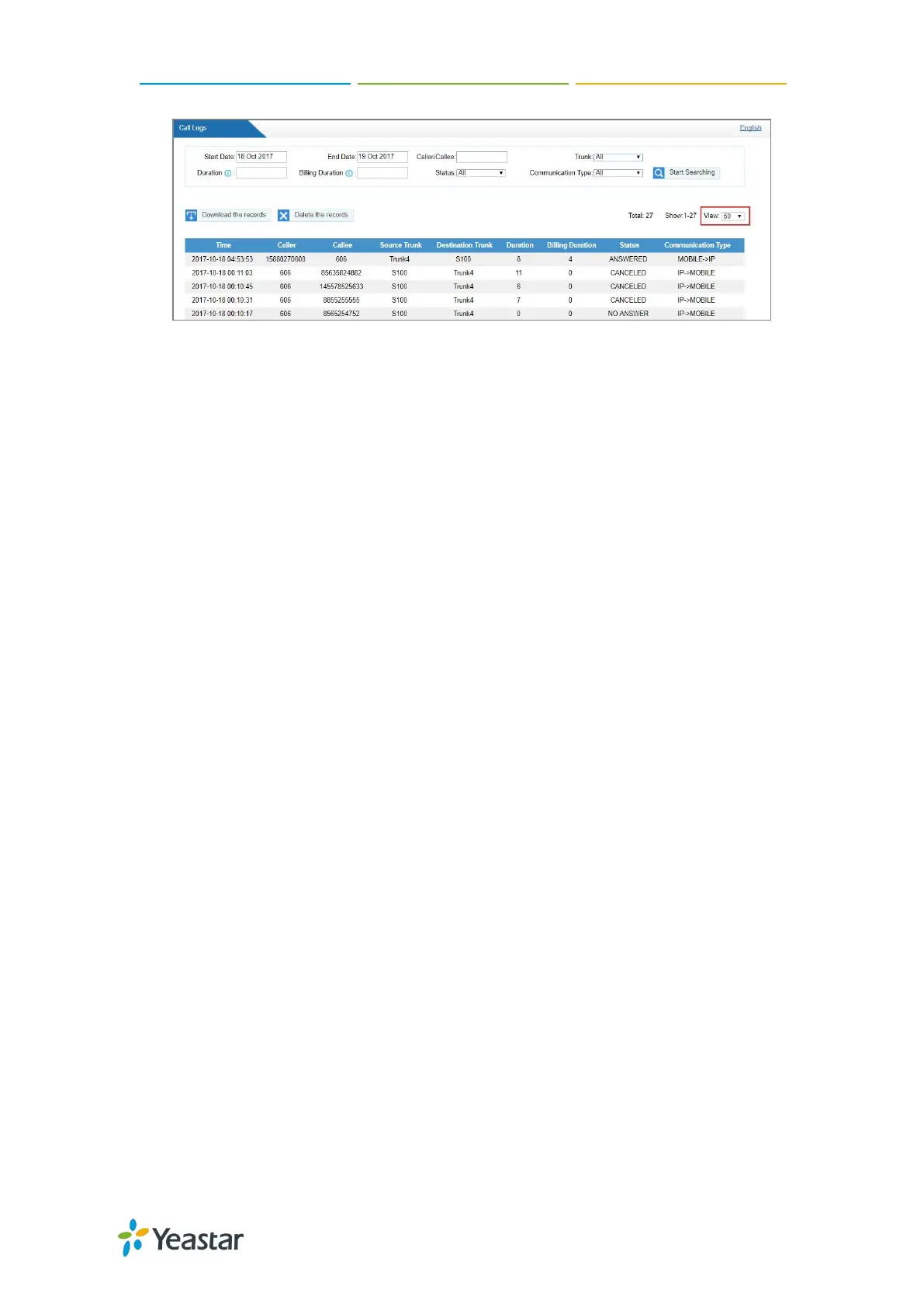
You can search call logs by the following criteria.
Date Duration: Choose the Start Date and End Date to filter the call logs.
Caller/Callee: Enter the caller/callee’s number to filter the call logs.
Trunk: Choose the trunk which is used to call out or call in.
Duration: The call duration. Enter a value to filter the call logs that have call
duration equal to or be greater than the value.
Billing Duration: The billing duration. Enter a value to filter the call logs that have
billing duration equal to or be greater than the value.
Status: Choose a call status.
Communication Type: Choose a communication type.
Procedure
1. Navigate to Status > Reports > Call Logs.
2. Choose Start Date and End Date.
3. (Optional) Set other searching criteria.
4. Click Start Searching, the filtered call logs appears on the Call Logs page.
Download Searched Results
After searching the desired call logs, you can download and export the call logs to
a .csv file.
Procedure
1. Click Download the records to download and export the searched call logs.
Delete Searched Results
You can search the desired call logs, and delete them.


 To Next Page
 Loading...