17
129
17 - Operator panel
The three options are Left padded, Right padded and Zero left padded. For these three options you
must complete the minimum eld, which is the minimum number of digits in the number including
the decimal places and the point. If fewer digits are needed to display the number, the number is
padded either with spaces or with zeros. These are added to the left unless you select Right padded,
in which case spaces are added after the number. Use the Decimals eld to specify the number of
decimal places to show.
If you select Normal as the edit method, it may be important to specify a minimum number of digits.
This is because the Normal method only allows you to change digits that already exist – you can-
not add new digits. If a parameter contains the digit 1, it cannot be changed to 10 unless you have
entered 2 as the minimum number of digits.
If you use the Select or Named Select edit methods, the numbers you include in the list must match
the specied number of decimals.
17�9 Example using advanced settings
Assume we want to control an outdoor lighting system. We want to be able to control the system
using a twilight relay, a calendar function and manual on/o. We will use an operator panel to
choose between these options.
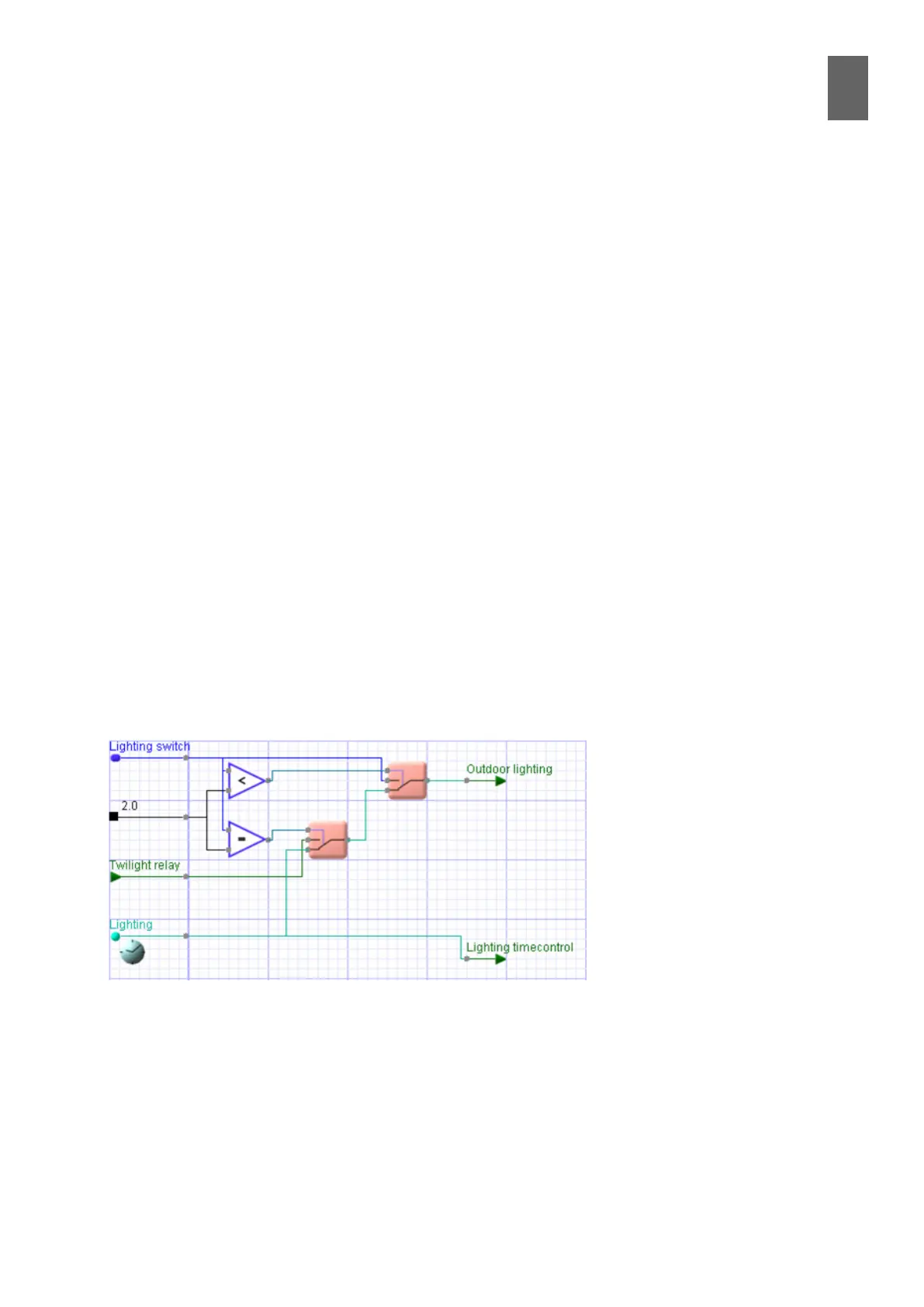
A small graphical program denes the system, using a parameter to control how it works. If the pa-
rameter is 0, the lighting is o. If the parameter is 1, the lighting is on. The parameter value 2 means
the system is controlled by a calendar function, and 4 means controlled by the twilight relay.
An extra channel has been added to the graphical program to mirror the status of the calendar func-
tion. Now we can start the operator panel tool to help us create the menus in the operator panel.
Click Add Menu, change the name to Lighting, and click Apply.


 To Next Page