Live view
18
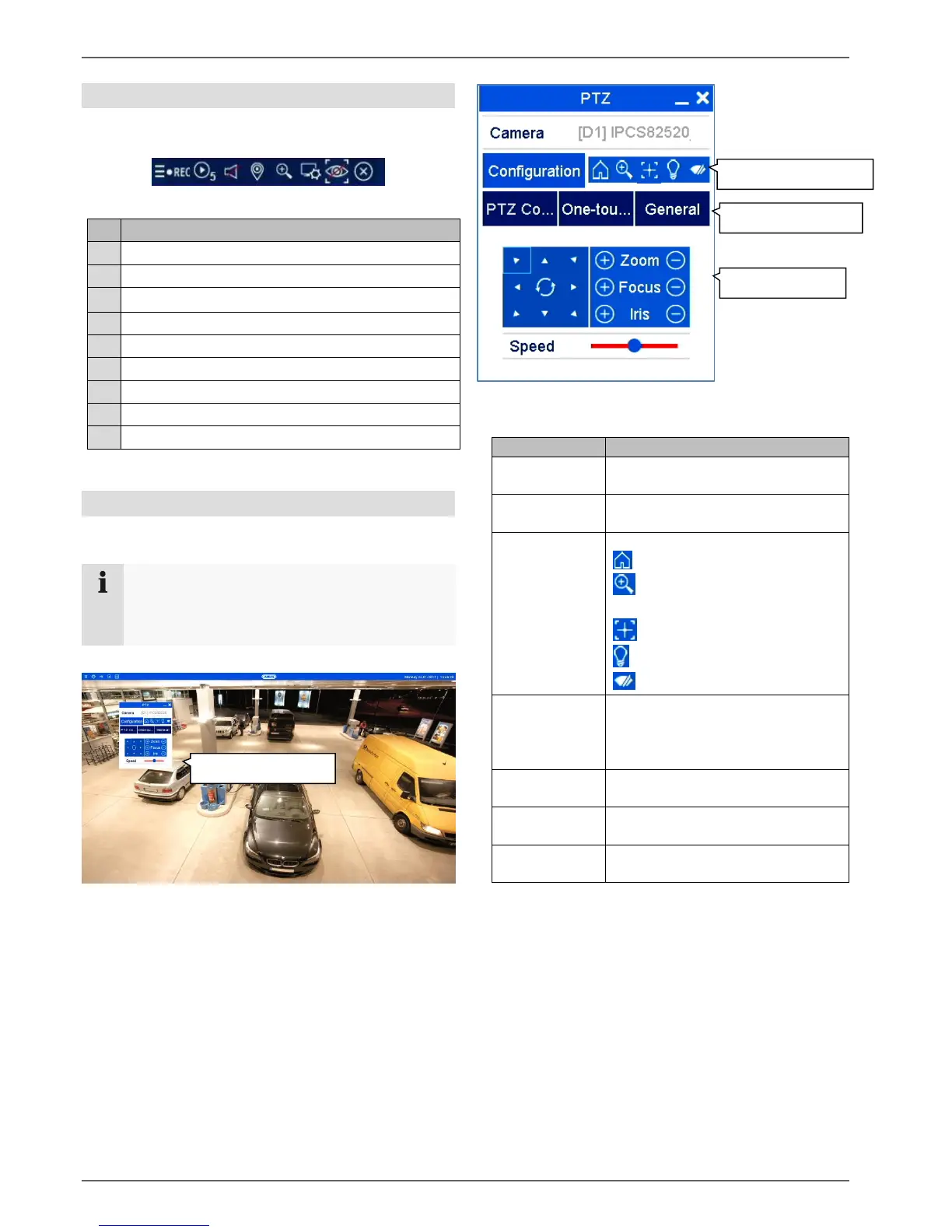
Using the action bar
In single or multi-screen, click on a camera image.
A selection bar will appear:
(0) (1) (2) (3) (4) (5) (6) (7) (8)
Area for moving the action bar
Activate/deactivate manual recording
Instant playback of the last 5 minutes
Activate/deactivate the audio function
Open the PTZ control menu (for PTZ cameras only)
PTZ control menu
The PTZ control menu can be opened from the menu
bar, the action bar or the right-click menu.
The following options are available:
Note
The menu can only be opened for PTZ cameras
or cameras with at least one PTZ feature (e.g.:
cameras with a motorised zoom lens).
Select the camera for PTZ control
here.
Set the PTZ settings and preset
configuration.
Open camera menu (if available)
3D zoom (zoom in/out of the
selected mask)
Centring mode
Light on/off (if available)
Wiper on/off (if available)
PTZ control is displayed. Use the
buttons to turn the camera in the
desired direction and set the
manual zoom, focus and iris.
Execute special commands like
parking position or linear scan.
Execute preset positions, patrols
and patterns.
Speed at which the cameras are
manually moved to positions


 To Next Page