Live view
19
Recording Status
In live image, the current recording status will always be
shown (below left) in the form of a colourful R (“record”).
Every video channel can have one of the following three
statuses:
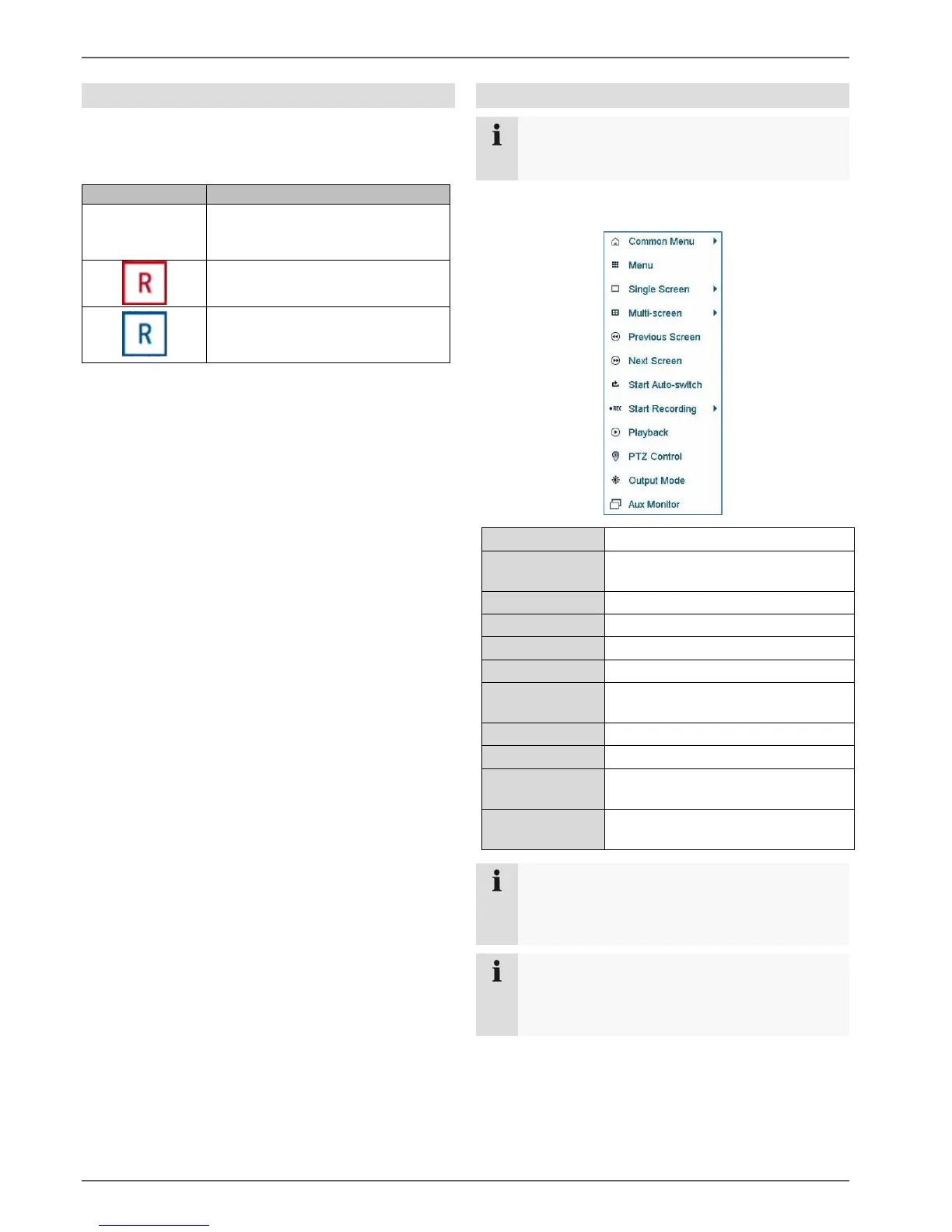
Right-click menu
Note
Right click when the mouse pointer is positioned
on a live image.
The following settings can be made. The arrow pointing
to the right indicates that a sub-menu opens for selection:
Full-screen view of the selected
camera.
Displays the previous screen
Starts the camera sequence display
Starts continuous recording or
motion detection
Switches to playback mode
Sets the output mode for the screen
display
Switches the mouse control to the
AUX monitor
Note
Start Auto-switch:
Specify the display sequence delay in the display
settings.
Note
Activation of “AUX monitor” without a connected
spot monitor:
Mouse pointer function is disabled.
No recording programmed
No HDD available
No event
Event recording enabled
(for motion, alarm input or VCA)
Continuous recording enabled


 To Next Page