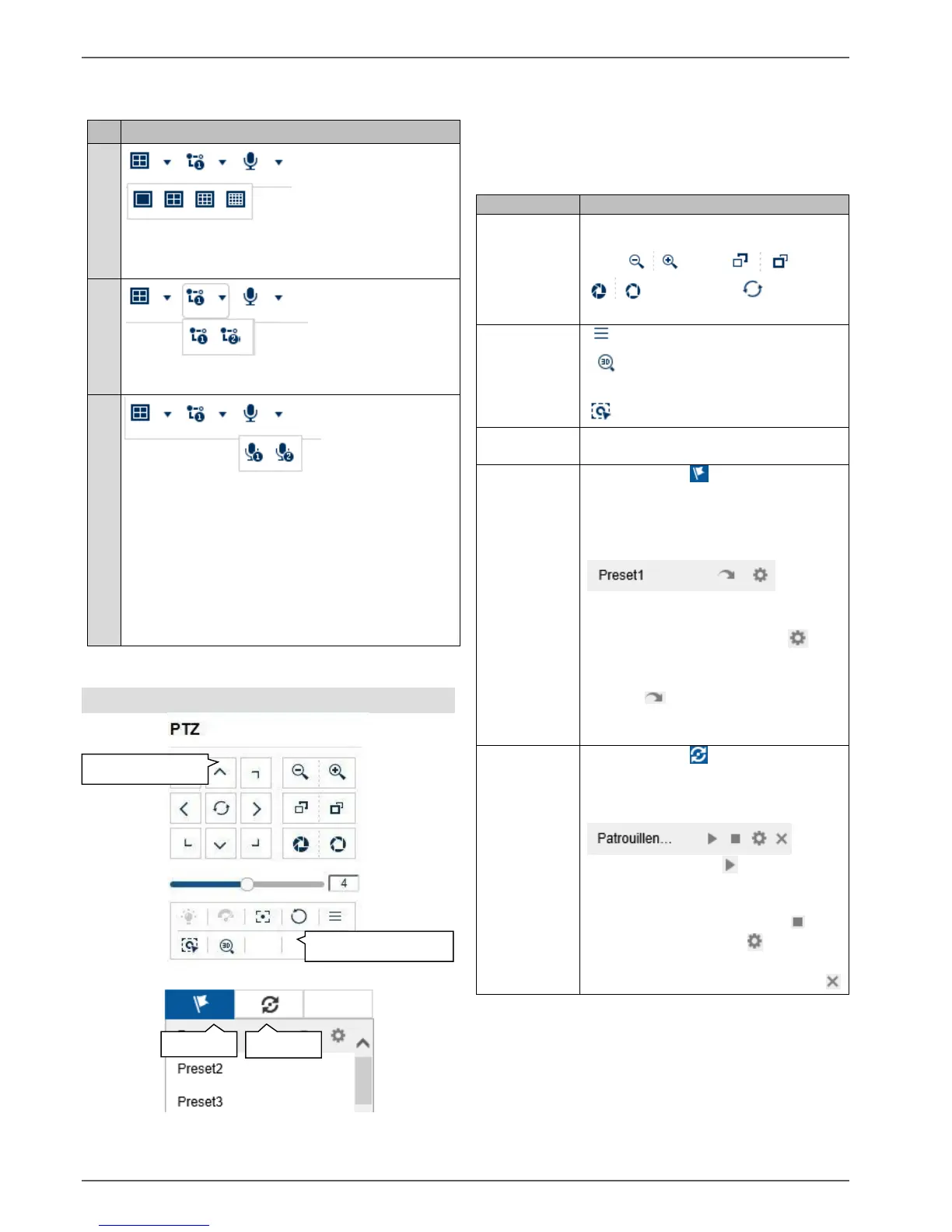
Configure the live cast panel distribution
(number of cameras which can be displayed at
the same time).
Select the live cast stream type to be used for all
cameras simultaneously.
Select the audio output of the recorder for two-way
audio control via the web interface.
This function is only available if a microphone and
speaker are connected to your PC while you have
the live cast open.
1 = RCA audio output 1
2 = RCA audio output 2
PTZ control menu
The actions of all buttons in the PTZ control menu, plus
presets/patrols, are always applied to the camera
currently selected (red frame). Depending on the camera
model, not all functions may be available.
Move the camera in the desired
direction using the buttons. Set the
zoom , focus and iris
manually. The button
activates the horizontal scan.
Open the camera menu (if available)
3D zoom (zoom in/out to a
drawn screen)
Centring mode
Speed at which the cameras are
manually moved to positions
Navigate to tab to carry out preset
positions. Up to 256 present positions
can be accessed/stored from here
(depending on the camera model).
a) Move the camera to the desired
position.
b) Select a list entry and press .
The current camera position is
assigned to the selected preset.
c) Press to access a stored preset.
The camera then moves to the
previously stored position.
Navigate to tab to carry out patrols.
Up to four patrols can be
accessed/stored from here.
a) Start a patrol with . The patrol
remains active until another PTZ
command is sent to the camera or the
patrol is stopped manually with .
b) Program a patrol with . Enter the
preset positions, speed and hold time.
c) Delete the content of a patrol with


 To Next Page