2 Aviat Networks
Chapter4. Eclipse Edge Configuration and Diagnostics
Introduction To Portal for Edge
This section introduces the following topics:
• Portal Screens
• Portal Auto Version for Eclipse
•Online Help for Edge
Portal Screens
All Portal screens have the look and feel of a Windows environment.
Access to on-screen features and commands is provided by mouse click and/or
quick-access key commands.
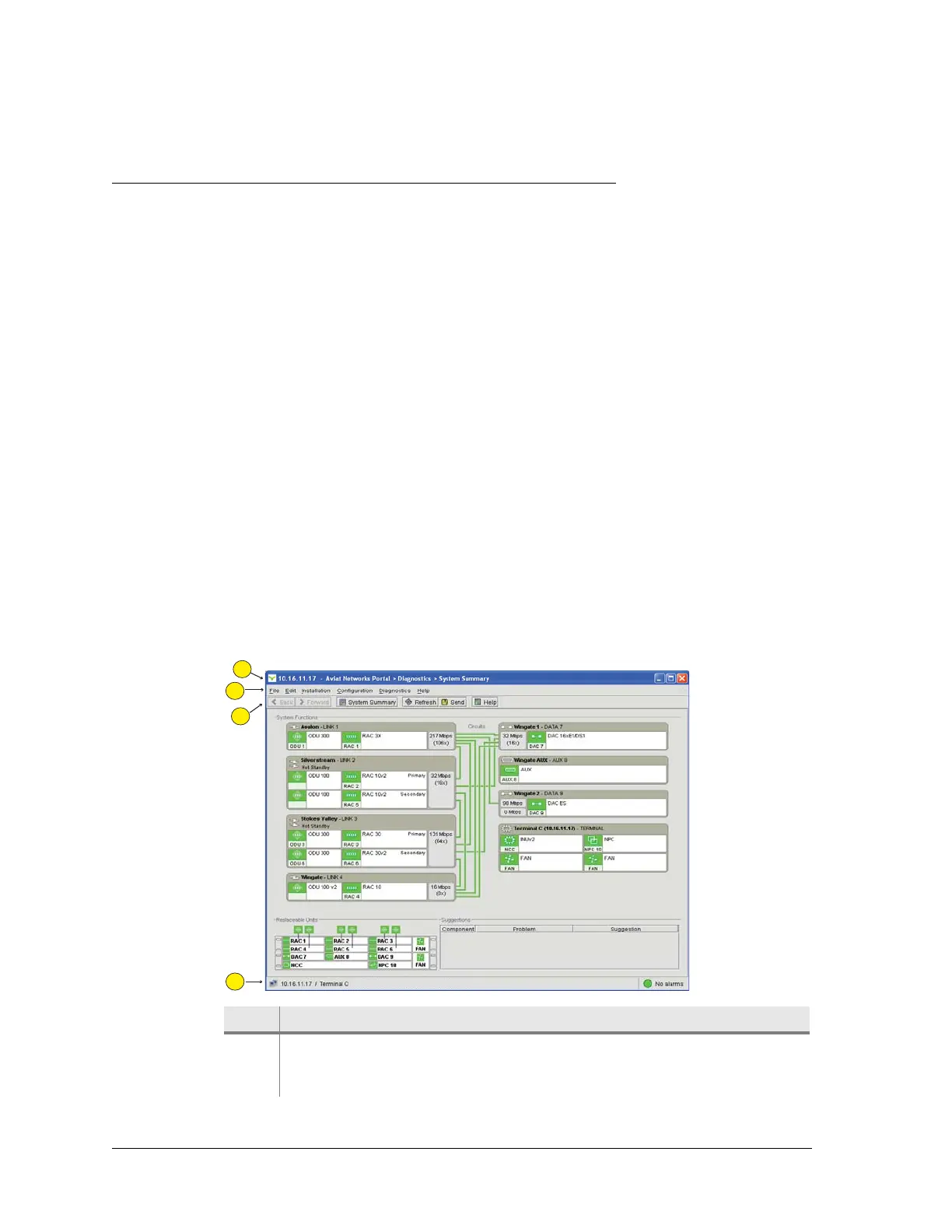
The Tool Bar, Menu Bar, and Status Bar are present on all screens.
With few exceptions a configuration change made in one screen will immediately
reflect through to all other affected screens - it is not necessary to click Send to
confirm a change made in one screen to see its affect in a related screen or screens.
Each Portal screen is read from the radio, with the read action on a
per-screen-opened basis. During an opening (read) or sending (write) action a
progress indicator shows the read/write status. Once a screen is opened it stays open
and is immediately readable for the duration of the Portal session.
Figure 4-1. Example Portal Screen
Item Description
1 Selected screen. Identifies the IP address for the terminal and the opened
screen. In this example it is the System Summary screen, which is a
Diagnostics screen.



 To Next Page