32 Aviat Networks
Chapter4. Eclipse Edge Configuration and Diagnostics
• The file is not user accessible. It captures relevant configuration, status and historical
log data in a format that is solely for use by Aviat Networks’ helpdesk personnel in
troubleshooting.
• When reporting a problem on a terminal to a Aviat Networks helpdesk you may
be asked to save and forward this file.
• Report data is always current to the time of saving to your PC - no action is required
to put data into the helpdesk data file.
• If a terminal is rebooted (power off - pause - power on) all historical data is lost. This
loss can be prevented where a reboot is required by using the software reset function;
see Advanced Management on page 115. A software reset emulates a hard reset
(reboot) but at the time of reset it automatically saves the helpdesk data file to
C:\Program Files\Portal\Reset Logs\ on your Portal PC.
The Reports Screen
Refer to:
• As Built Report on page 32
• Helpdesk Data File on page 34
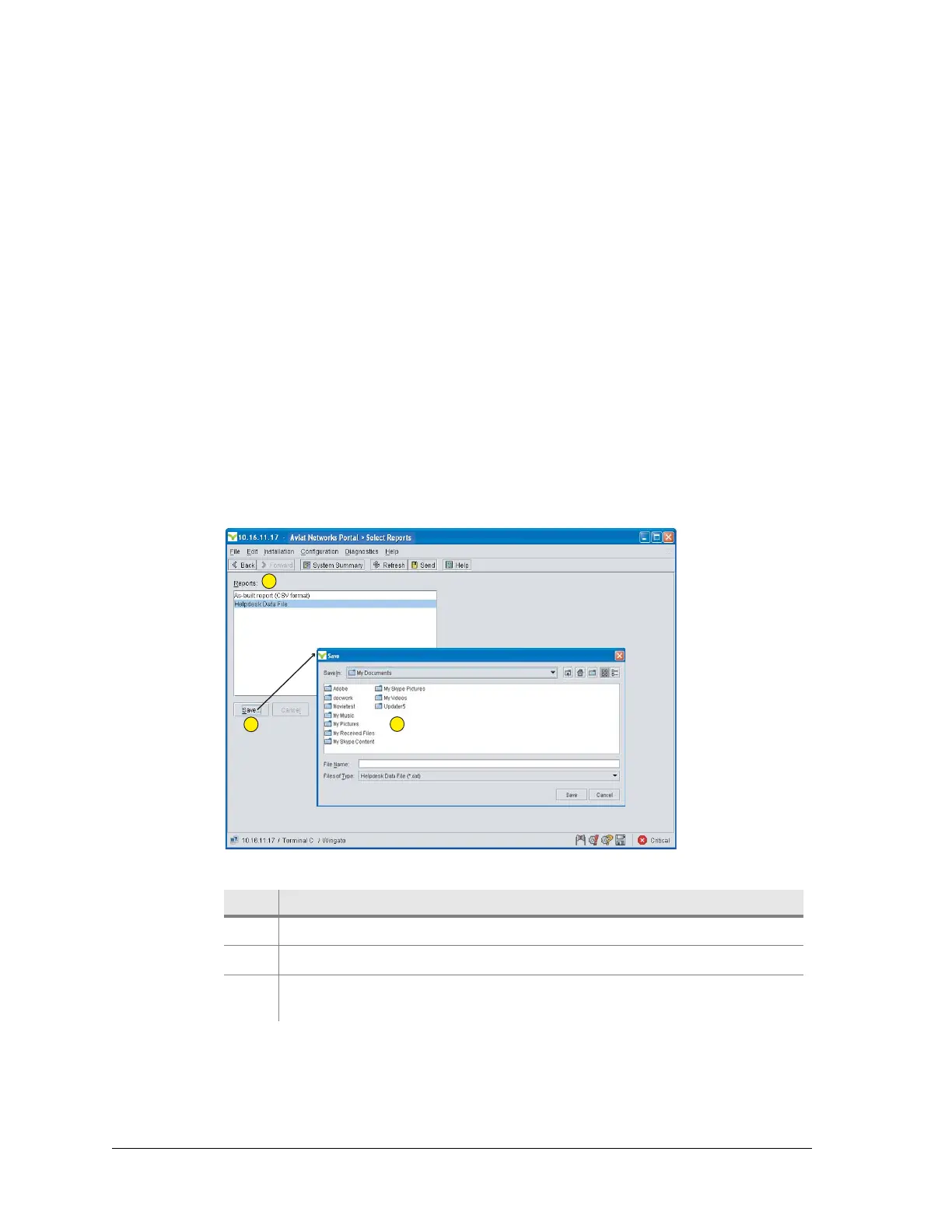
Figure 4-5. Reports Screen
Table 4-5. Reports Screen: Navigation
As Built Report
Once saved to your PC the report can be opened for viewing and editing in Excel.
There are both defined, and not-defined entries:
Item Description
1 Click to select the required report type.
2 Click Save to open a Browser on your PC.
3 Select an appropriate directory, enter a file name and click Save within
the Browser window.
1
2
3



 To Next Page