3-4 User Manual
3.3.1 Navigation Tool Bar
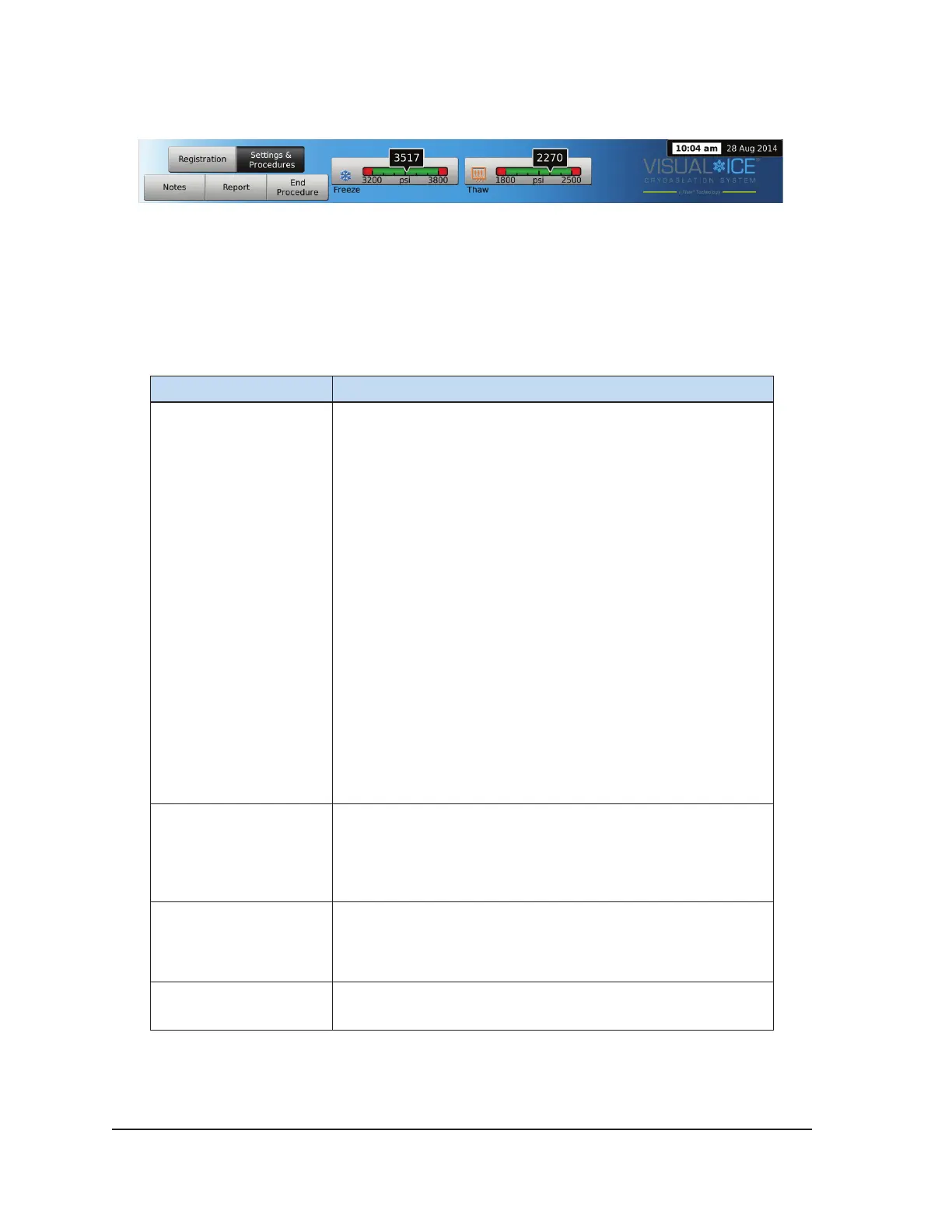
Screen 3-4. Navigation Tool Bar
The Navigation Tool Bar contains the Pressure Gauge / Gas Indicator and procedure buttons that
you can select to enter registration information, congure procedure settings, enter procedure notes,
view and export reports, and end the procedure. On occasion, error messages may be displayed in
lieu of the logo.
Table 3-2. Navigation Tool Bar
Button Description
Pressure Gauge / Gas
Indicator
Displays the working pressure of the argon and helium gases
within the system.
NOTE: The Visual-ICE System contains internal regulators
that regulate the gas pressure to appropriate working limits.
The pressure displayed on the Gas Indicator is the internal,
regulated pressure and not the cylinder gas pressure.
Pressing the Pressure Gauge toggles the pressure gauge
to display the estimated procedure time remaining before
the gas cylinders are depleted. The estimated times are
displayed in hours:minutes:seconds. During needle testing,
both pressure gauges display the estimated time remaining.
The initial estimates during needle testing are based on
the assumption that all connected needles are operating
simultaneously at 100% freeze intensity.
The Gas Indicator updates in real-time as needles are
disconnected or additional needles are connected and as
the freeze intensity is adjusted. Pressing the Gas Indicator
toggles the display back to Pressure Gauge.
Registration Provides optional data entry elds to record Patient ID,
Hospital Name, Hospital Address, Physician Name, and
Organ Type. Two custom elds are provided for additional
information. The names of the custom elds can be specied
in the Congure Settings screen (reference Section 5.1)
Notes A location to input text. Selecting this button displays the
on-screen keyboard for data entry. Procedure notes entered
in this location are included in the procedure report (reference
Section 3.2).
Settings and
Procedure
Displays the Procedure Screen to begin a cryoablation
procedure.


 To Next Page