Strike mark on the fixing roller due to toner soiling
[Symptom]
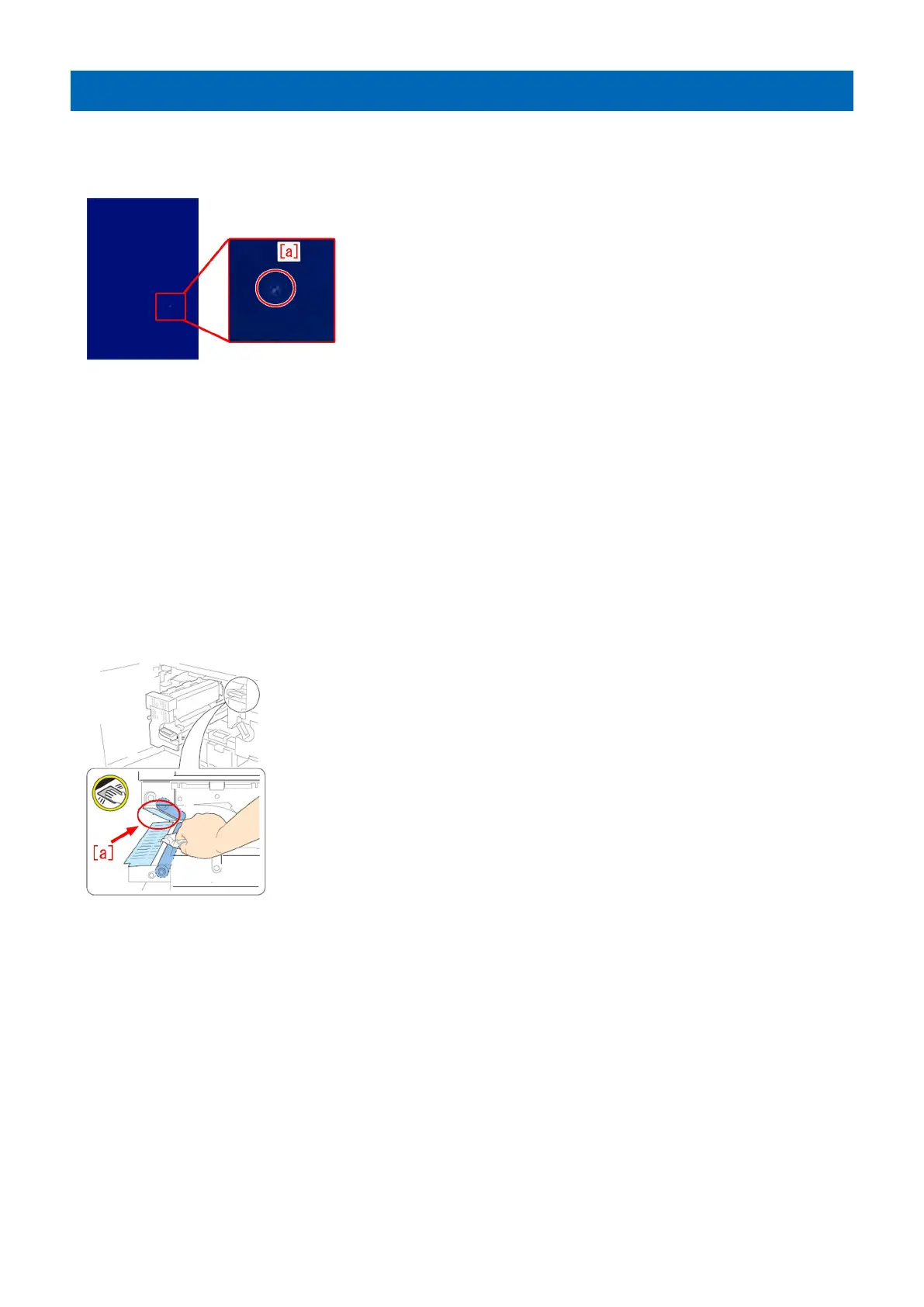
Strike mark [a] may appear on the image. The symptom is easily found on a high density image such as halftone or solid image.
[Cause]
When printing, the upper tandem guide and paper interfere with each other. As a result, toner peels from the paper and
accumulates on the upper tandem guide. The above symptom may occur when a toner lump accumulated on the upper tandem
guide peels and falls, and then is transferred by paper and finally attaches to the secondary fixing roller.
[Service work]
1) Follow the steps in Service Manual "Disassembly / Assembly > Fixing System > Replacing the Secondary Fixing Roller,
Replacing the Secondary Fixing External Heat Belt, Replacing the Secondary Fixing Refresh Roller" and replace the Fixing Roller
(FL1-1152-000), the External Heat Belt, (FE3-1881-000) and the Refresh Roller Assembly (FM3-2876-000) in the Secondary
Fixing Assembly.
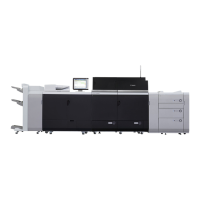
2) Check the upper tandem guide [a] and if toner is attached, follow the steps in Service Manual "Disassembly / Assembly >
Fixing System > Cleaning the Tandem Guide" and wipe the toner with lint-free paper soaked in alcohol.
3) Output the image having shown the symptom, and check that the symptom does not occur.
[Reference] At the time of regular replacement of the secondary fixing roller, check the upper tandem guide and wipe the toner
if any is attached.
[Service part]
FL1-1152 ROLLER, FIXING
FE3-1881 BELT, FIXING EXTERNAL HEAT
FM3-2876 ROLLER, REFRESH ASSEMBLY
25




 To Next Page