Vertical lines due to cross feed roller pressure
[Symptom]
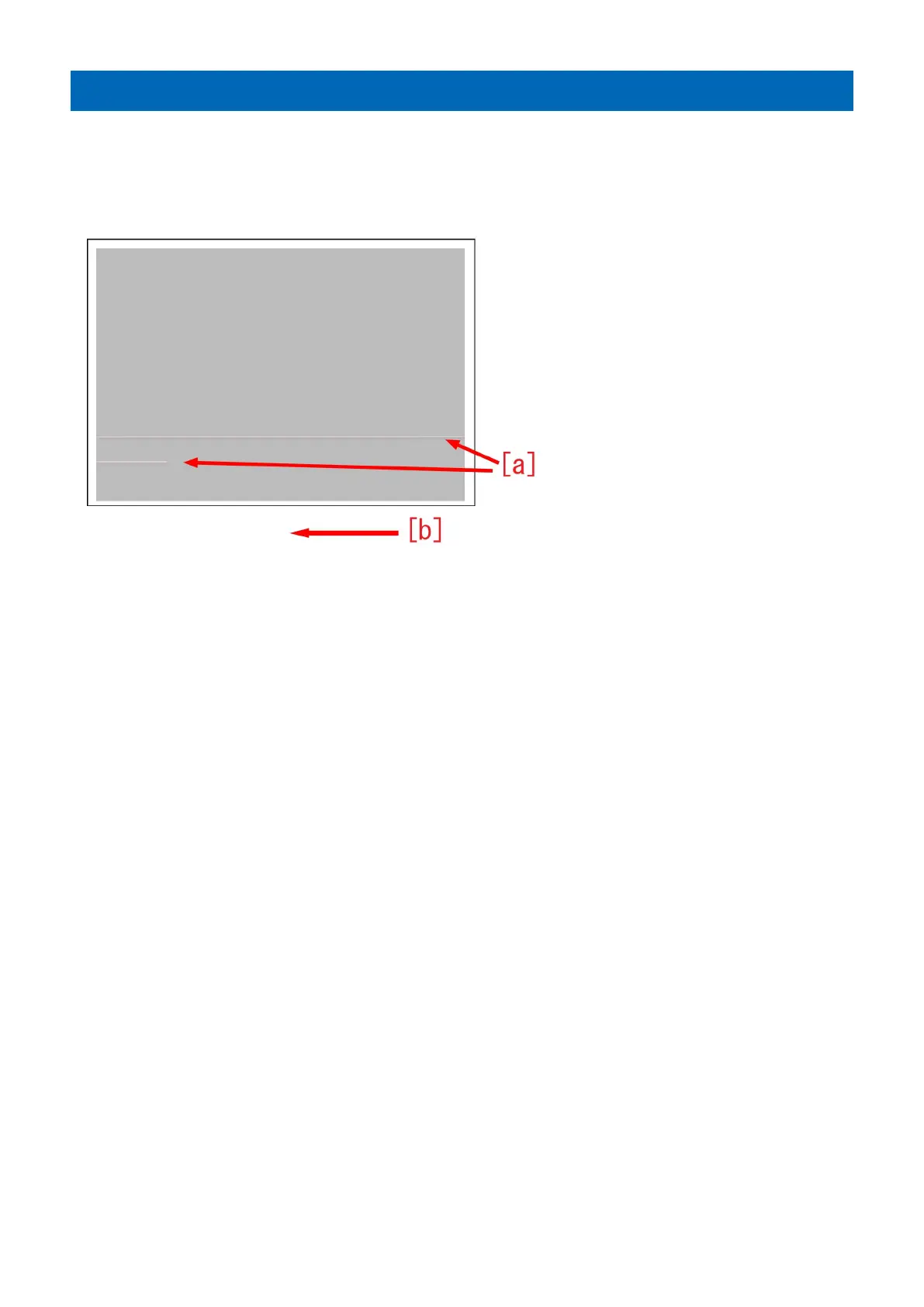
When printing the second side of 2-sided print, vertical lines may appear on the first side at 21mm and 31mm [a] from the front
edge.
The arrow [b] indicates the direction of feeding.
[Cause]
Fused toner on the first side is peeled by the cross feed roller when the second side is printed, resulting in the above symptom.
The symptom tends to occur with half tone images.
[Service work]
1) Have the customer log in from System Management Mode in user mode.
2) Go to Settings/Registration > Preferences > Paper Settings > Paper Type Management Settings. Select the type of paper to
edit from the list and press [Details/Edit].
[Note] Only duplicated paper type can be edited. If the applicable paper type cannot be found, make a duplicate copy.
3) Select "Adjust Image Position "and preferences "Change".
4) Select [Do Not Use Scanner] in <Adjust Image Position: Select Method>.
5) Press [Skew Correction Level Adjustment] in "Adjust Image Position" and set the value to -2 for "back side".
Press "OK". The configurable range is from -2 to +2. (Default 0)
6) Print the image which had the issue and ensure that the symptom does not occur. If no improvement is seen, proceed to the
step 7).
7) Follow the steps up to the step 2). Select "Adjust Gross/Fine Black" and press "Change".
8) Set "Gross" to +4 and press "OK".
The configurable range is from -4 to +4. (Default 0)
9) Print the image which had the issue and ensure that the symptom does not occur. If the symptom does not improve, look into
other causes.
[Note] If any abnormality is seen such as jam and skewed paper feed , return the value changed in the step5) back to original
27




 To Next Page