SERVICE PROCEDURES 86
Fan
A fan mounted inside the imagePRESS Server chassis draws air into the imagePRESS Server
to cool components. The fan runs continuously when the system is on. You should hear the
fan start as soon as you power on the imagePRESS Server. If you do not hear the fan, there
may be a faulty power connection (see page 49).
The following procedures describe how to remove and replace the fan.
TO REMOVE THE FAN
1. Shut down, and then open the imagePRESS Server (see pages 49 and 51).
To access the fan, you must remove the left panel.
2. Remove the fan cable from motherboard connector FAN 4.
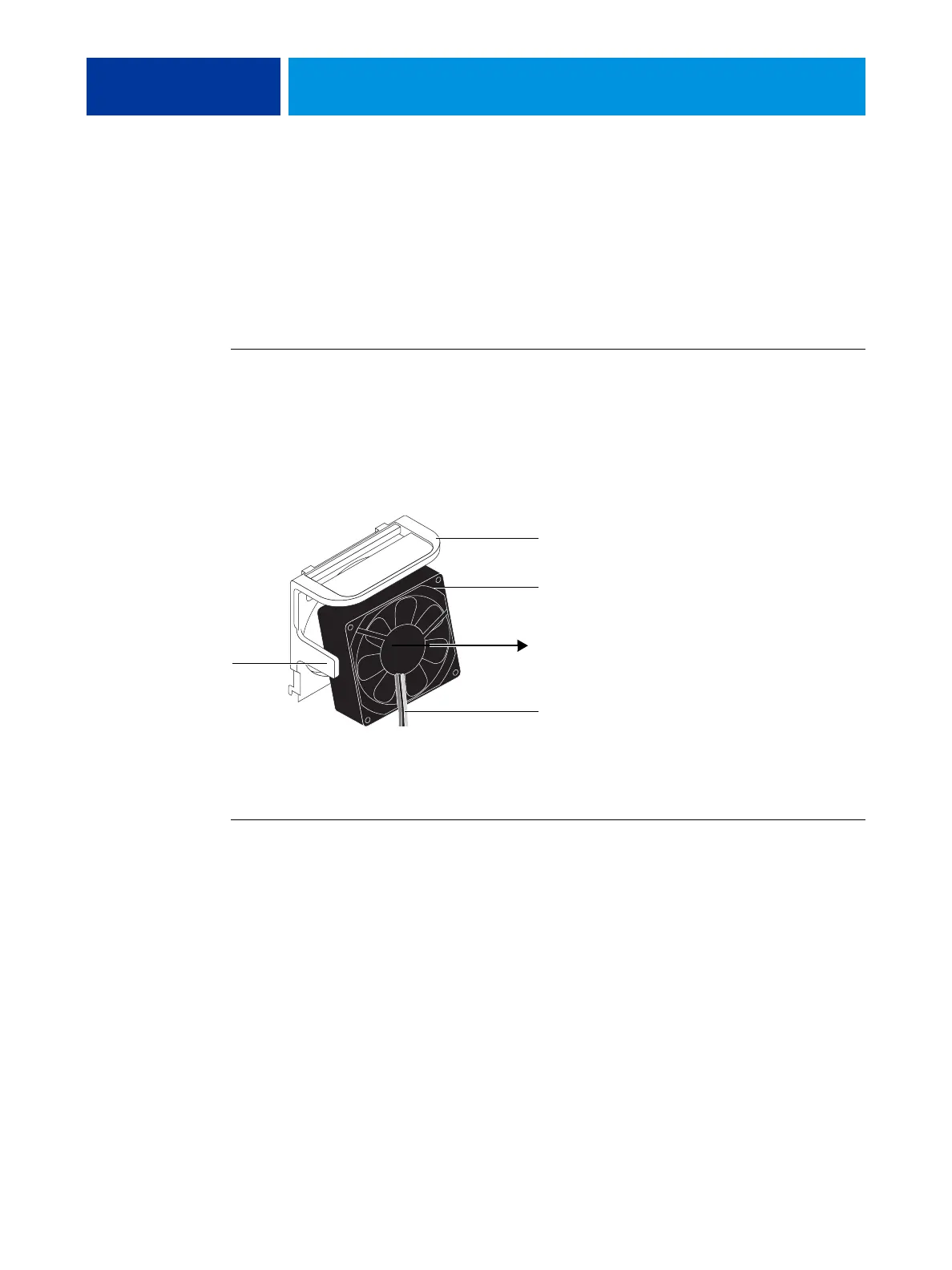
3. Release the fan from the fan bracket by bending the hooks on the bracket.
FIGURE 31: Removing the fan
4. Remove the fan from the chassis.
TO REPLACE THE FAN
1. Align the fan.
An arrow on the side of the fan indicates the airflow direction. Make sure that the fan is
positioned so that the arrow points inside the imagePRESS Server and the fan cable extends
downward toward the motherboard (see Figure 31).
2. Press the fan into the bracket until it clicks into place.
Make sure that the hooks on the bracket close over the edge of the fan.
3. Connect the fan cable to motherboard connector FAN 4.
4. Reassemble the imagePRESS Server and verify its functionality (see page 104).
Hook
(1 of 2)
Fan
Fan bracket
Air flow direction
Fan cable extending downward




 To Next Page