● When you insert the paper drawer with <Notify to Check Paper Settings> set to <On>, a conrmation screen
is displayed. Notify to Check Paper Settings(P. 715)
6
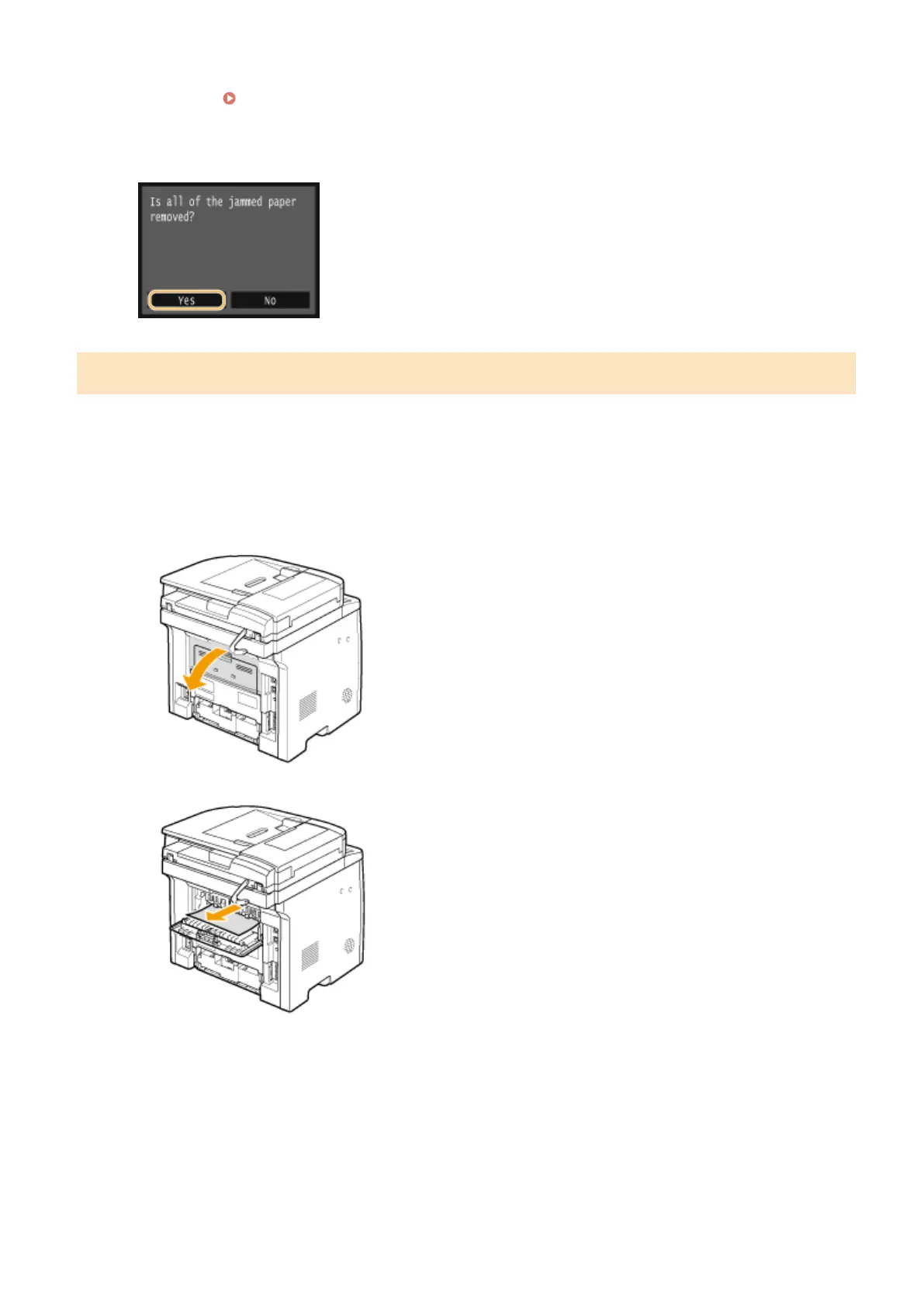
When the following message is displayed, tap <Yes>.
Paper Jams in the Back Side
Do not forcibly remove jammed paper from the machine. If the jammed paper cannot be removed easily, proceed to
the next step.
1
Remove the jammed paper inside the upper rear cover.
1
Open the upper rear cover.
2
Gently pull out the paper.
3
Close the upper rear cover.
2
Remove the jammed paper in the duplex unit.
1
Open the lower rear cover.
Troubleshooting
732








 To Next Page