Insert Tab Sheets to Divide Your Document
Introduction
If you want to use tab sheets to create a physical division in your document, you must treat the
copy job as a combined copy job. The tab sheets will be processed as inserts.
Before you begin
• Make sure that you split up your original document into the parts (subsets) that must be
preceded by tab sheets.
• Make sure that you load the required tab sheets into a paper tray or into the optional inserter
module.
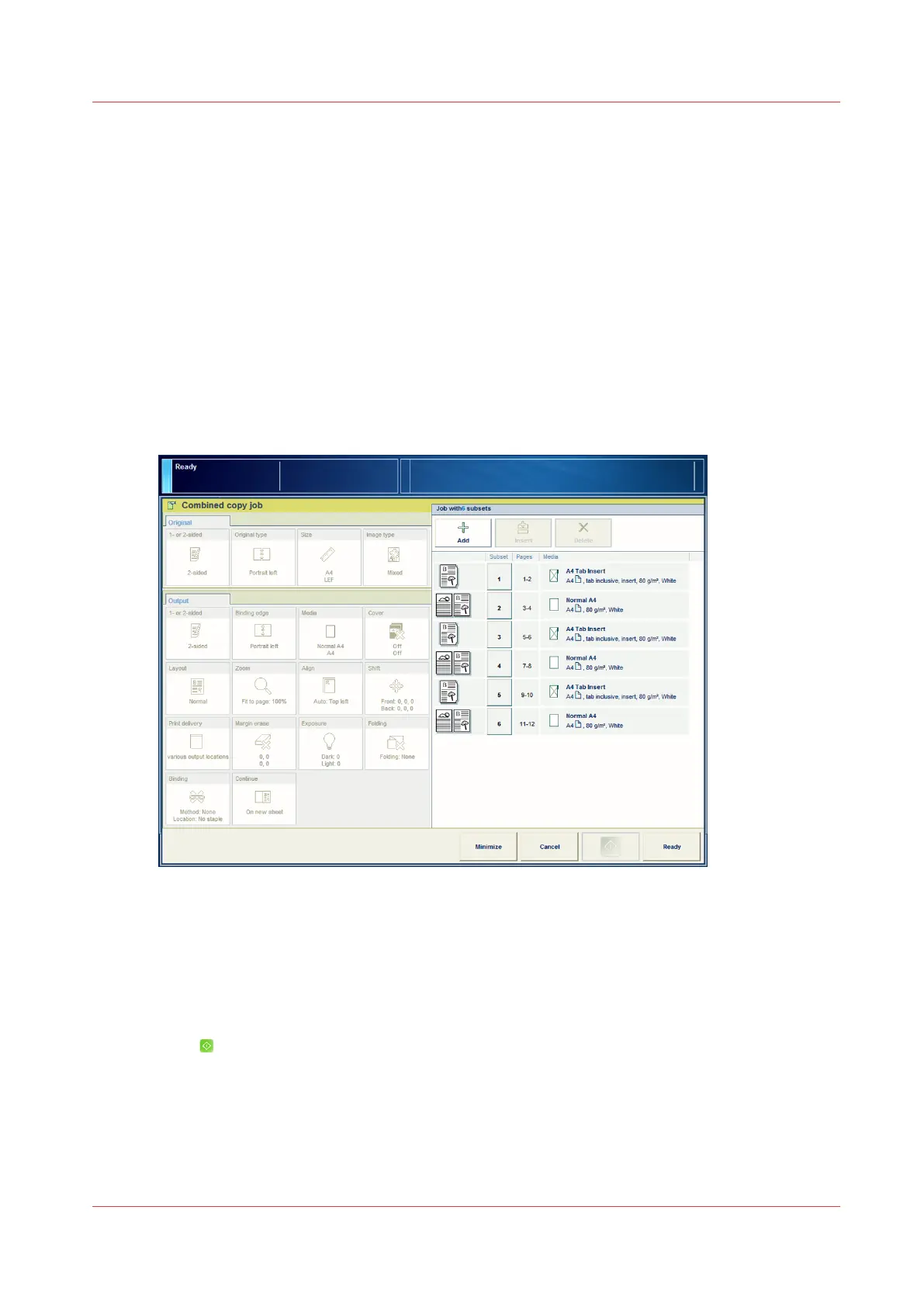
Illustration
[48] Insert tab sheets
Procedure
1.
Place the first subset face up into the automatic document feeder (ADF), or place one original face
down on the glass plate.
2.
On the control panel, touch [Jobs] -> [Copy/Scan] -> [Combined copy job].
3.
Define the settings for the subset (both in the [Original] and [Output] section).
4.
Press
.
5.
Place the next subset face up into the ADF, or face down on the glass plate.
6.
Repeat the steps three and four for all subsequent subsets.
7.
Touch [Ready] when all subsets were scanned.
8.
Press [Edit].
A preview pane displays the scanned subsets.
9.
Touch the subset before which you want to insert the first tab sheet.
Insert Tab Sheets to Divide Your Document
Chapter 7 - Carry Out Copy Jobs
243
Canon varioPRINT 135 Series








 To Next Page