Adjust the Brightness and Contrast of the Control Panel
Introduction
You can adjust the brightness and contrast of your monitor to improve the readability of the
control panel. The required brightness and contrast settings can depend on the lighting in your
room, for example.
Setting Description
[Auto adjust] The screen of the control panel will automatically set the correct
ratio of brightness and contrast.
[Brightness] You can increase or decrease the brightness from level 20 to 100
in steps of one. The higher the value, the higher the brightness.
[Contrast] You can increase or decrease the contrast from level 10 to 100 in
steps of one. The higher the value, the higher the contrast.
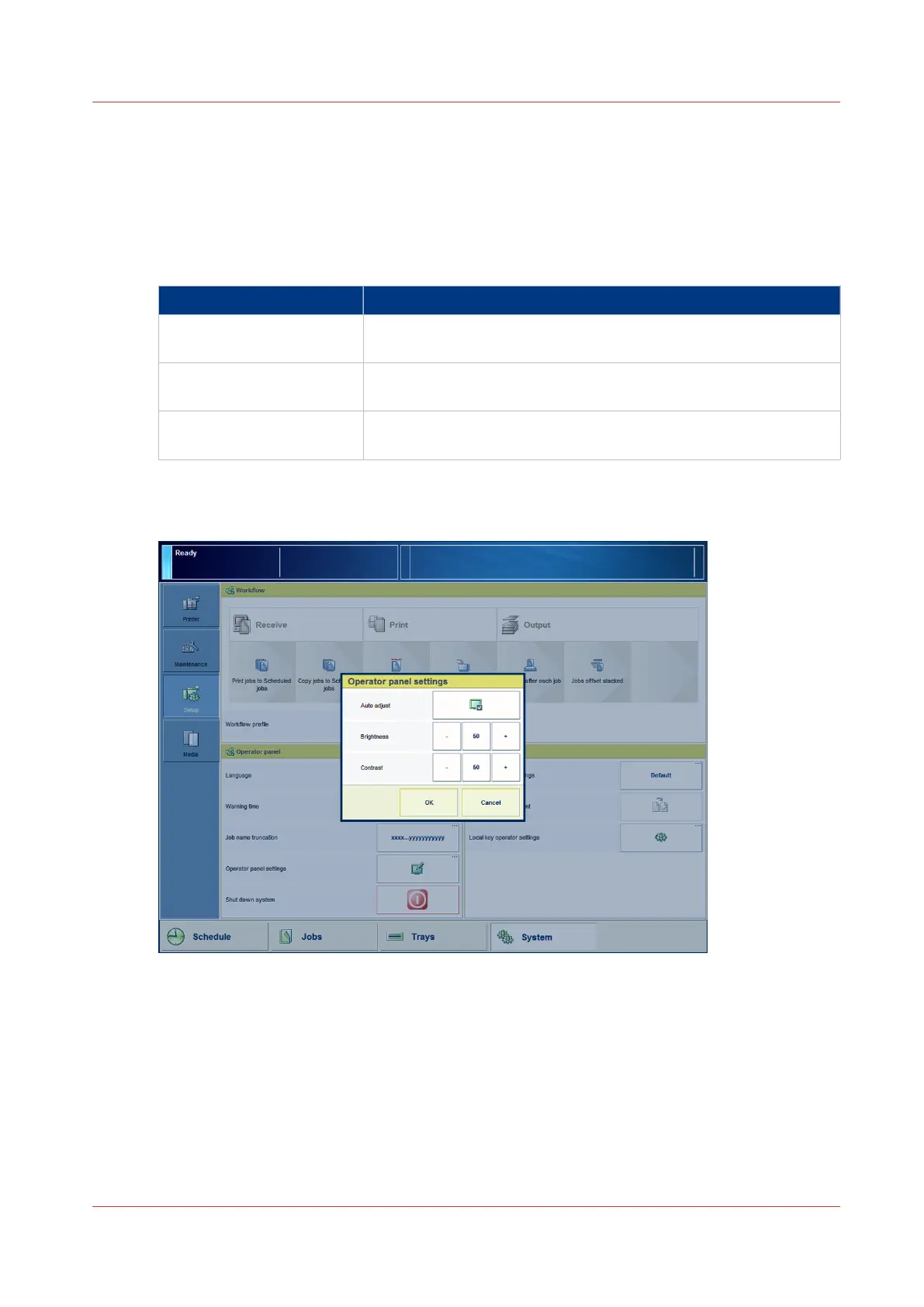
Illustration
[17] Adjust brightness and contrast
Procedure
1.
On the control panel, touch [System] -> [Setup] -> [Operator panel settings].
2.
Touch [Auto adjust] to optimize the brightness and contrast of the screen automatically.
3.
Touch [OK] when the brightness and contrast are OK, or continue with the steps below when
these settings are not yet OK.
4.
Touch '-' to decrease or '+' to increase the [Brightness].
5.
Touch '-' to decrease or '+' to increase the [Contrast].
6.
Press [OK].
Adjust the Brightness and Contrast of the Control Panel
Chapter 4 - Adapt Printer Settings to Your Needs
51
Canon varioPRINT 135 Series








 To Next Page