LPOD Outdoor Amplifier / Block Up Converter (BUC) Revision 9
Updating Firmware MN-LPOD
3–4
D. Obtain the firmware information via one of the following methods:
• If using serial remote control, you may use the terminal emulator program or the
CLC-10 to execute remote commands and queries with the LPOD. The firmware
revision levels can be obtained with the following remote queries:
o Abbreviated: <0/SWR? (returns basic Boot, Bulk1 and Bulk2 information)
or
o Detailed: <0/FRW? (returns complete Boot, Bulk1 and Bulk2 information)
See Chapter 5. SERIAL-BASED REMOTE PRODUCT MANAGEMENT for more
information on using remote commands/queries.
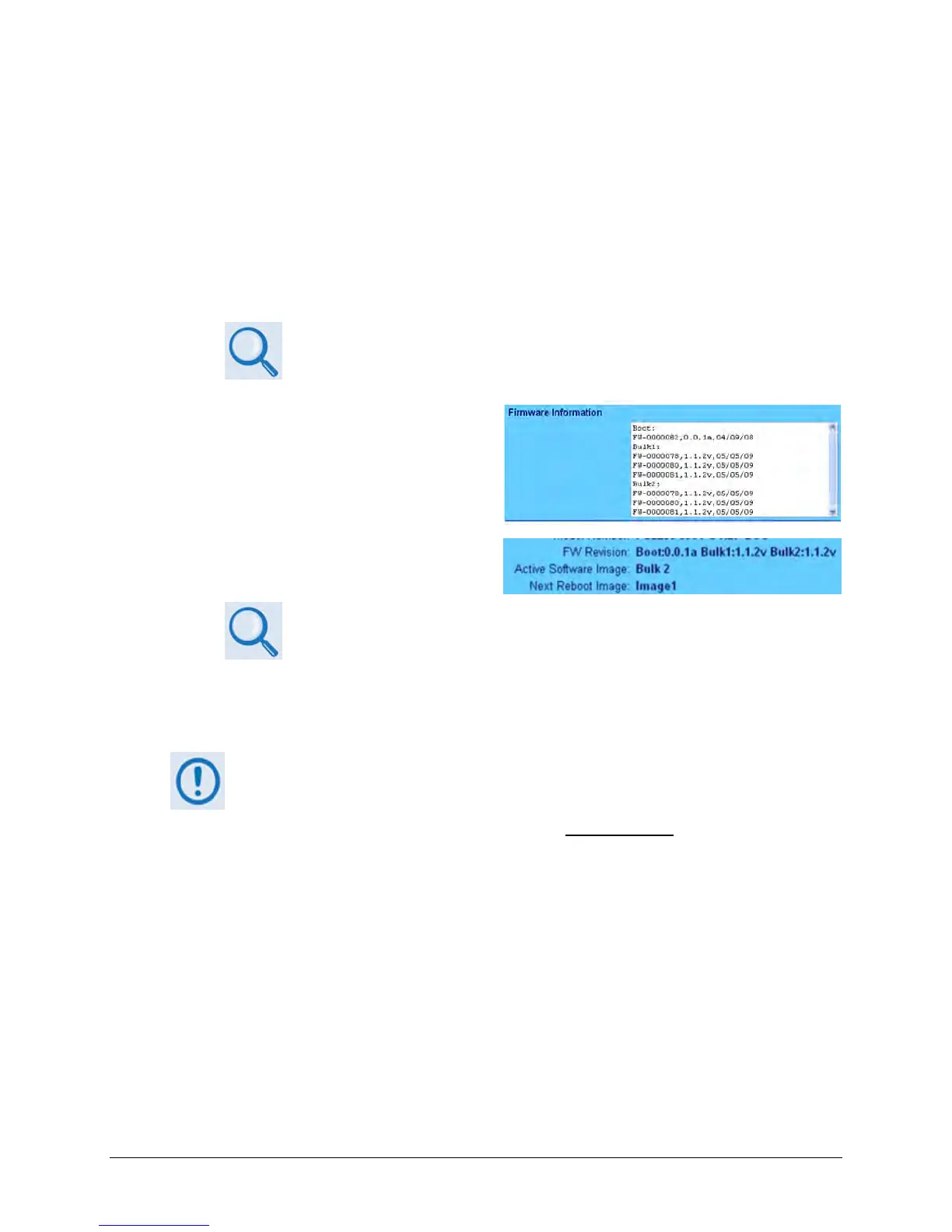
• If using the Web Server Interface, the
Bootrom, Image1 and Image2
firmware loads may be viewed using
the Firmware Information section of
the ‘Config | Utility’ page, or the
‘Status | Status’ page.
See Chapter 4. ETHERNET-BASED REMOTE PRODUCT MANAGEMENT for more
information on using the LPOD Web Server Interface
2. Next, create a temporary folder (subdirectory) on the user PC for the firmware archive
download.
• Drive letter ‘c:’ is used in these examples. Any valid, writable drive letter can be
used.
• Typical for all tasks: Type the command without quotes, and then press Enter to
execute.
There are several ways the user may use create a temporary folder on a Windows-based PC:
A. Use the Windows Desktop to create and rename the temporary folder.
• Right-click anywhere on the desktop to open the popup submenu, and then select
New > Folder to create the new, temporary folder on the desktop.
• Right-click on the new folder and then select ‘Rename’ from the popup submenu.
Rename this folder to "temp" or some other convenient, unused name.


 To Next Page