18
Press the u button on the remote control or move the cursor to the right of the screen to display the timeline.
Double-click the timeline to move to the video screen. Drag and drop it to make backup or event search for the speci ed area.
Right click on a channel to display the quick menu
ITEM Description
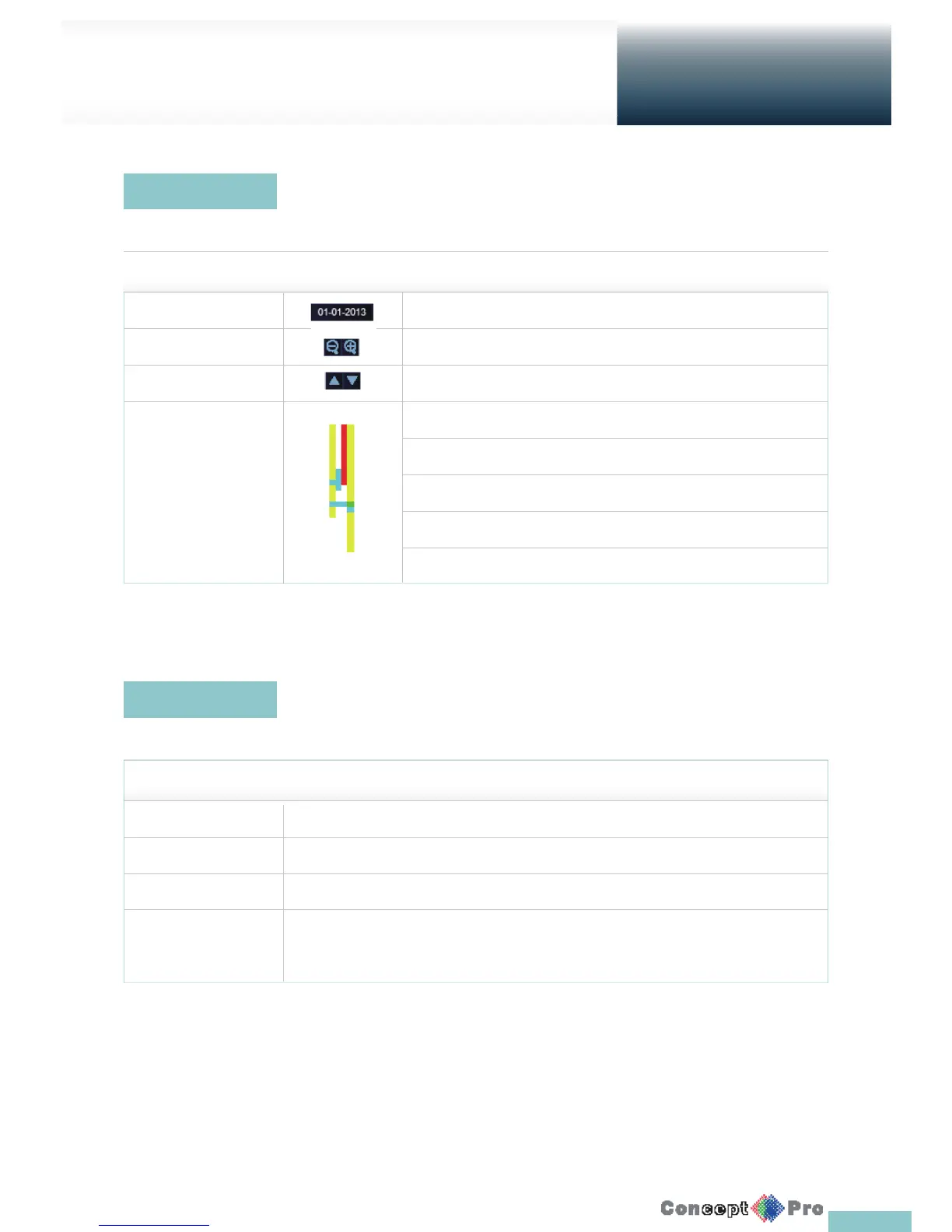
Timeline Date Display the date of the current timeline. Click this to select a desired date of the timeline.
Expand/Collapse the timeline Expand or collapse the timeline.
Navigation through Timeline Navigate through the timeline, or use the mouse wheel.
Timeline Bar Display the recording data. The colour of each bar indicates the following:
Green: Continuous Recording
Red: Alarm Recording
Blue: Motion Recording
Yellow: Panic Recording
Timeline
Quick Menu
Live Screen at a glance
Getting
Started
ITEM Description
Channel No Display the number of the current channel.
Play Start playing the video of the selected channel from the speci ed time.
Zoom Operates (digital) zooming on the selected channel.
Snapshot Capture Capture a snapshot of the current video in a .jpeg format.
R Then, you can save the captured video in the HDD or export it to an external USB memory device.



 To Next Page