47
Disk Information
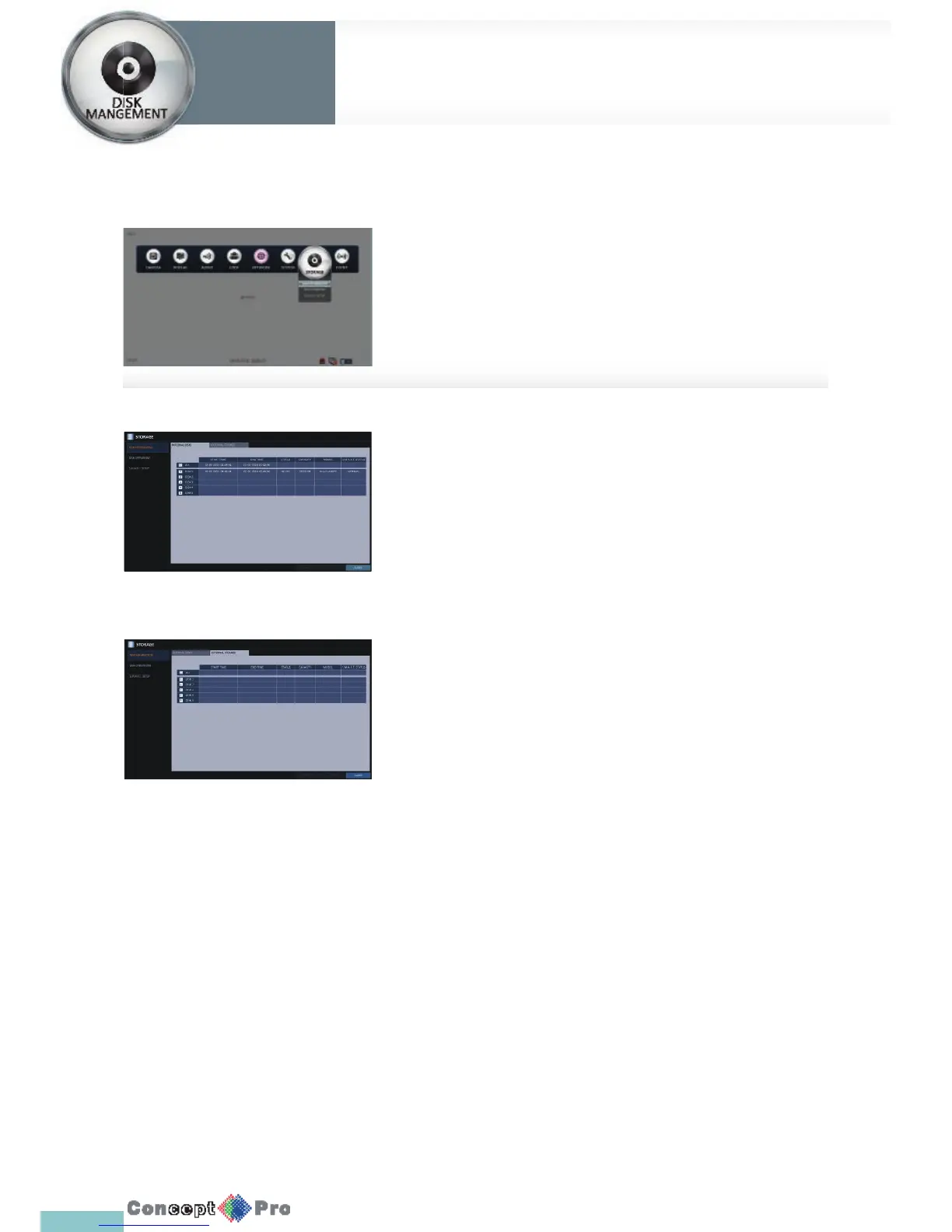
Show information about the connected HDDs.
1. From <SYSTEM SETUP> - <STORAGE>, select
<DISK INFORMATION >.
2. Use the [pqtu/ENTER] buttons on the remote control or use
the mouse to select either <INTERNAL DISKS> or <EXTERNAL
STORAGE>.
Please check the status for each connected device.
> START / END TIME: show the start time and end time of data
stored in each HDD.
> STATUS: Check if the connected HDD is being used by the
VXH960. If you encounter a problem with the HDD, the VXH960
will terminate the connection to the HDD and mark it as ‘Not In
Use’.
> CAPACITY: Show the capacity of the HDD.
> MODEL: Indicate the HDD model number
> S.M.A.R.T STATUS: Read the S.M.A.R.T information of the HDD
and check to display if the current HDD is in normal operation.
- NORMAL: The HDD is in a normal state.
- CHECK: The HDD has an error, contact your service provider.
It is recommended that you replace the HDD immediately
If you leave the problem unresolved, it may stop recording
- ERROR: The HDD fails or is unable to be used due to an
error of the HDD or the cable. The HDD should be replaced
immediately.
Contact your service provider immediately.
3. When done, press the [EXIT] button on the remote control or click
<CLOSE> in the lower screen to return to the previous menu.
You can con gure the settings and view the information of the disk and
external storage devices.
System
Settings
Storage
System
Settings



 To Next Page