57
Record
> PANIC RECORD START EVENT: Specify the action to
perform when the panic recording begins.
System Event
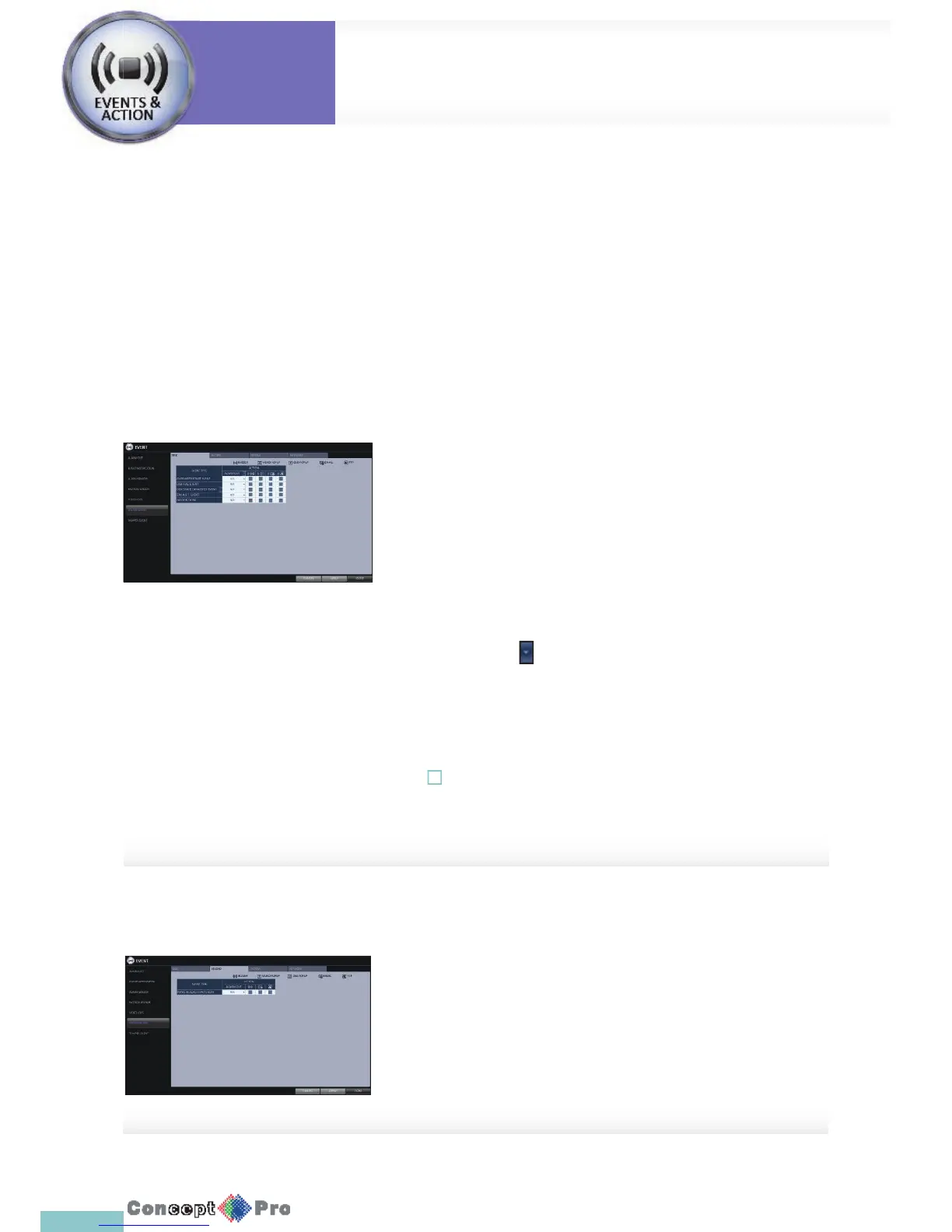
You can set any action to an event related to the disk, recording, network or system. Like the other events, you may notify the event to
the user using the alarm/buzzer output,OSD pop-up or email.
1. From <SYSTEM SETUP> - <EVENT>, select <SYSTEM EVENT>.
2. Use the [pqtu] buttons on the remote control or use the mouse to specify the reaction to each event.
3. To apply the change, click <APPLY > in the bottom of the screen.
4. When done, press the [EXIT] button on the remote control or click <CLOSE> in the lower screen. The con rmation message appears
and you will return to the previous menu.
Disk
> OVERWRITE START EVENT: if you set the disk write mode to
<OVERWRITE>, this event occurs when the disk is full and the
overwriting begins accordingly.
> DISK FULL EVENT: if you set the disk write mode to <ONCE>,
this event occurs when the disk is full (100%).
> DISK SPACE EXHAUSTED EVENT: Event that is triggered if the
disk is almost full.
Click to specify the threshold percentage of usage to trigger
the event.
> S.M.A.R.T EVENT: Occurs if the disk causes the S.M.A.R.T error.
> NO DISK EVENT: Occurs if no disk is recognized after the booting
due to a disk failure or cable problem.
! To detect the disk error, it is recommended not to change the settings of
the S.M.A.R.T event, no disk event and buzzer output
System
Settings
Event Setup
System
Settings



 To Next Page