37
Management
You can add a user account(s) that can be edited at a later time.
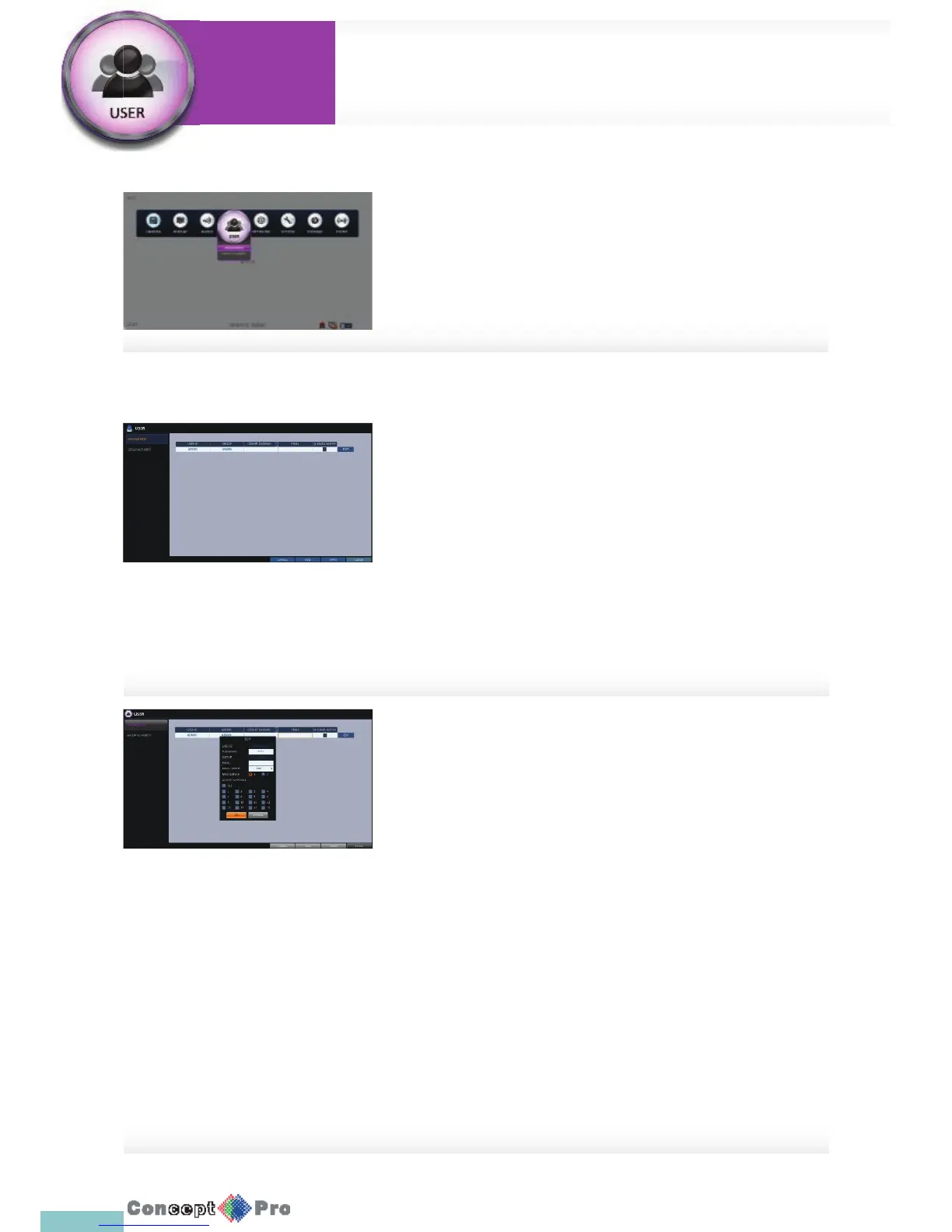
1. From <SYSTEM SETUP> - <USER>, select <MANAGEMENT>.
2. Use the [pqtu/ENTER] buttons on the remote control or use the
mouse to add a user account or select an item that you want to edit.
3. To apply the change, click <APPLY> in the bottom of the screen.
4. When done, press the [EXIT] button on the remote control or click
<CLOSE> in the lower screen. The con rmation message appears and
you will return to the previous menu.
To add a user account
1. Click <ADD> in the bottom of the screen.
2. Use the [pqtu] buttons on the remote control and move to a desired
item. Then, press [ENTER] to select the item.
> USER ID: enter the user ID using the virtual keyboard.
> PASSWORD: With the virtual keyboard, enter the password.
> EMAIL: Type in the e-mail address to which you will receive
noti cation of an event if it occurs.
> EMAIL NOTIFY: Choose whether you will receive noti cation of an
event if it occurs.
R To use <EMAIL NOTIFY>, To con gure the email server go to page
41 <EMAIL>
> COVERT CHANNEL: You can set the channel to be
hidden from a speci c user.
R <COVERT CHANNEL> option hides the video of the selected
channel from being displayed on the screen.
3. When done, click <OK>.
The added user account will be listed.
You can con gure the user management settings and the user/group
permissions.
User Settings
System
Settings



 To Next Page