28
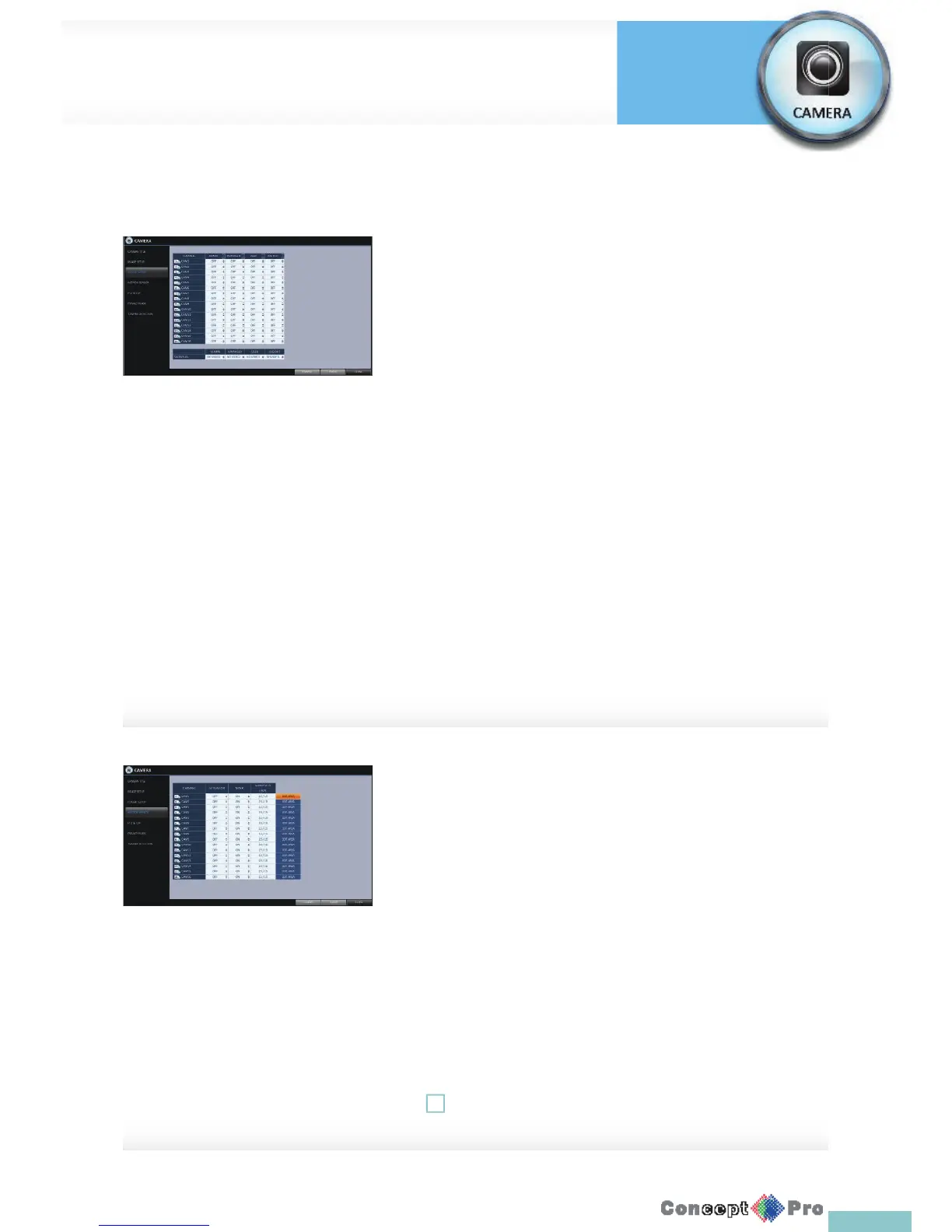
Covert Setup
You can set the VXH960H to hide the video so that a speci c user’s or user
group’s can not view it. Set the channel(s) that you want to hide from a
speci c user or user group.
1. From <SYSTEM SETUP> - <CAMERA>, select <COVERT SETUP>.
2. Use the [pqtu/ENTER] buttons on the remote control or use the
mouse to select a covert channel(s) from a speci c user group.
> ADMIN, MANAGER, USER: Set them to <ON>.
The selected channel will be covert from the applicable user
account.
> LOG OUT: Set it to <ON>. When the user logs out, the current
channel will be set to a covert channel.
> SHOWN AS: Sets how a <COVERT> channel will be displayed on
the monitor.
- No Video: Nothing is displayed on the monitor for the
<COVERT> channel as if it is not connected to a camera.
- COVERT: Hides only the live monitoring.
3. To apply the change, click <APPLY> in the bottom of the screen.
4. When done, press the [EXIT] button on the remote control or click
<CLOSE> in the lower screen. The con rmation message appears and
you will return to the previous menu.
Motion Sensor
Set the motion sensor of the camera so that it can detect a motion event.
1. From <SYSTEM SETUP> - <CAMERA>, select <MOTION SENSOR>.
2. Use the [pqtu/ENTER] buttons on the remote control or use the
mouse to specify the use of each option item.
> ACTIVATION: turn on or off the motion sensor.
> MARK: Set to <ON> to display the motion detection indicator on
each video tile where applicable.
> SENSITIVITY: Set the sensitivity level of the motion sensor to
either Daytime or Nighttime.
> EDIT AREA: Specify the motion detection area.
3. To apply the change, click <APPLY> in the bottom of the screen.
4. When done, press the [EXIT] button on the remote control or click
<CLOSE> in the lower screen. The con rmation message appears and
you will return to the previous menu.
! The motion detection sensitivity may diff er depending on the
characteristics of the connected camera or the installation environment.
Camera Setting
System
Settings



 To Next Page