61
Manual Confi guration
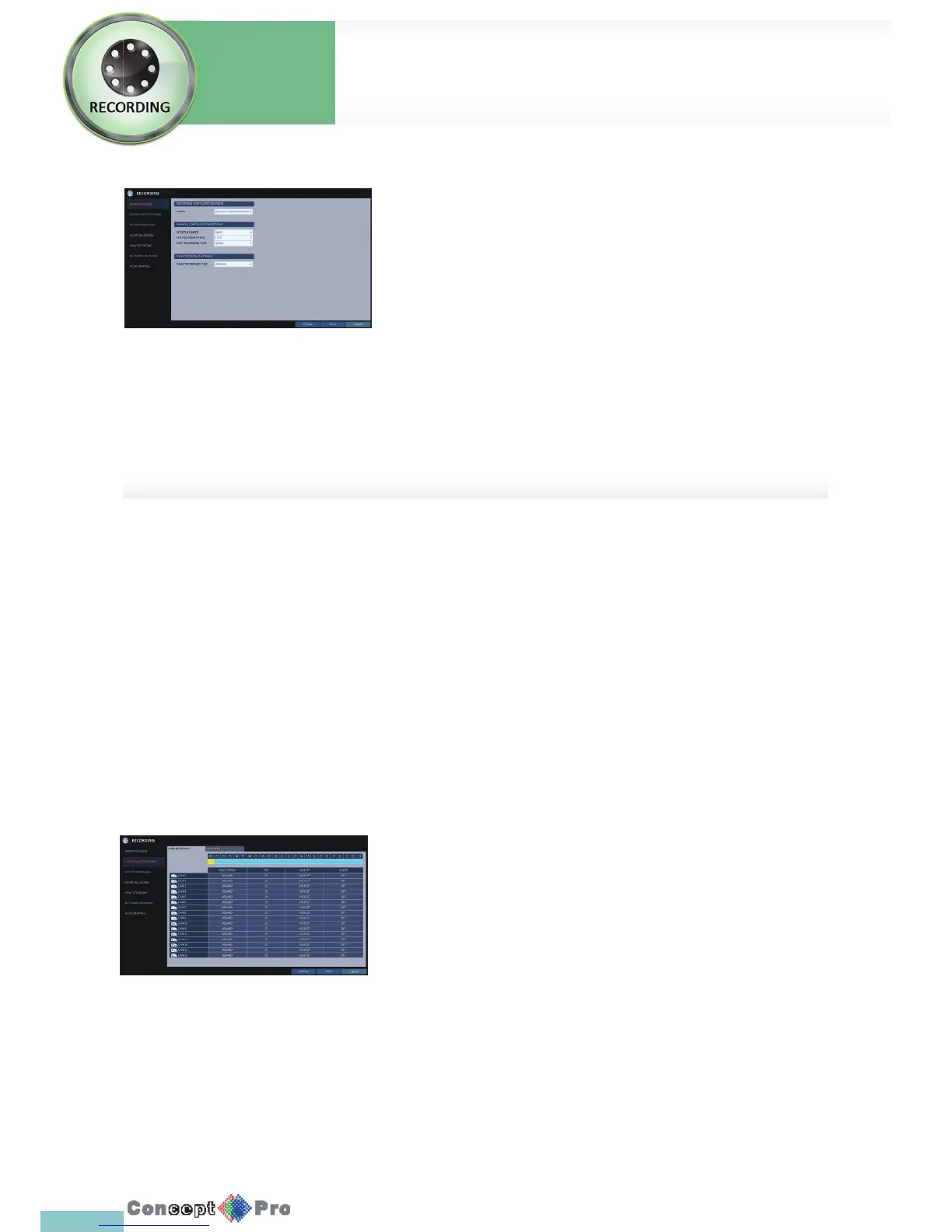
If you set the record mode to <MANUAL CONFIGURATION>, the manual
con guration window will appear where youcan set the manual recording
and panic recording options.
> MANUAL CONFIGURATION OPTIONS: You can con gure the
recording settings by the time, date, and channel.
- SCHEDULE MODE: Set the recording schedule for a day (daily)
or for a week (weekly).
- PRE RECORDING TIME: Set the pre-recording time.
- POST RECORDING TIME: Set the post recording time.
> PANIC RECORDING OPTIONS: Set the panic recording duration.
If it is set to <MANUAL CONFIGURATION>, recording will continue
until you turn it off manually.
Size/FPS/Quality Setting
1. Please select the day of the week to perform the continuous recording.
From <OPERATION MODE>, you must set the <SCHEDULE MODE> of
the <MANUAL CONFIGURATION OPTIONS> to <WEEKLY> before you
can specify the <DAY>.
2. Click a time cell from which you want to edit the SIZE/FPS/Quality and
drag it to a desired cell.
Or use the [pqtu] buttons on the remote control to move to the
cell and press [ENTER]. Then, use the [pqtu] buttons to move to a
desired cell and press [ENTER] again.
Continuous Recording
You can con gure the settings of: continuous recording time, recording size, frame rate per second and quality.
1. From the <RECORD SETUP> menu, select <CONTINUOUS RECORDING>.
R From <OPERATION MODE>, you must set <RECORDING CONFIGURATION MODE> to <MANUAL CONFIGURATION>
before you can set the <CONTINUOUS RECORDING>.
2. Use the [pqtu] buttons on the remote control or use the mouse to select either <SIZE/FPS/QUALITY> or <SCHEDULE>.
System
Settings
Record Setup
Record
Settings



 To Next Page