32
OSD
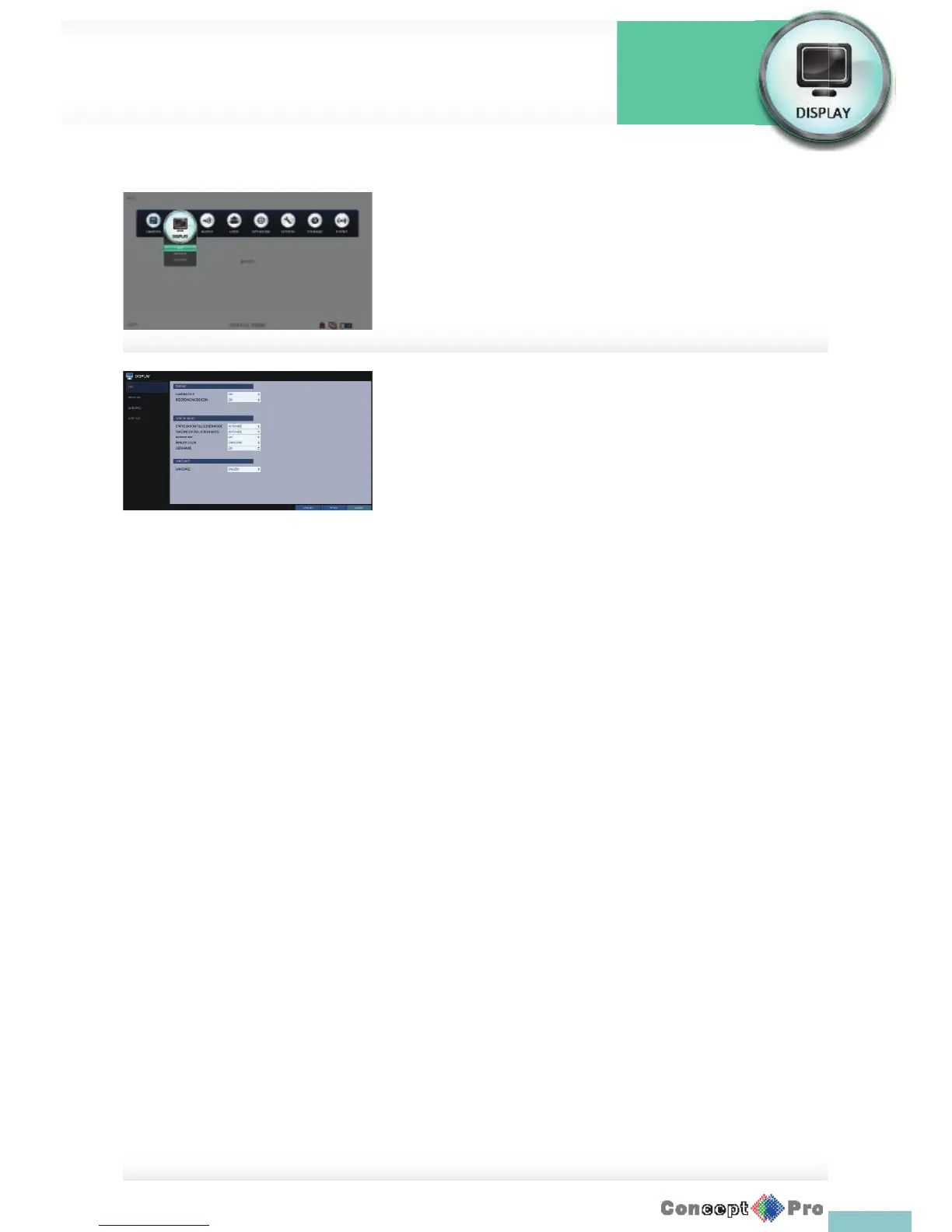
You can set the Camera Name, Icon, Status Bar, Timeline, Borderline, User
Name and Language.
1. From <SYSTEM SETUP> - <DISPLAY>, select <OSD>.
2. Use the [pqtu/ENTER] buttons on the remote control or use the
mouse to set each option of the OSD item.
> CAMERA TITLE: specify the display of the camera title on the
screen.
> RECORDING MODE ICON: specify the display of the record mode
icon on the screen.
> STATUS BAR ON FULL SCREEN MODE: select to show or hide
the status bar in full screen mode.
- AUTO HIDE: place the cursor in the lower area of the screen to
display the status bar. If moving the cursor up, the status bar will
disappear.
- ALWAYS ON: The status bar will be displayed at all times.
- 5 SEC ~1 MIN: If there is not any mouse movement from 5
seconds to 1 minute, the status bar will disappear.
> TIMELINE ON FULL SCREEN MODE: select to show or hide the
timeline in full screen mode.
- AUTO HIDE: place the cursor in the right corner to display
the timeline. If moving the cursor to the left, the timeline will
disappear.
- ALWAYS ON: The timeline will be displayed at all times.
- ALWAYS OFF: The timeline will not be displayed.
> BORDER LINE: specify the display of the border between
channels in a split mode
> BORDER COLOUR: select a colour for the border.
> USER NAME: specify the display of the currently logged-in users
on the status bar.
> LANGUAGE: select a menu display language.
3. To apply the change, click <APPLY> in the bottom of the screen.
4. When done, press the [EXIT] button on the remote control or click
<CLOSE> in the lower screen. The con rmation message appears and
you will return to the previous menu.
You can con gure the display settings regarding the OSD menus, monitor
and sequence settings.
Display Settings
System
Settings



 To Next Page