35
Display Settings
System
Settings
Spot out
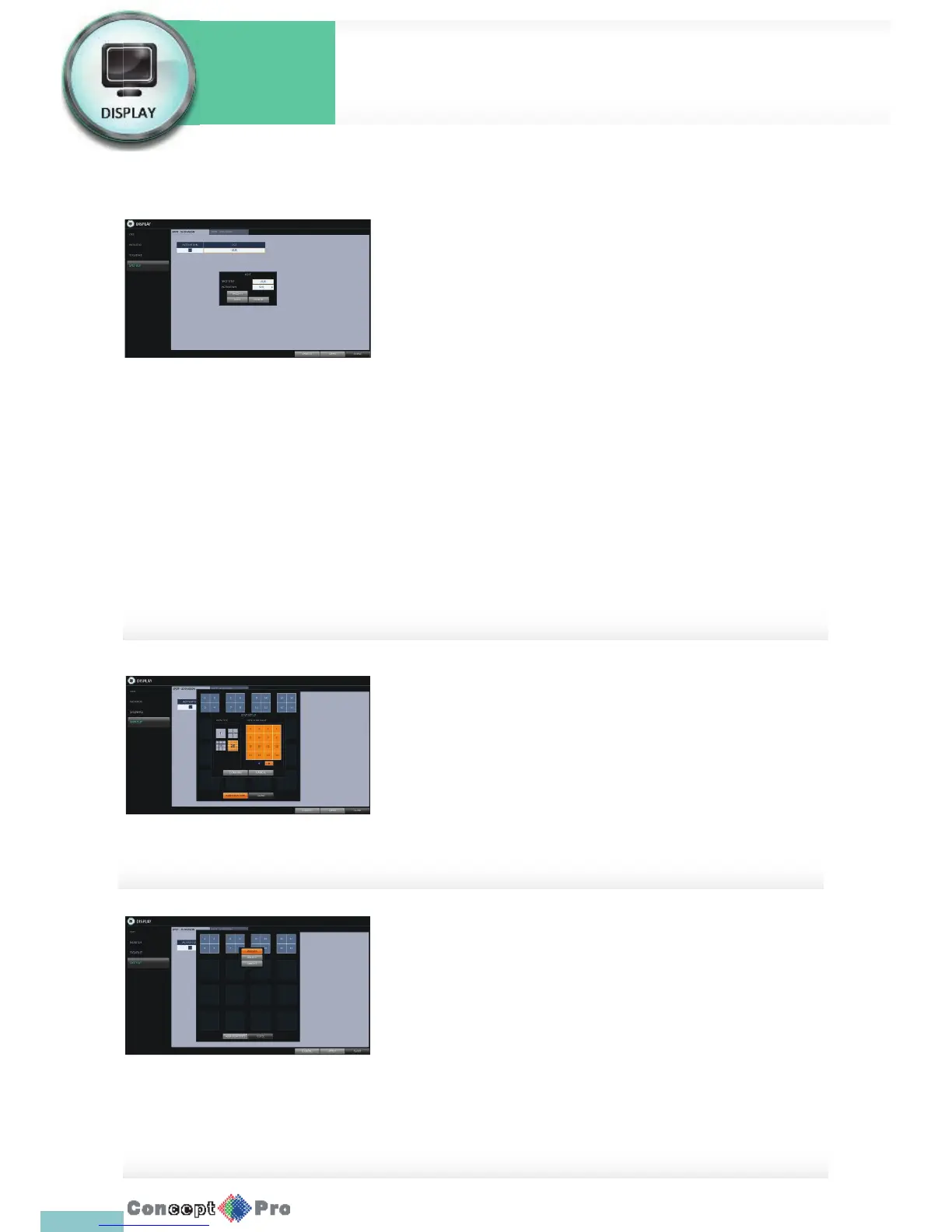
Apart from the main screen display, you can con gure the Spot Out to
display a live channel as needed in various live view types. To set the live
view type of display output through the [SPOT] terminal and activate/
deactivate it.
1. From <SYSTEM SETUP> - <DISPLAY>, select <SPOT OUT>.
2. Use [pqtu/ENTER] button of the remote control or mouse to edit
Spot Out properties.
> SPOT TITLE: Name the Spot Out setup.
> ACTIVATION: Set whether to activate/deactivate the spot out
setup.
> MODIFY: Edit the view type of the spot output.
> SAVE: Save the changes of spot output settings.
3. To apply your changes, click <APPLY> button.
4. Once completed with setup, press [EXIT] button of the remote control
or click <CLOSE> button on the bottom ofthe screen. A con rmation
dialog appears and returns to the previous me
To add a View Type to a Spot Out
1. Select an item from the SPOT Output list to be changed.
2. The “MODIFY” window appears, click <MODIFY> button.
3. When the View Type selection window appears, click
<ADD VIEW TYPE> button.
4. Select the desired View Type and con guration, and click
<CONFIRM> button.
5. Complete adding and click <CLOSE> to close the edit window
To edit or delete View Type of the SPOT Output
1. Select an item from the SPOT Output list to be changed.
2. The “MODIFY” window appears, click <MODIFY> button.
3. When the View Type selection window appears, select the desired View
Type to be edited or deleted, and press [ENTER] button of the remote
control or right click on it.
> MODIFY: Displays “SPOT SETUP” window for
editing View Type and other properties.
> DELETE: Deletes the selected View Type.
4. Complete editing and click <CLOSE> to close the edit window



 To Next Page