63
Motion Recording
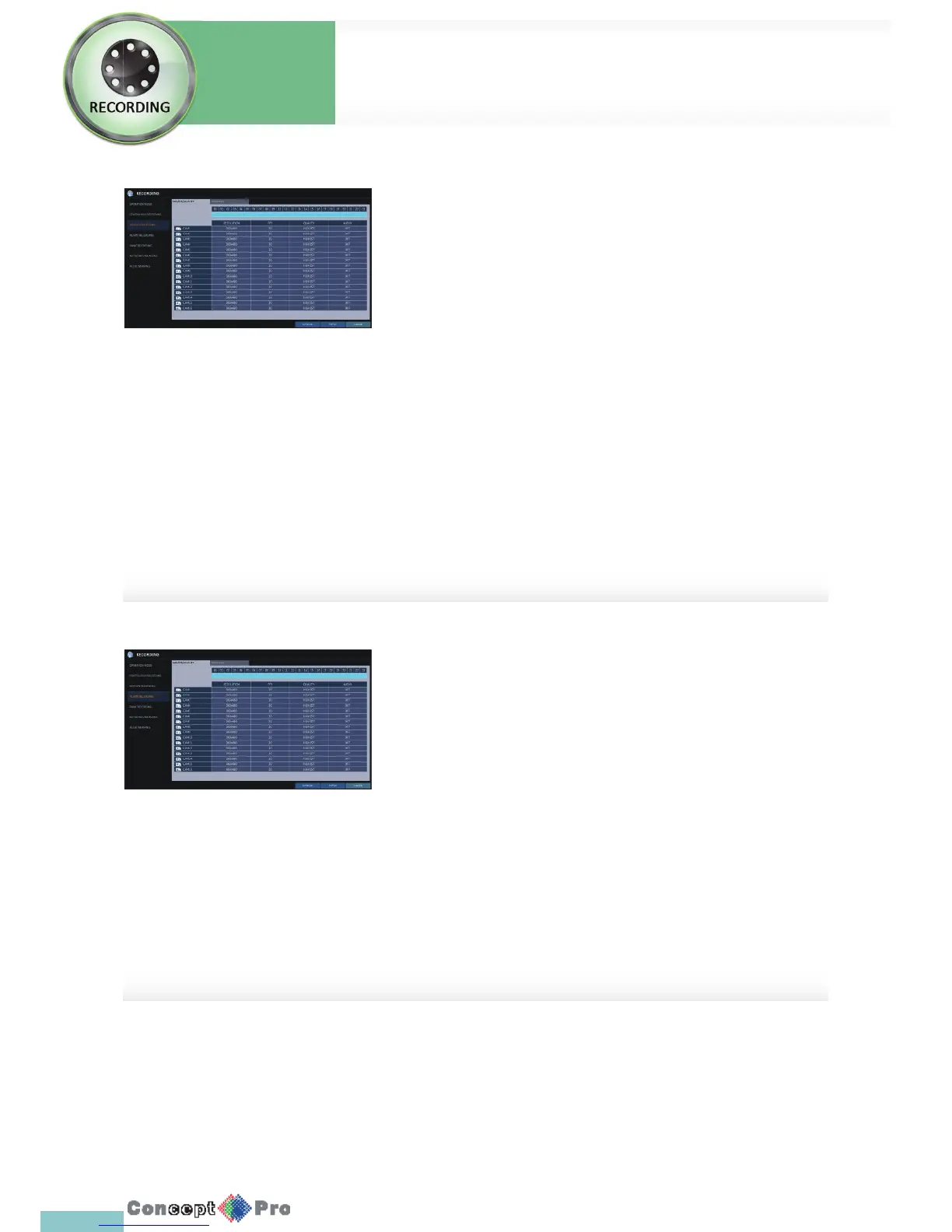
Specify the recording size of the motion event if it occurs and make schedule
for that recording
1. From the <RECORDING> menu, select <MOTION RECORDING>.
2. Use the [pqtu] buttons on the remote control or use the mouse to
select either <SIZE/FPS/QUALITY> or <SCHEDULE>.
3. Set each item of <RESOLUTION>, <FPS>, <QUALITY> and use of the
<AUDIO> for the motion recording
R For more information, see the “Continuous Recording”. (page 61)
4. To apply the change, click <APPLY> in the bottom ofthe screen.
5. When done, press the [EXIT] button on the remote control or click
<CLOSE> in the lower screen. The con rmation message appears and
you will return to the previous menu.
Alarm Recording
Specify the recording size of the alarm event if it occurs and make schedule
for that recording.
1. From the <RECORDING> menu, select <ALARM RECORDING>
2. Use the [pqtu] buttons on the remote control or use the mouse to
select either <SIZE/FPS/QUALITY> or <SCHEDULE>.
3. Set each item of <RESOLUTION>, <FPS>, <QUALITY>and use of the
<AUDIO> for the alarm recording
R For more information, see the “Continuous Recording”. (page 61)
4. To apply the change, click <APPLY> in the bottom ofthe screen.
5. When done, press the [EXIT] button on the remote control or click
<CLOSE> in the lower screen. The con rmationmessage appears and
you will return to the previous menu.
System
Settings
Record Setup
Record
Settings



 To Next Page