44
System Setup
System
Settings
System Management
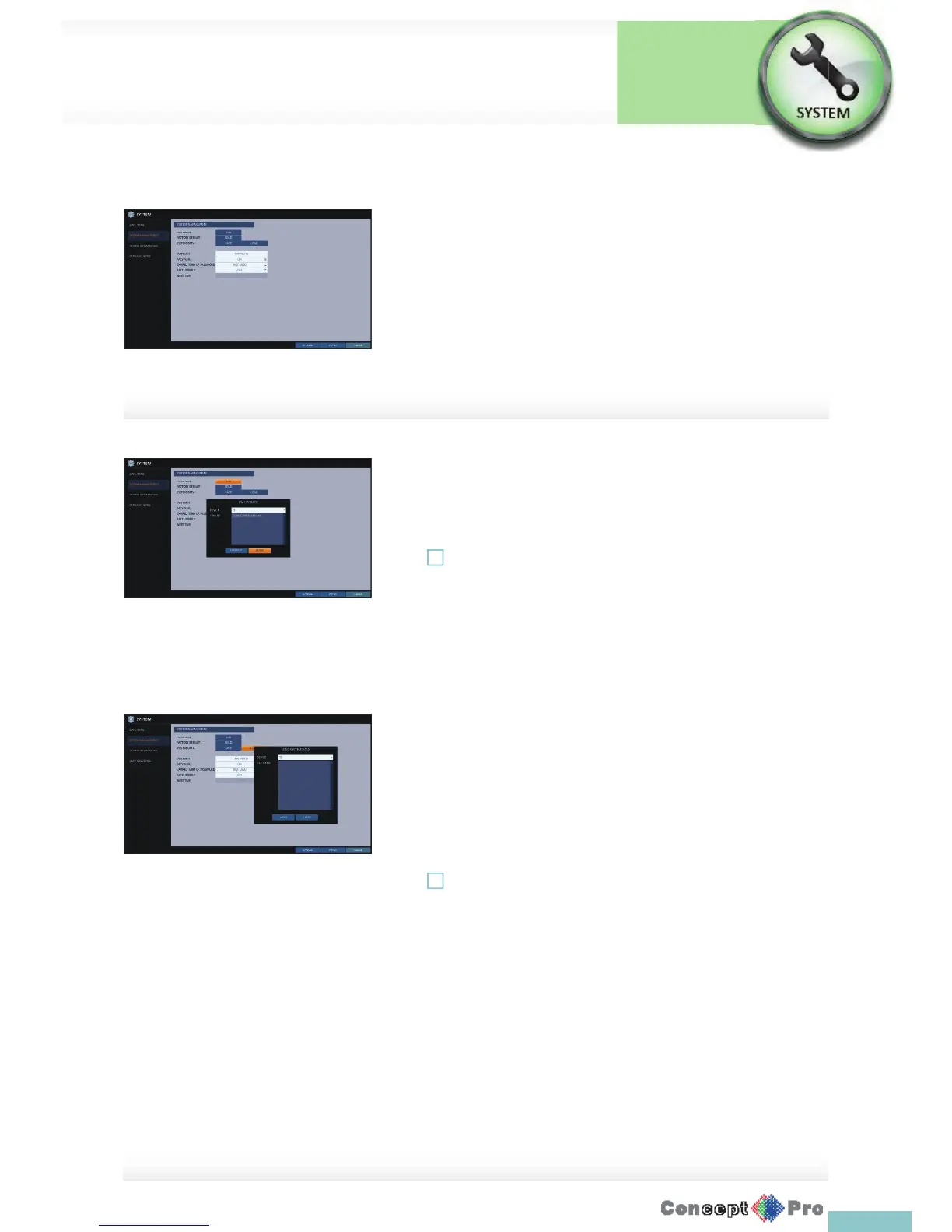
You can check, update or reset the system information.
1. From <SYSTEM SETUP> - <SYSTEM>, select <SYSTEM
MANAGEMENT>.
2. Use the [pqtu/ENTER] buttons on the remote control
or use the mouse to set each option of the system management.
> FW UPDATE: you can update the current software with the latest
version.
> FACTORY DEFAULT: Return the VXH960 settings to the factory
default.
! If you proceed to upgrade the rmware or reset the VXH960 to the
factory default, all current settings of the DVR will be erased. The
settings of the DVR will have to be con gured again.
> SYSTEM DATA: Save the system settings or get the system
information from another device.
- SAVE: Store the DVR settings to a storage device. Connect
the storage device to the USB port of the DVR
- LOAD: Apply the settings of the storage device to the DVR.
Connect the storage device to the USBportofDVR.
> SYSTEM ID: Set the main unit’s system ID.
> PASSWORD: Open or close the dialog box for setting the
menu’s: quit, system settings, record settings, archiving,
and search.
! If it is set to <Off >, note that the ADMIN account is only eff ective
and access to all menus will be restricted.
> EXPIRED TERM OF PASSWORD: You will be prompted to
change the current password after a certainperiodoftime.
> AUTO LOGOUT: If there is no user input for a certain period of
time, you can set to log out automatically.
> WAIT TIME: Specify the waiting time for Auto Logout.
3. When done, press the [EXIT] button on the remote control or click
<CLOSE> in the lower screen to return to theprevious menu.



 To Next Page