Camera Title
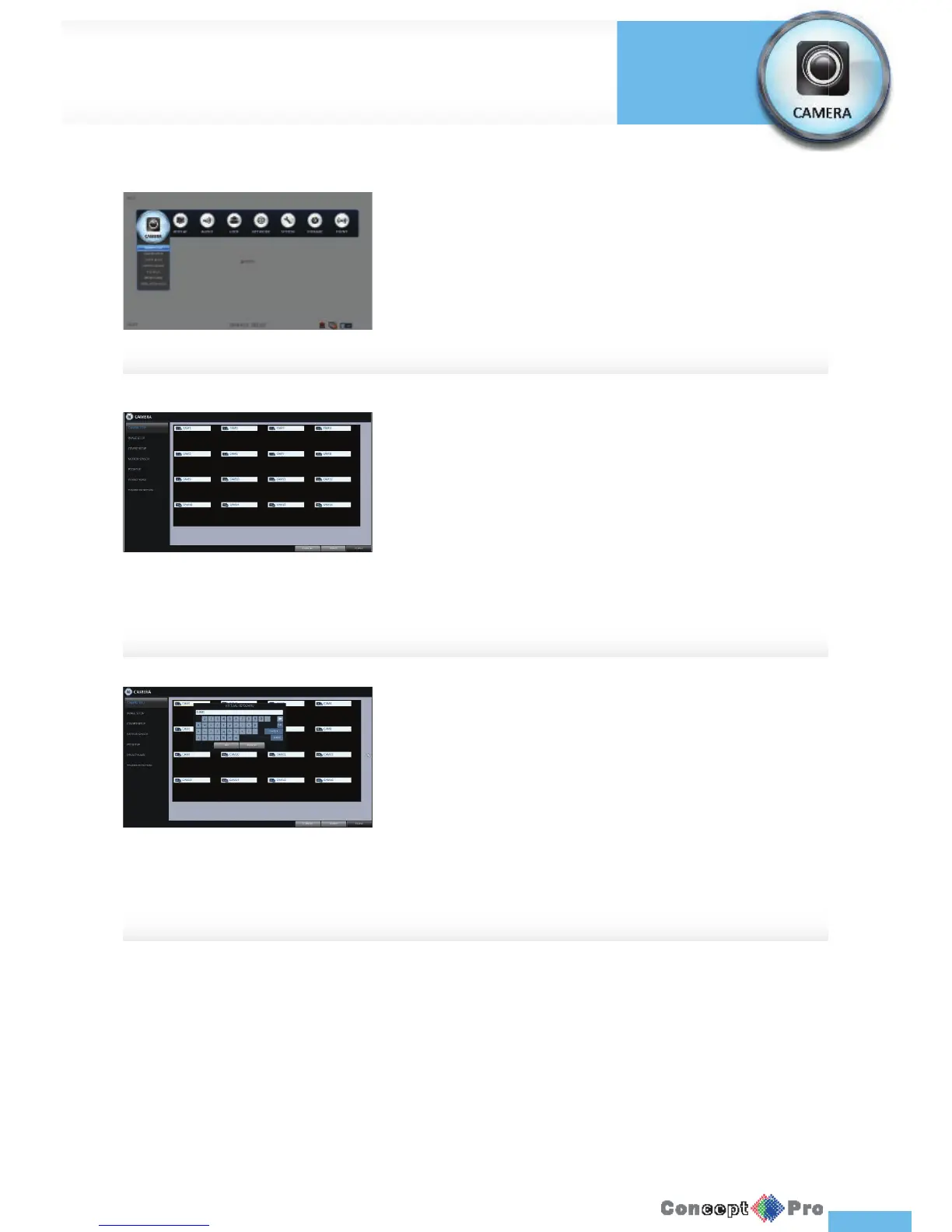
You can change the camera ID that is displayed on the screen.
1. From <SYSTEM SETUP> - <CAMERA>, select <CAMERA TITLE>.
2. Use the [pqtu/ENTER] buttons on the remote control or use the
mouse to select a channel that you want to rename.
Alternatively, double-click the camera to rename from the top left corner.
You can con gure the display settings of the: camera title, image setup,
covert setup, mtion sensor, PTZ settings, privacy mask and
tamper detection
3. Once the virtual keyboard appears, select the desired alphanumeric
characters to input, and press the <OK> button.
R The <SHIFT> key toggles case sensitivty.
4. To apply the change, click <APPLY> in the bottom of the screen.
5. When done, press the [EXIT] button on the remote control or click
<CLOSE> in the lower screen. The con rmation message appears and
you will return to the previous menu.
R Camera name allows up to 8 letters, combining numbers and
upper/lower case letters.



 To Next Page