50
Event Setup
System
Settings
Alarm Out
Specify the alarm output conditions with the work schedule. (A supported
camera may be required to obtain all alarm out functions)
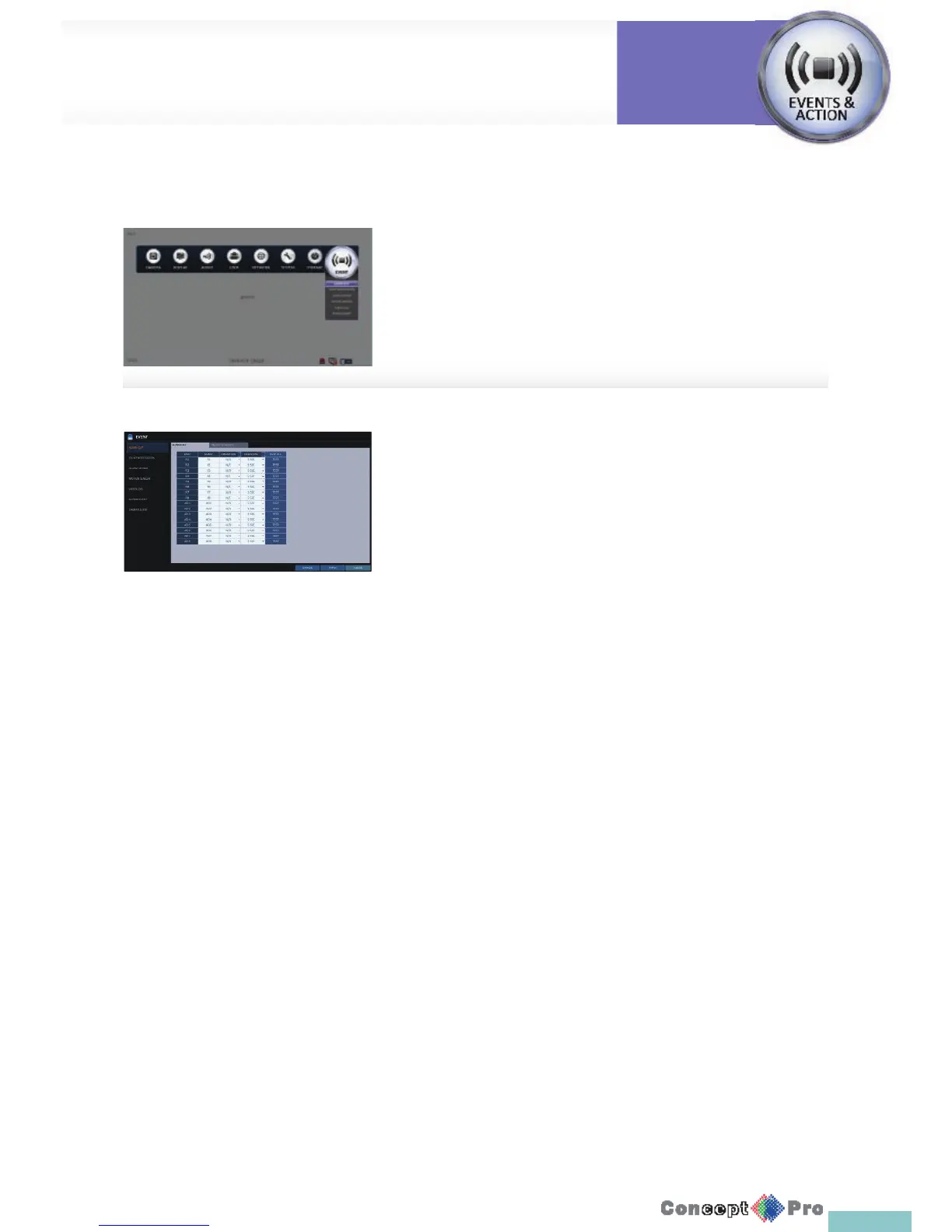
1. From <SYSTEM SETUP> - <EVENT>, select <ALARM OUT>.
2. Use the [pqtu/ENTER] buttons on the remote control or use the
mouse to select <ALARM OUT> and con gure the related settings.
> NAME: You can rename the alarm.
> OPERATION: Set the alarm output mode.
- N/O (Normal Open): It normally stays Open.
However, if an event occurs, it will switch to close.
- N/C (Normal Close): It normally stays Close.
However, if an event occurs, it will switch to Open.
> DURATION: Specify the duration of the alarm output.
- TRANSPARENT: Keep the alarm out for as much time as the
event lasts.
- UNTIL KEY: Keep the alarm out until a mouse or remote control
button is pressed.
- 5 ~ 300 SEC: Keep the alarm out for as long as speci ed.
> TEST: Forcibly output the alarm for test purposes.
3. To apply the change, click <APPLY> in the bottom of the screen.
4. When done, press the [EXIT] button on the remote control or click
<CLOSE> in the lower screen. The con rmation message appears and
you will return to the previous menu.
De ne various events, and specify the conditions to notify the user in
various ways.



 To Next Page