51
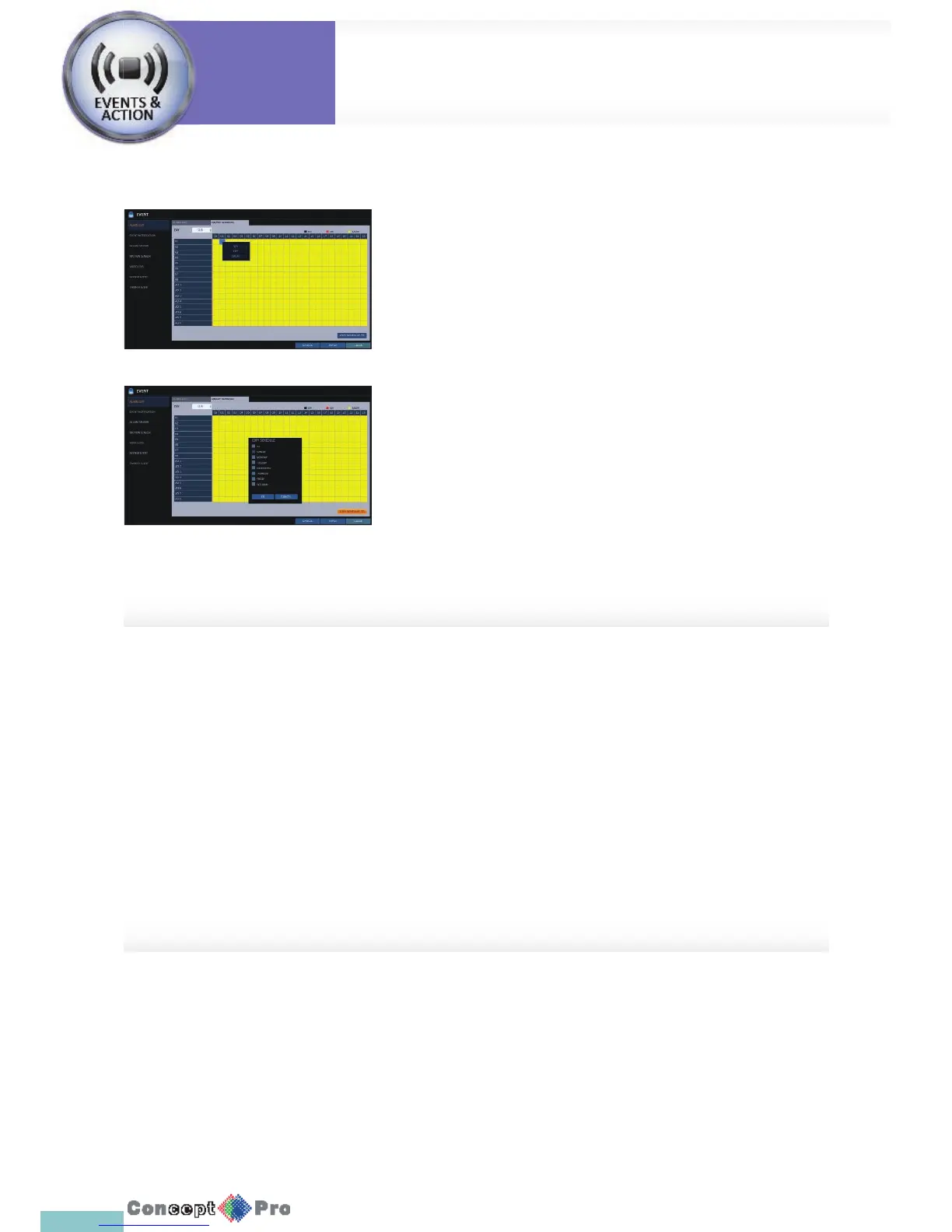
ON/OFF Schedule
You can activate or turn off the alarm output as scheduled.
1. Use the [pqtu/ENTER] buttons on the remote control or use the
mouse to select a <DATE> for the schedule.
2. Drag the mouse to resize the cell or use the on the [pqtu] buttons to
move to the cell, then press [ENTER].
3. Select a desired alarm output mode.
> ON: The alarm output is always turned on.
> OFF: The alarm output is always turned off .
> EVENT: Trigger the alarm output in sync with the event.
4. Click <COPY SHEDULE TO> to check the checkbox of the date that you
want to copy the schedule at.
5. When done, click <OK> to apply the settings.
6. To apply the change, click <APPLY> in the bottom of the screen.
7. When done, press the [EXIT] button on the remote control or click
<CLOSE> in the lower screen. The con rmation message appears and
you will return tothe previous menu.
Event Notifi cation
Specify the methods of noti cation such as buzzer, video popup or email if an event occurs.
1. From <SYSTEM SETUP> - <EVENT>, select <EVENT NOTIFICATION >.
2. Use the [pqtu] buttons on the remote control or use the mouse to select one from <BUZZER>, <DISPLAY > and <EMAIL>.
3. Use the [pqtu/ENTER] buttons on the remote control or use the mouse to set the output method and duration.
4. To apply the change, click <APPLY > at the bottom of the screen.
5. When done, press the [EXIT] button on the remote control or click <CLOSE> in the lower screen. The con rmation
message appears and you will return to the previous menu.
System
Settings
Event Setup
System
Settings



 To Next Page