67
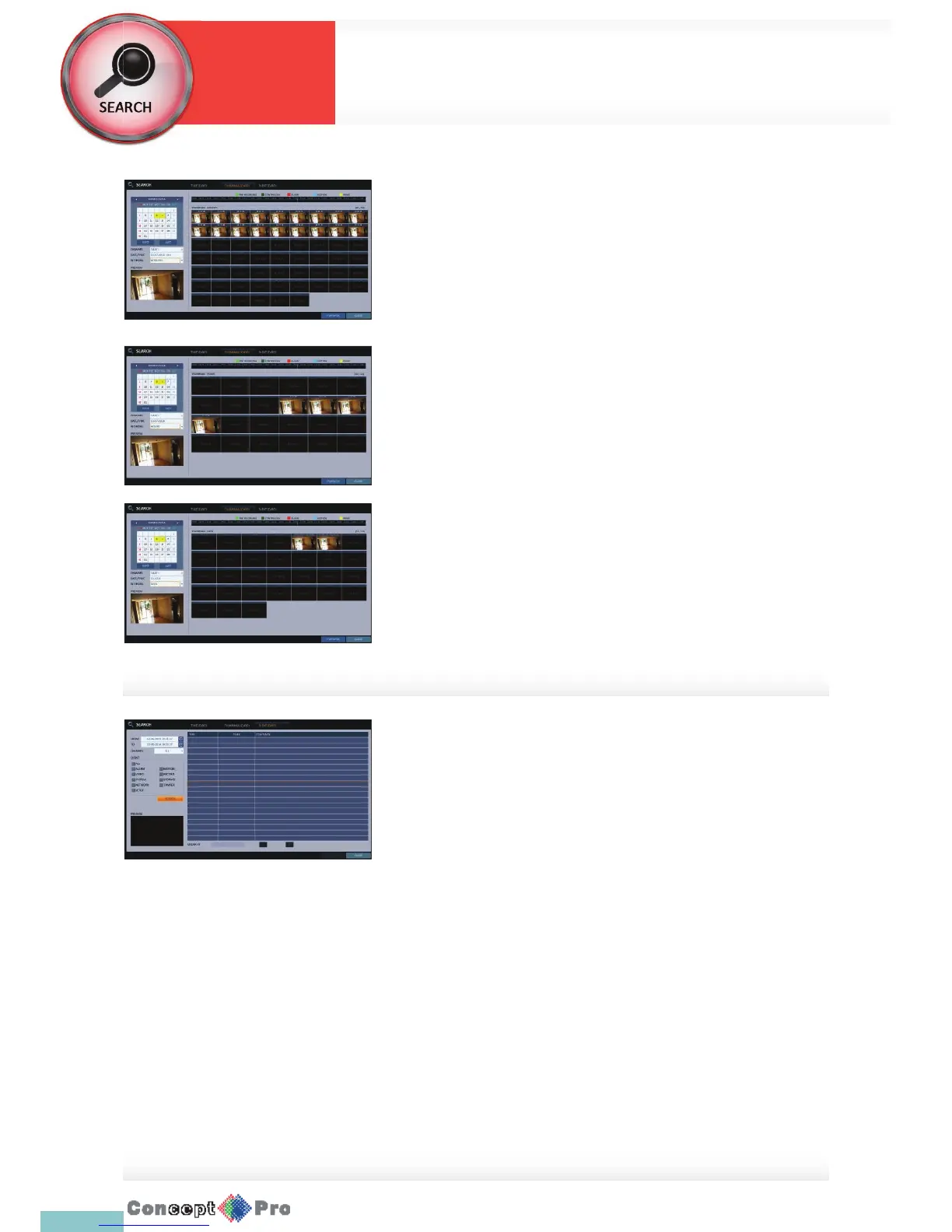
Thumbnail Search
To improve your search, you will be provided with a list of thumbnails. Select
Day,Hour or Minute to narrow down the search results.
1. From the <SEARCH> menu, select <THUMBNAILSEARCH>.
2. Use the [pqtu] buttons on the remote control or use the mouse to
specify the search date and time from the calender on the left corner of
the thumbnail search screen.
> FIRST: The rst date of recording is automatically selected.
> LAST: The last date of recording is automatically selected.
> CHANNEL: Select a channel to search for.
> DATE/TIME: Specify the search date and time.
R The menus available diff er depending on the selected interval mode.
> INTERVAL: Select a time interval of the thumbnail view.
3. Double-click a desired play time in the recording data bar, or double-
click a desired time image from the thumbnail list. You will move to the
playback screen.
4. If you want to stop playing and return to the search screen, press [EXIT]
or [SEARCH] on the remote control. You can also click <MENU> in the
lower left corner and select a desired menu.
Event Search
Search for events that occurred at the speci ed time and select an event to
play from the list.
1. From the <SEARCH> menu, select <EVENT SEARCH>.
2. Use the [pqtu] buttons on the remote control or use the mouse to
specify the <START> and <END> times in the left of the event search list.
3. Select a channel to search.
4. Mark the checkbox of the event to search from the <EVENT> list.
5. Press the <SEARCH> button.The search results will be listed as shown.
> TYPE: displays the event type.
> TIME: displays the recording start time.
> CONTENTS: shows the details of the event found.
> ORDER BY: If you select <OLDEST>, the list will be sorted with
the earliest one on top.
6. Double-click a desired event or click <PLAY> in the lower right corner to
move to the play screen.
7. If you want to stop playing and return to the search screen, press [EXIT]
or [SEARCH] on the remote control. You can also click <MENU> in the
lower left corner and select a desired menu.
System
Settings
Search



 To Next Page