27
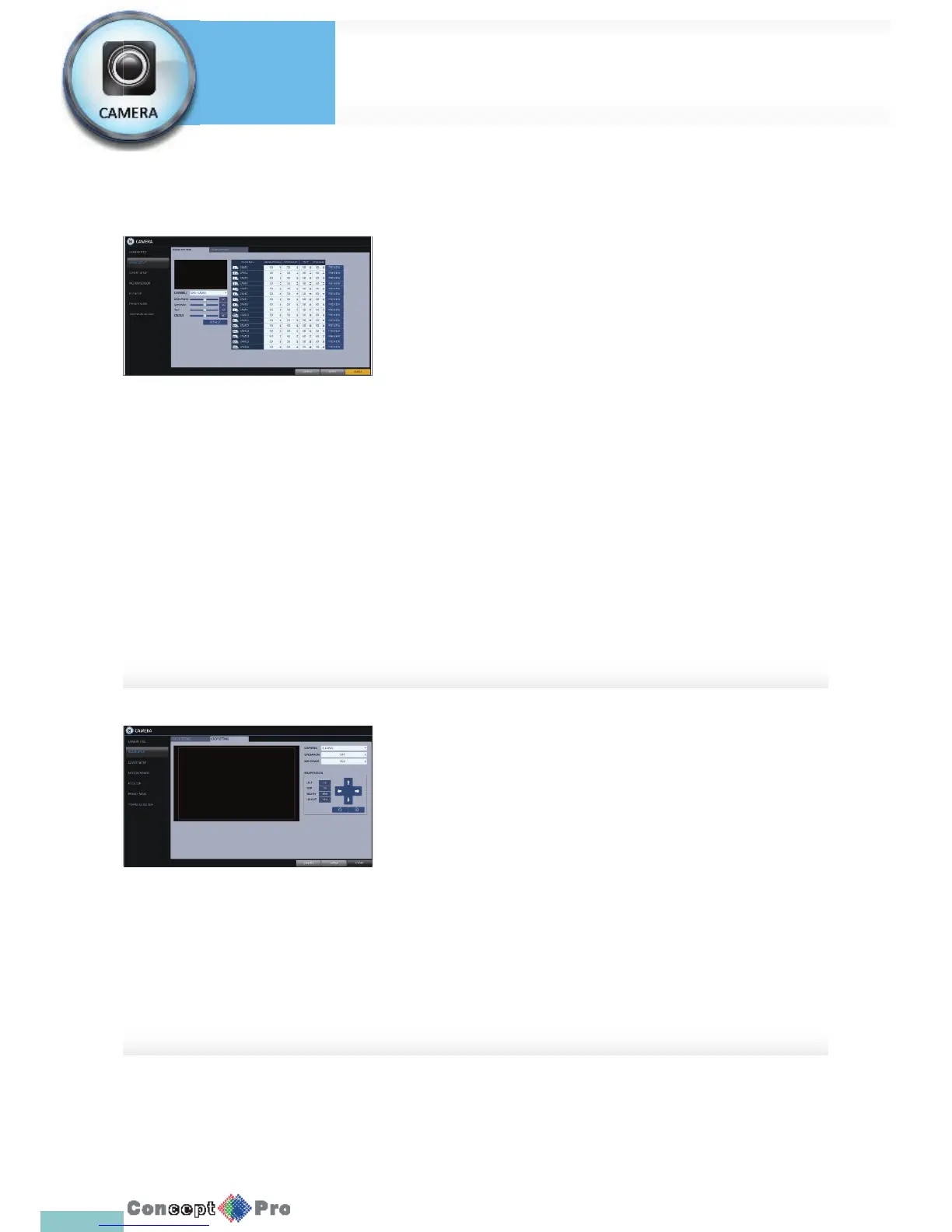
Image Setup
You can adjust the brightness, contrast, color and quality setting of each
channel’s camera.
1. From <SYSTEM SETUP> - <CAMERA>, select <IMAGE SETUP>.
2. Use [pqtu/ENTER] buttons on the remote control or the mouse to
edit the settings.
3. To apply the changes, click the <APPLY> button.
4. Once completed with the setup, press the [EXIT] button on the remote
control or click the <CLOSE> button on the bottom of the screen. A
con rmation dialog appears and returns to the previous menu.
Press <PREVIEW> button for adjusting with preview image.
Crop Setup
You can crop a picture to remove any unwanted view from the camera
1. From <IMAGE SETUP> click the tab
< CROP SETTING>.
2. Use the [pqtu / ENTER] buttons on the
remote control or the mouse to change the channel
or the box position.
3. To apply the changes, click <APPLY> in the
bottom of the screen.
Camera Setting
System
Settings



 To Next Page