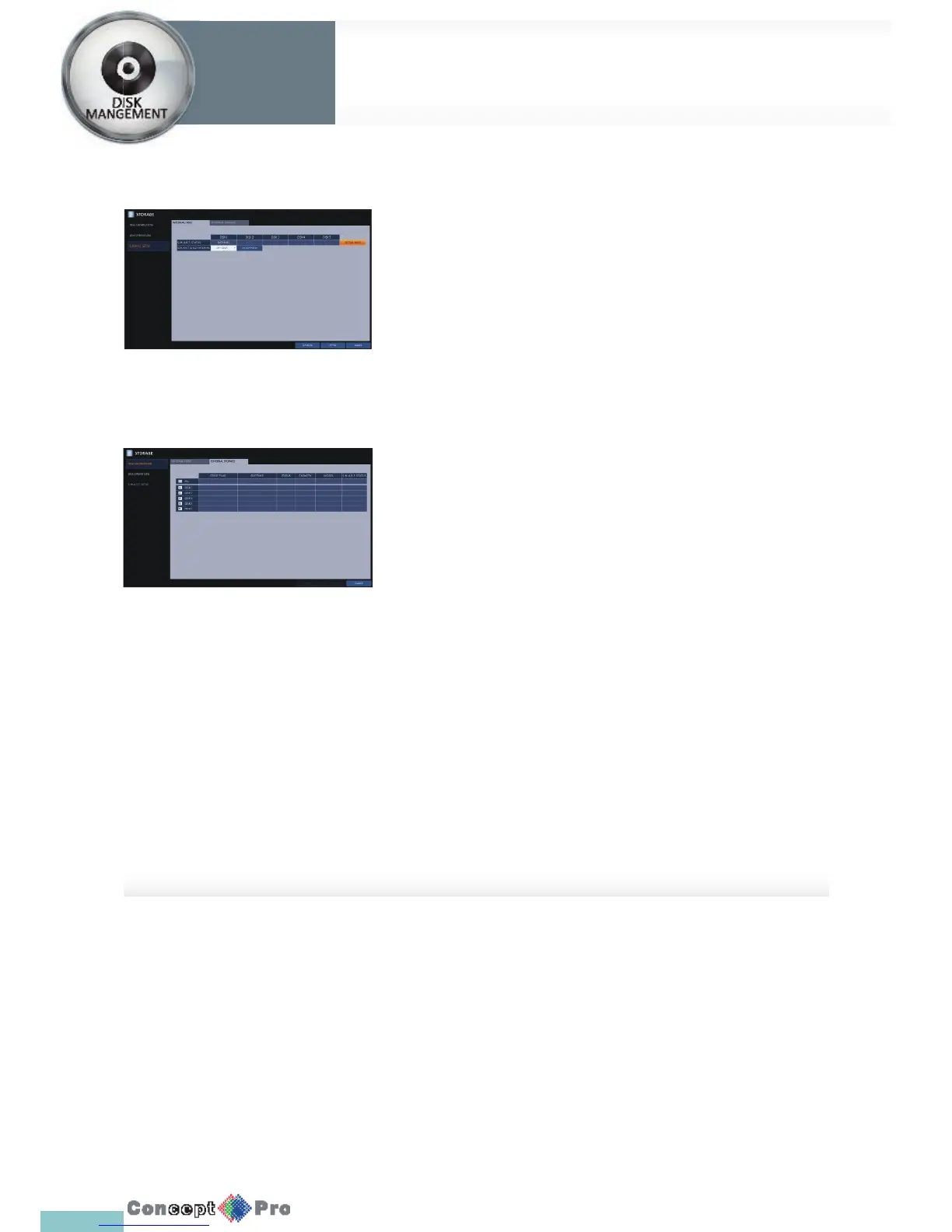
S.M.A.R.T settings
You can check the S.M.A.R.T information of the HDD and specify the check
frequency.
R What is S.M.A.R.T information? S.M.A.R.T (Self-Monitoring,
Analysis and Report Technology) is to detect a HDD that is likely
to cause any problems in the future with a warning message.
1. From <SYSTEM SETUP> - <STORAGE>, select<S.M.A.R.T. SETUP>.
2. Use the [pqtu/ENTER] buttons on the remotecontrol or use the
mouse to check the S.M.A.R.T operation and specify the check interval.
> S.M.A.R.T STATUS: Read the S.M.A.R.T information of the disk
and check to display if the current disk is in normal operation.
Click <DETAIL INFO> to view the details.
> NORMAL: The disk is in a normal state.
> CHECK: The disk has an error so that you need to check the disk
or the sata cable of the disk. If you leave the problem unresolved,
it may not record. It is recommended that you replace the disk
immediately.
> ERROR: The disk fails or is unable to use due to an error of the
disk or the cable. The disk and/or cable should be replaced
immediately. Contact the retailer or the customer service to
replace the disk.
> S.M.A.R.T CHECK INTERVAL: Specify the S.M.A.R.T check
interval. Click <CHECK NOW> to start checking.
3. To apply the change, click <APPLY> in the bottom of the screen.
4. When done, press the [EXIT] button on the remote control or click
<CLOSE> in the lower screen. The con rmationmessage appears and
you will return to the previous menu.



 To Next Page