33
Display Settings
System
Settings
Monitor
If you change from monitoring mode to sequence, you will have to set the
interval of the sequence.
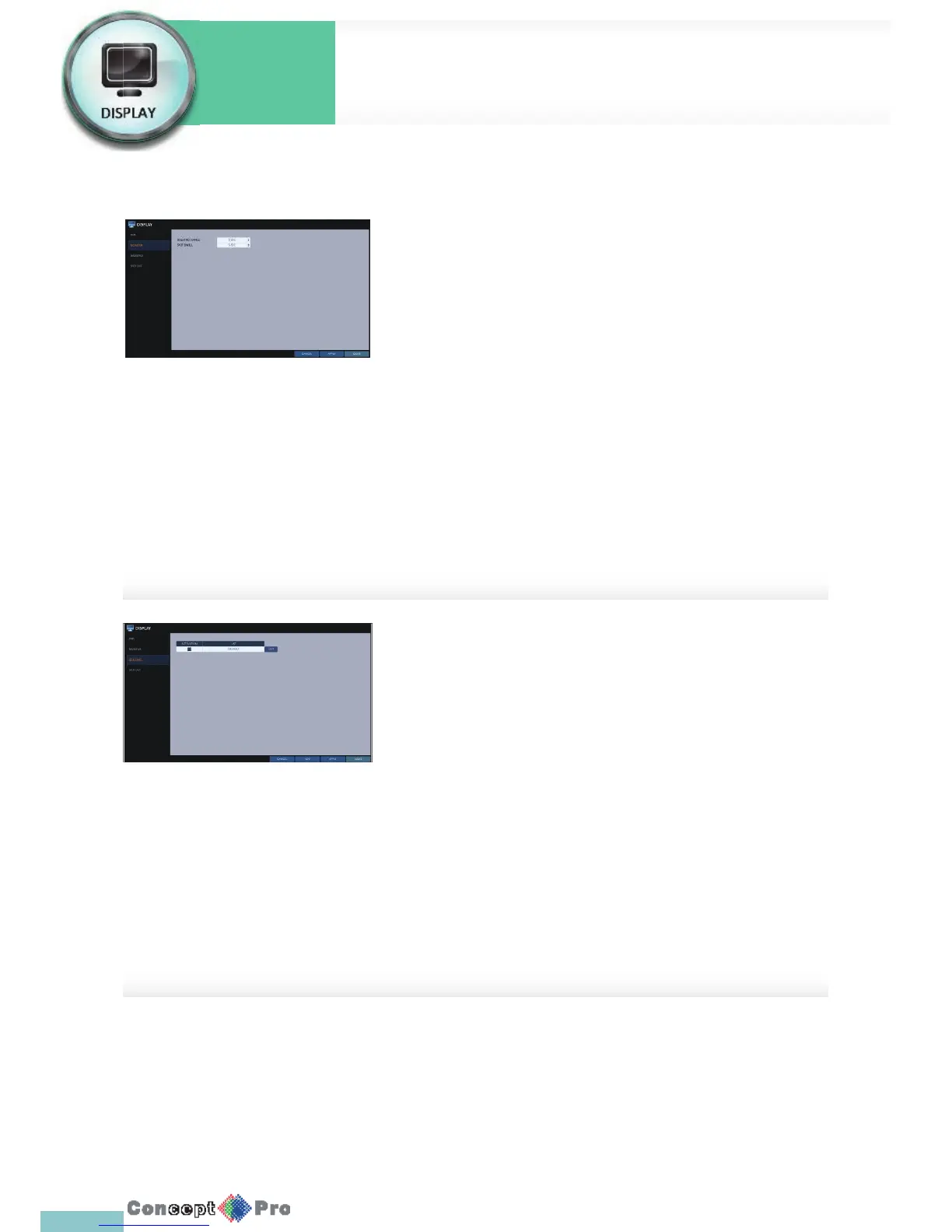
1. From <SYSTEM SETUP> - <DISPLAY>, select <MONITOR>.
2. Use the [pqtu/ENTER] button of the remote control or mouse to set
the dwell for Sequence mode and SPOT dwell.
> SEQUENCE DWELL: Sets the time interval to the next screen
mode for Live monitoring, which de nes individual screen mode’s
dwell time in the Sequence. (Can set to 1 sec ~ 60 sec)
> SPOT DWELL: Sets the time interval to the next view type, which
de nes individual view type’s dwell time for SPOT OUT.
(Can set to 1 sec ~ 60 sec)
3. To apply the change, click <APPLY> in the bottom of the screen.
4. When done, press the [EXIT] button on the remote control or click
<CLOSE>
Sequence
Select a split mode for the sequence, and also select a list of active items
when the sequence is performed.
1. From <SYSTEM SETUP> - <DISPLAY>, select <SEQUENCE>.
2. Use the [pqtu/ENTER] buttons on the remote control or use the
mouse to add a sequence or change the settings of the existing
sequence.
> ACTIVATION: Select a list that you want to activate the sequence
for, only one list will become active.
> ADD: add a sequence.
3. To apply the change, click <APPLY> in the bottom of the screen.
4. When done, press the [EXIT] button on the remote control or click
<CLOSE> in the lower screen. The con rmation
message appears and you will return to the previous menu.



 To Next Page