55
Motion Sensor
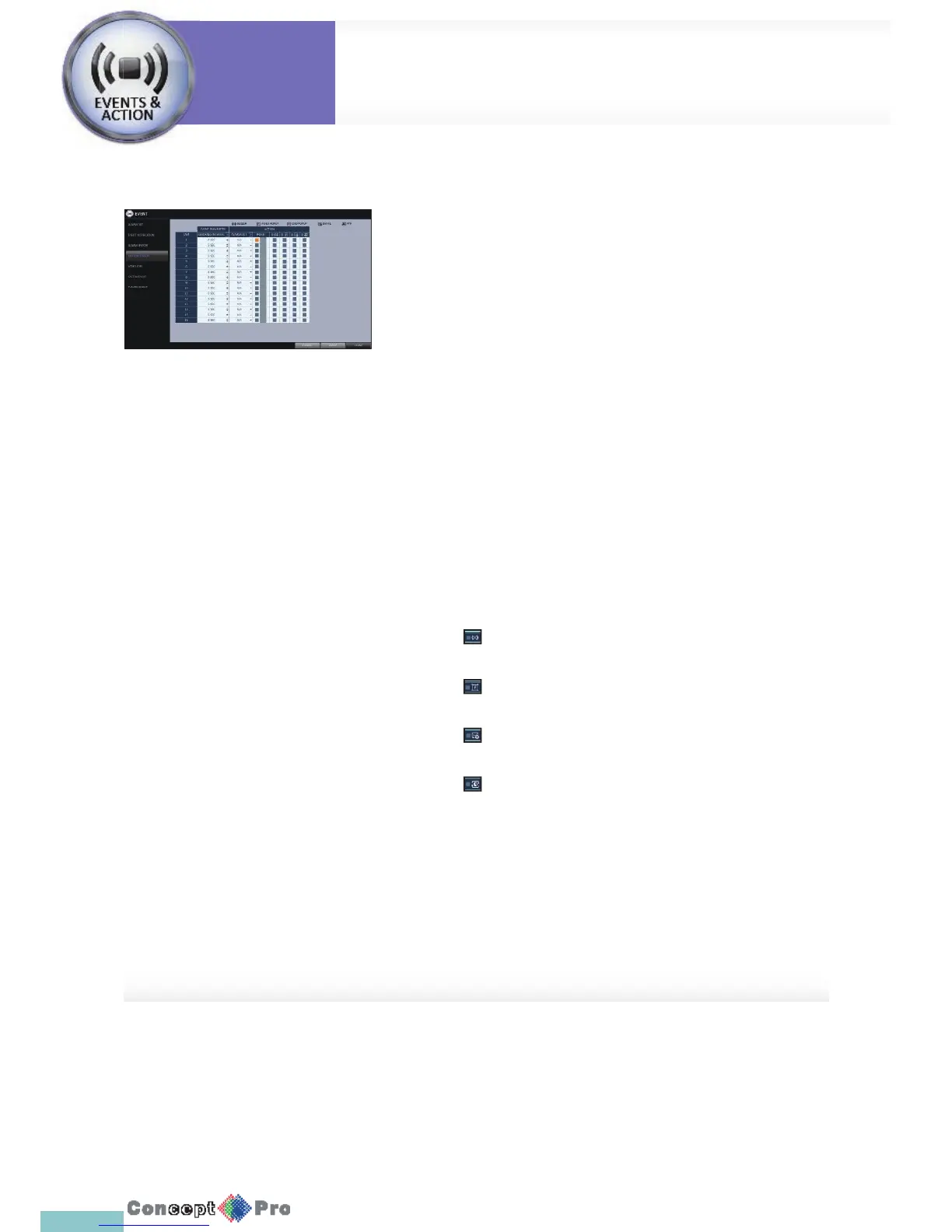
You can set an action to execute when a motion is detected. For the settings
of the motion sensor, move to <CAMERA SETUP>.
1. From <SYSTEM SETUP> - <EVENT>, select <MOTION SENSOR>.
2. Use the [pqtu buttons on the remote control or use
the mouse to specify the ignorance interval and operation.
> IGNORING INTERVAL: Specify the minimum interval of the motion
event occurrence.
For example, even if you have set the minimum frequency to
5 seconds and another motion event occurs in less than 5
seconds after the last motion event occurred, the new event will
be ignored. If too many motion events occur, adjust to shorten
the interval.
R Motion recording will be triggered immediately after the motion occurred
regardless of the above settings.
> ALARM OUTPUT: Specify the alarm output channel if a motion is
detected by the motion sensor.
> Specify the output of the buzzer if a motion is detected by the
motion sensor.
> Select to display the video popup if a motion is detected by the
motion sensor.
> Select to send an email if a motion is detected by the motion
sensor
> Select to send a noti cation to an FTP site if motion is detected
by the motion sensor.
3. To apply the change, click <APPLY> at the bottom of the screen.
4. When done, press the [EXIT] button on the remote control or click
<CLOSE> in the lower screen. The con rmation message appears and
you will return to the previous menu.
System
Settings
Event Setup
System
Settings



 To Next Page