Using the scanner, how do I …? 5-4
5.2.1 How do I… Set Copy Lightness?
You can change the Lightness value to make the copy lighter or darker and compensate for dull
or faded originals. The default Lightness value is set to zero which works well with most
documents. Values +1 to +6 will make the copy lighter in relation to the original and values -1 to
-3 will make the copy darker in relation to the original.
To set the copy Lightness value:
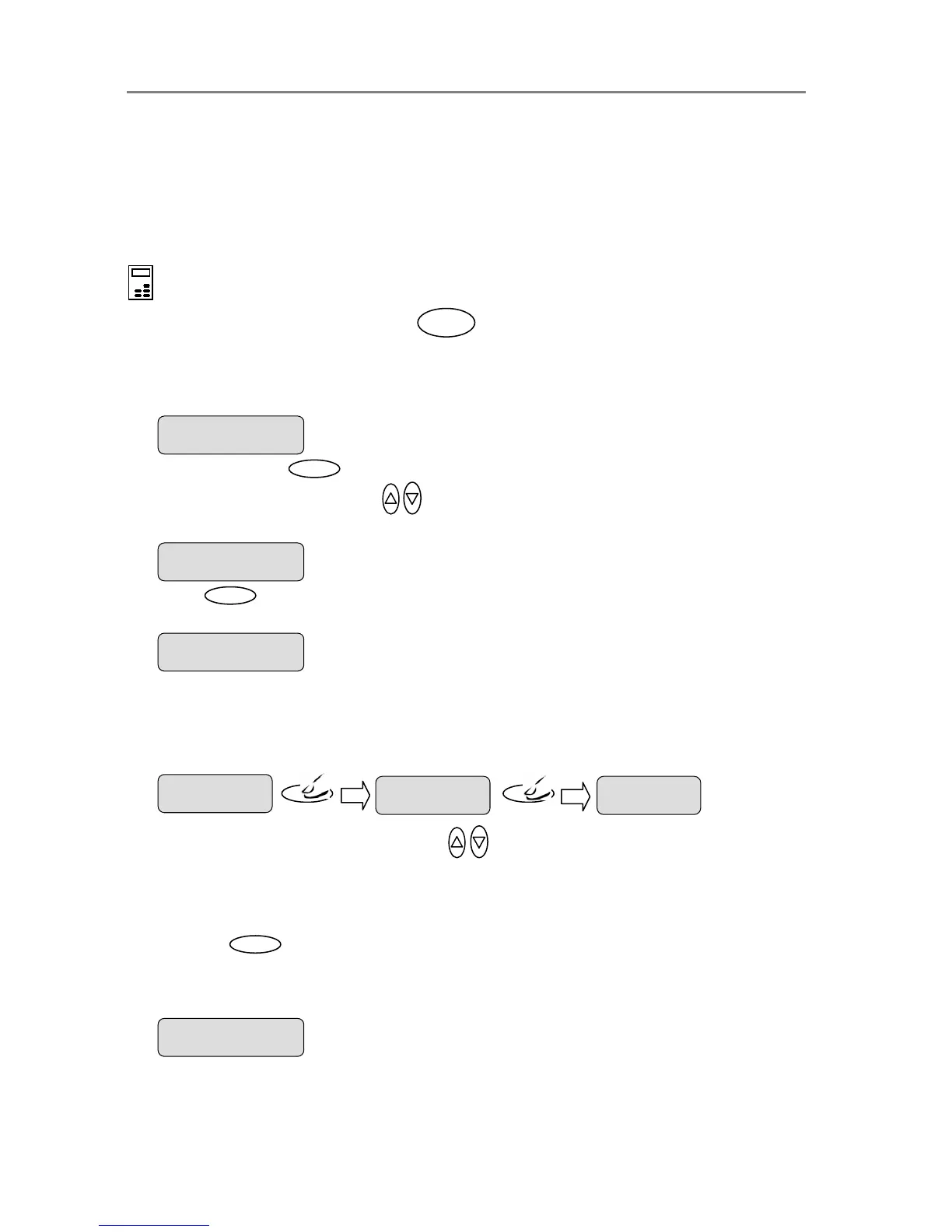
On the iJET Panel –
1. Quick - Press the Lightness button. The iJET Panel display will open the
Lightness option with the “>” marker on the value level indicating you can immediately
change the Lightness option’s value. From here you can skip steps 2 and 3 and go to step 4
to change the value.
2. Menu – Press the button to enter the main Menu.
Use the arrow up/down buttons
to move through the Menu options until the display
shows Lightness.
3. Press
Enter
to move the “>” marker down to indicate you want to change the Lightness
value.
4. There are two ways to change the value:
5. Repeated presses to the Lightness button will change the Lightness value forward in
single steps from -3 to +6. The value list wraps around meaning that you step from +6 to -3
when you continue to press the button.
6. Or…press the arrow up/down buttons
to change the Lightness value. With these
you can step both forward and backward in the value list.
7. Select a positive (+) value from the list to make the copy lighter. Select a negative (-) value
from the list to make the copy darker.
8. Press the
Enter
button to accept the selected value. The “>” marker will move up to the
Menu level indicating that the value is set and you can step on through the menu options if
needed. The new Lightness value will be applied every time you press the B&W Copy or
Color Copy button until you repeat the steps above to change it.
The ”>” marker is on the Menu level. You can continue
navigating the menu options with the arrow up/down
buttons.
> Lightness
+2
Lightness
> 0
lightness
Lightness
>+ 1
lightness
Lightness
> +2













 To Next Page