Configuration and Setup 3-20
3.7.3 Setting the Media Handling (load) Method Preference
This option lets you tell the system how you want to load originals into the scanner.
On scanners:
(not relevant on flatbed models)
On the iJET Panel
1. Select the Menu button.
2. Use the arrow button up or down until the display windows shows Advanced and confirm
with the Enter button .
3. Use the arrow buttons up or down until the display shows Options and confirm with
.
4. Use arrows down/up until the display shows Media Handling and confirm with
.
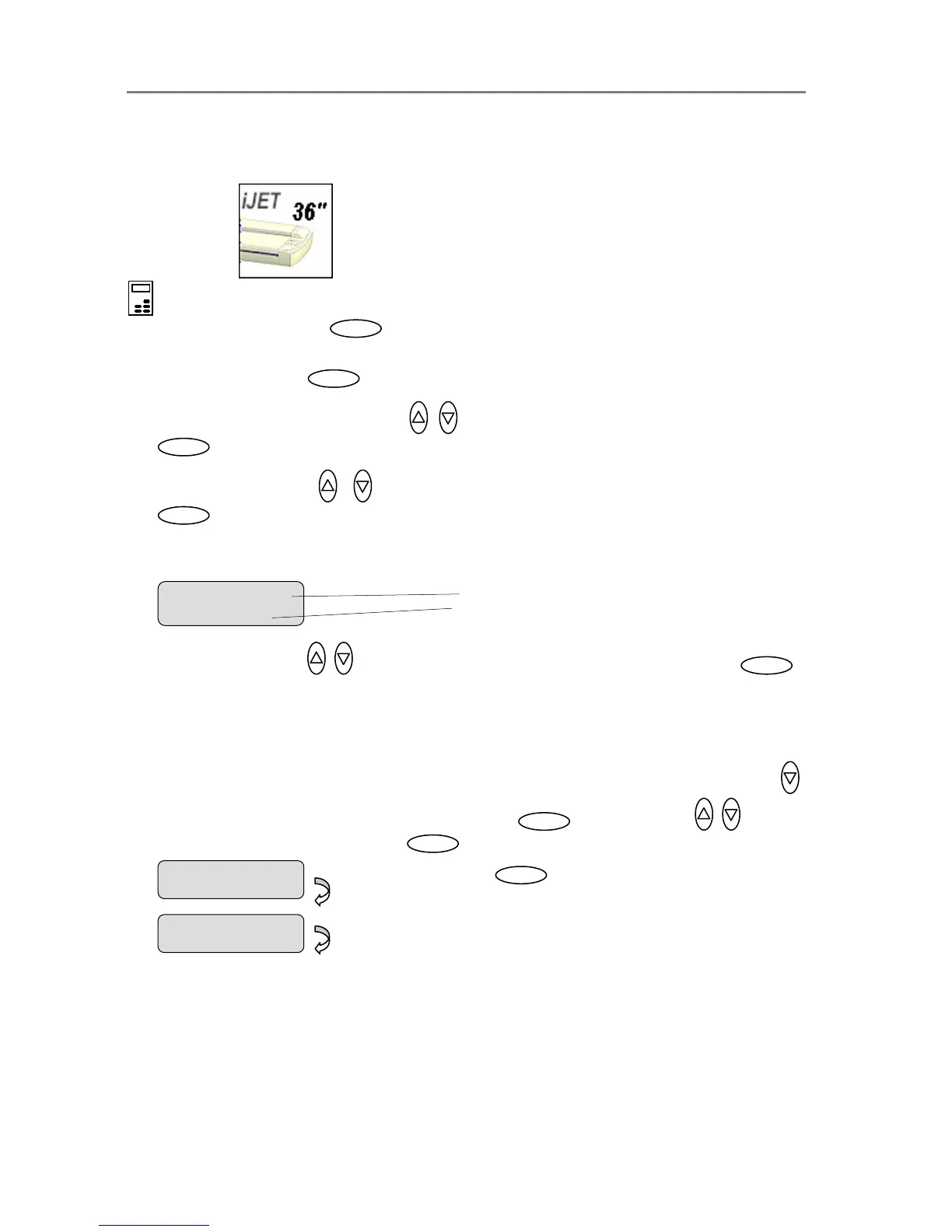
5. Your display should look like this (the actual text to the right of the “>” will show the current
setting for the option and may be different than the one shown below).
6. Use arrows down/up to select the method you want to use and confirm with .
Auto Load means the scanner will pull the original into the scan area as soon as you insert
it into the slot. You can set a Load Delay factor with Auto Load (see next step). Manual
Load means you insert the original and press on the panel’s feed forward button.
7. If you selected Auto Load and want to change the delay factor – Make sure the Media
Handling option is marked with the “>”. If not press enter to move it up. Use arrow down
to reach the Load Delay option. Confirm with Enter . Use the arrows to set a
Load Delay factor and confirm with . These steps are illustrated below.
Press
Enter
to confirm













 To Next Page