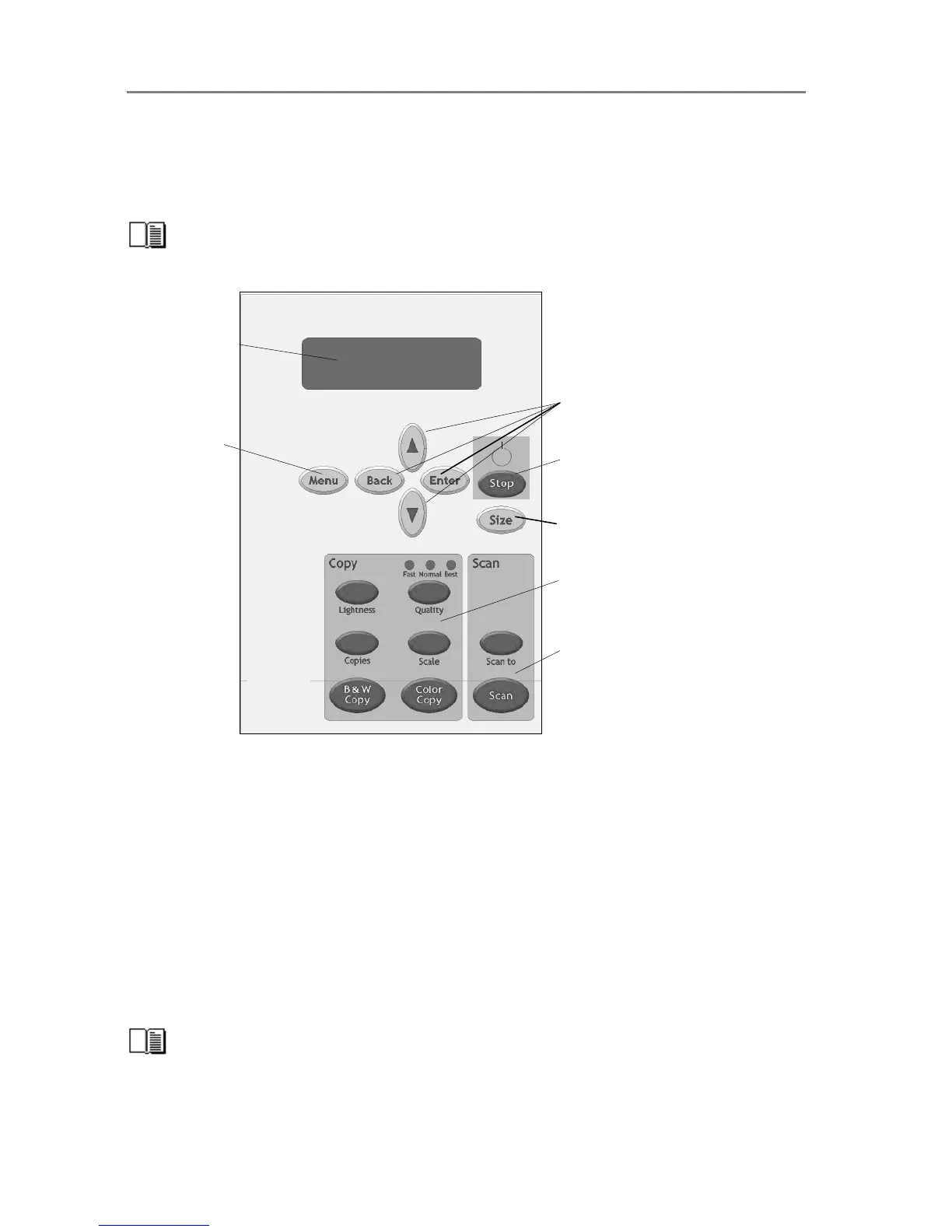
The iJET Panel 2-1
2. Using the iJET Panel
Before setting up your copy/scan configuration, you will need to familiarize yourself with the
iJET Panel. A number of setup tasks are performed through the iJET Panel and will require that
you know how to navigate the iJET Panel’s menus.
Instructions on making specific settings will be described under each configuration type in
the chapter “Copy Scanner Configuration and Setup”.
Scan Option Area
Copy Option Area
Control Buttons
Size Button
Menu Button
Display Window
Stop Button
The iJET Panel enables you to perform advanced copy and scan-to-file jobs straight from the
scanner (and not from a PC and scanning software interface). The panel contains a display
window, control buttons and option buttons.
• The Display Window contains the current selections as you make them and useful
messages from the scanner regarding maintenance and operation.
• The Menu button leads to a options for copy settings and an Advanced submenu for
configuration settings.
• The control buttons arrow up, arrow down, Back, Enter, are for navigating the menus
and for selecting menu options.
• The Stop button is for interrupting a copy or scan process.
• The Size button is for setting the original’s size (input size) for both copy and scan jobs.
• Below the control and menu buttons, are a Copy Option Area and a Scan Option Area,
each with its own set of quick option buttons. These buttons are described below.
A complete overview of the panel’s buttons follows at the end of this section.













 To Next Page