Configuration and Setup 3-2
3.1 Connect the scanner directly to printer(s) - Stand Alone Copier
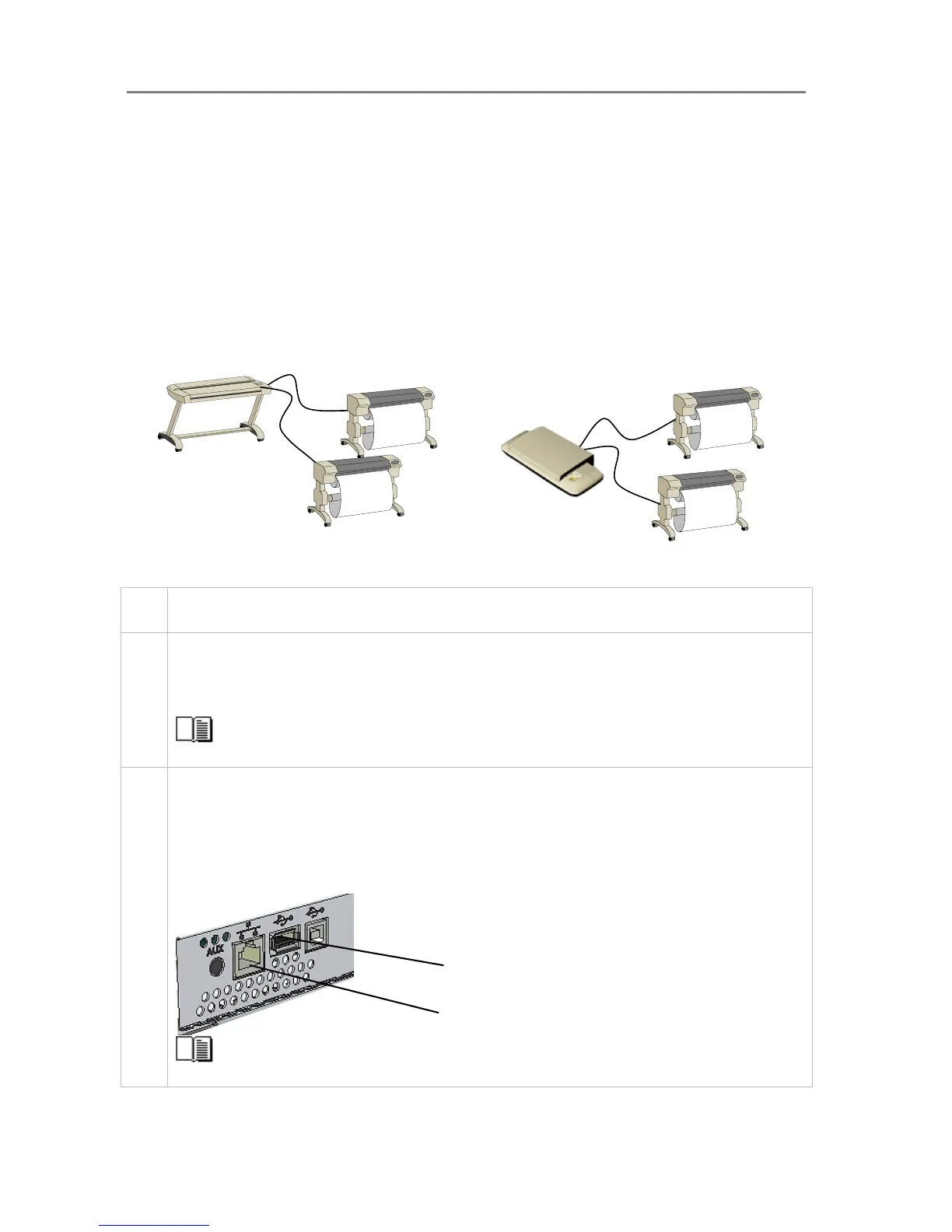
Components: Wide format copy scanner and one or two large format printers. The Scanner is
connected directly (no PC or network) to one or two printers.
Usage: For copying large format documents. This configuration can create printed output only.
All operation takes place from the iJET Panel (scanner).
System Requirements:
• Wide Format Copy scanner
• Compatible large format printer(s)
• USB cable or twisted LAN cable or both. - for connecting the scanner to the printer(s)
Printers are connected throu
h USB or LAN interface
Step Description – Stand Alone Copier Configuration
1 Set up your scan station and control the smart card
Your wide format copy scanner should be placed either on the specially designed stand-alone floor stand or on
a sturdy table. For sheet-feed models, make sure there is enough space behind the scanner to allow the media
to run out.
Make sure that the scanner’s smart card is in place.
See the sections “Physical Placement of the Scan Station” and “Maintenance-Locate the Smart Card” for
detailed instructions for your specific scanner model.
2 Connection – scanner end
Connect the USB cable or LAN cable to the scanner. Check your printer’s interface options to select which of
these to use. For USB use the USB host (output) port which is the flat rectangle shaped socket. See the
document: “NOTE ON INTERFACE CABLES” for instructions on the specific interface cable types to use with
this configuration.
You can attach two printers at a time – a B&W printer and a Color printer. Note that the scanner has only one
USB out connection so a second printer will have to be able to use the LAN connection.
LAN













 To Next Page