Scanner Operation - Panel and Indicators 4-13
4.5 Setting the Scanner in Firmware BOOT Mode
On All Scanners
You can force the scanner to firmware boot mode. This is useful if an error or power-failure
occurred during a firmware update and you need to restart the firmware update process. A
scanner will not run correctly after an interrupted firmware update process.
To force the scanner to firmware boot mode:
1. If restarting after a power-failure interrupted your firmware update, the scanner should
start up in boot mode. If not, you can use the following panel function to force the
scanner into boot mode.
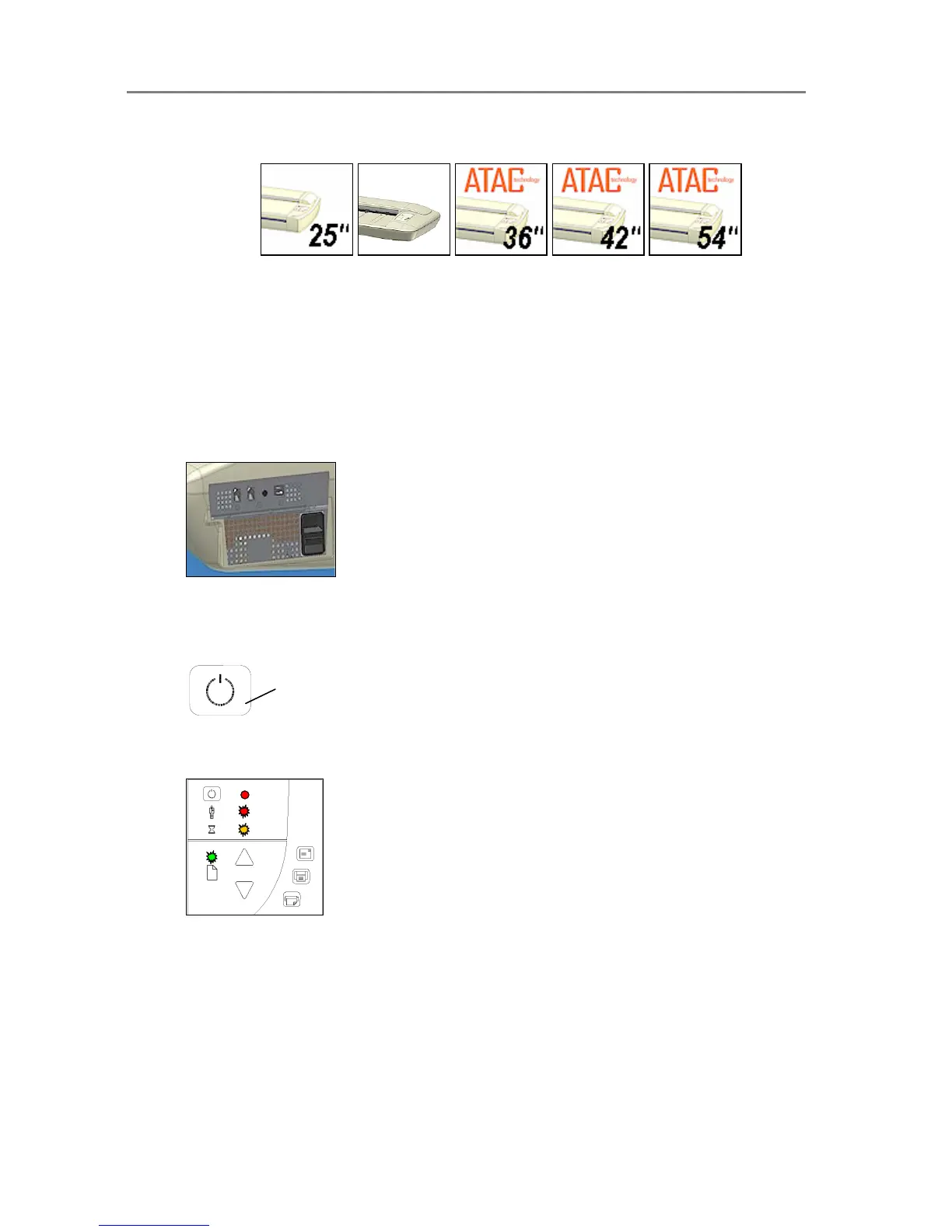
2. Turn the scanner power off with the outlet switch at the back – Hard Power Off.
3. Press and hold down the Power key on the operator’s panel.
4. As you hold down the power key, reach to its back and Hard Power On the scanner by
flipping on the outlet switch at the back of the scanner.
Invoke Firmware Boot Mode - Press and hold
down the Power Key as you Hard Power On.
5. When the Power LED turns red and the other LEDs flash as shown below, the scanner
is in Firmware Boot mode and you can reapply the Firmware.













 To Next Page