Using the scanner, how do I …? 6-5
6.2.2 Set the Scan Mode
On the iJET Panel –
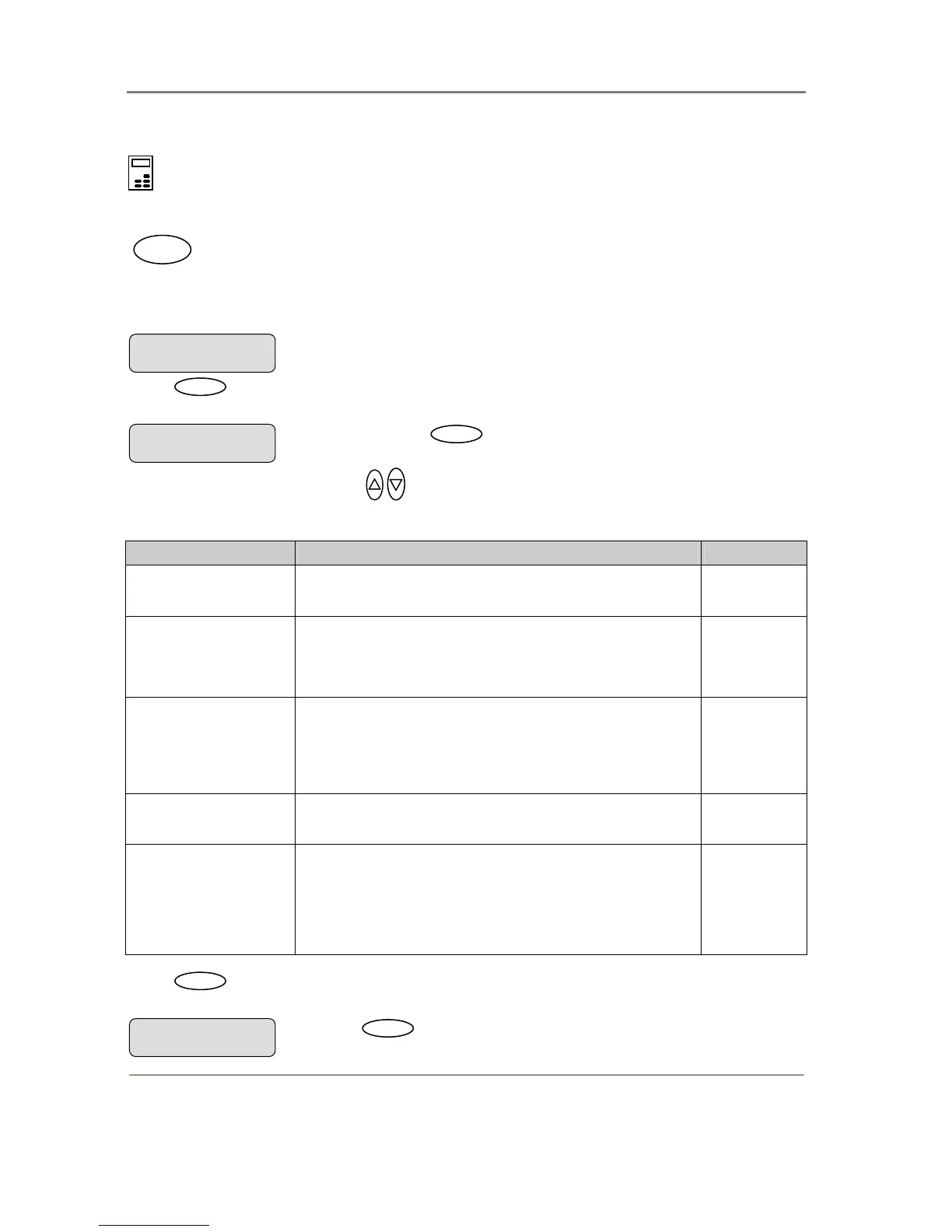
1. If you are not already in the Scan-to-File menu, start/enter the menu with the Scan to button as
described in the beginning of this section.
.
2. The first Scan-to-File Menu option is the Scan Mode. Your display should look as follows: will
be shown in the display.
3. Press
Enter
to move the “>” marker down so you can change the current option’s value if
needed.
4. Press the arrow up/down buttons
to move through the values for the Scan Mode option.
The following Scan Modes are available:
Scan Mode What it Does / Usage Adjustments
B&W Threshold This mode uses thresholds to determine whether a pixel is black or
white. Use this mode for drawings and line art. You can set the
threshold value (Level). Default value is 151.
Level
B&W Adaptive
Adaptive enhancement for line images. Suitable for scanning all kinds
of drawings including difficult blueprints, brown transparencies
(sepias), etc. You set Adaptive level. Provides minimum file sizes and
is thereby, well suited for digitizing.
Level
B&W Copy Adaptive
Adaptive enhancement on foreground and background. This mode is
suitable for copying (scan and print) of Sepia, Blueprint and other
originals with heavily distorted foregrounds and backgrounds where the
shades that create unwanted "noise" are close to the shades that make
up the image's data and the two are hard to differentiate.
Level
Graytone In this mode 256 gray levels are recognized for each pixel. Graytone
mode creates good reproductions of complicated B/W images like B/W
photos.
Gamma
24-bit Color
This is the 24 bit true color mode for capturing all of the image's colors
with the closest reproduction. This mode produces large files since all
colors, even shades with only slight differences, are captured and
produced. You use this mode when you want accurate reproduction of
complicated color images like color photos and posters. You can make
tonal adjustments through a Gamma value.
Gamma
5. Press
Enter
to accept the Scan Mode and move the “>” marker back up. From here you can
set the Scan Mode parameter (Level or Gamma). See details below.
Scan to
Press
Enter
to accept the Scan Mode. The “>
“marker moves back up.
> Scan Mode
Graytone
When you press
Enter
, the “> “marker moves
down indicating you can change the option value.
Scan Mode
> 24-bit Color
Entry into the Scan-to-File Menu
> Scan Mode
24-bit Color













 To Next Page