Using the scanner, how do I …? 6-1
6. How do I Scan to File?
Scan-to-file means that you save the image in a file format on a PC’s hard disk rather than
outputting directly to a printer (copy). Scans cannot be saved in the scanner itself. In order to
scan and save the image in a file, your system must recognize a PC. Therefore, the
configuration must include a PC, either directly through USB or else through the network. The
PC must have WIDEsystemNET installed. Your system can scan to file if:
1. Your scanner is connected to the network through the LAN interface and Scan2Net
Designated Folder functionality has been configured in WIDEsystemNET on each PC so
that a special scan input folder is defined on the PC and the PC will be recognized by the
scanner.
2. Your scanner is connected to a local PC through USB and Scan2Net Designated Folder
functionality has been configured in WIDEsystemNET on that PC so that a special scan
input folder is defined on the PC and the PC will be recognized by the scanner.
3. Your scanner is connected to the network through the LAN interface. The scanner has been
enabled for access from the PC’s on the LAN by setting the scanner’s Share option to YES
(see section: Setup to Share the Scanner). The PC’s on the LAN are setup to recognize
the shared scanner with WIDEsystemNET software and compatible scan/copy software.
*NOTE: WIDEsystemNET software is on the WIDEsystem TOOLS CD that came with your
scanner. See the CD’s included documentation and your WIDEsystemNET software on-line
help for instructions on installing and configuring a PC for Designated Folder functionality.
This section will focus on the first and second scan-to-file scenario in which you use the
iJET Panel to select a scan target and scan to a designated folder.
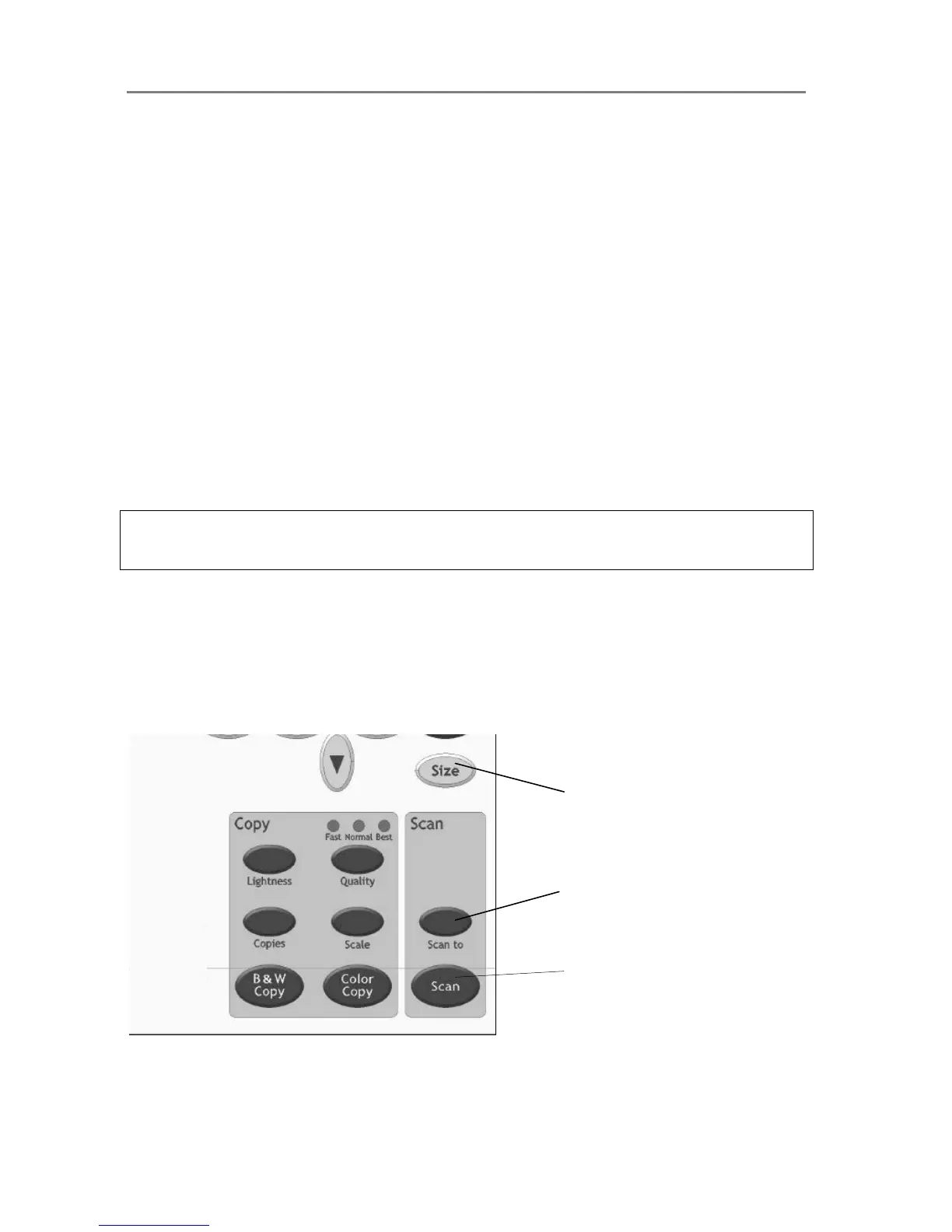
You will use the iJET Panel’s Scan to button to make all your settings for a scan to file job and
the Scan button to start it. You will use the Size button to enter the original’s size before
pressing the Scan button (unless scanning the whole original with Auto size). Details follow in
the next section.
Scan button – start
the scan













 To Next Page