Using the scanner, how do I …? 6-8
6.2.5 Set the Scan-to-File Size (input size)
This same Scan-to-File Menu option can also be reached by pressing the function Size button.
The value you set here determines the scan area. Usually this would be the size of the original
unless you wish only to input a portion.
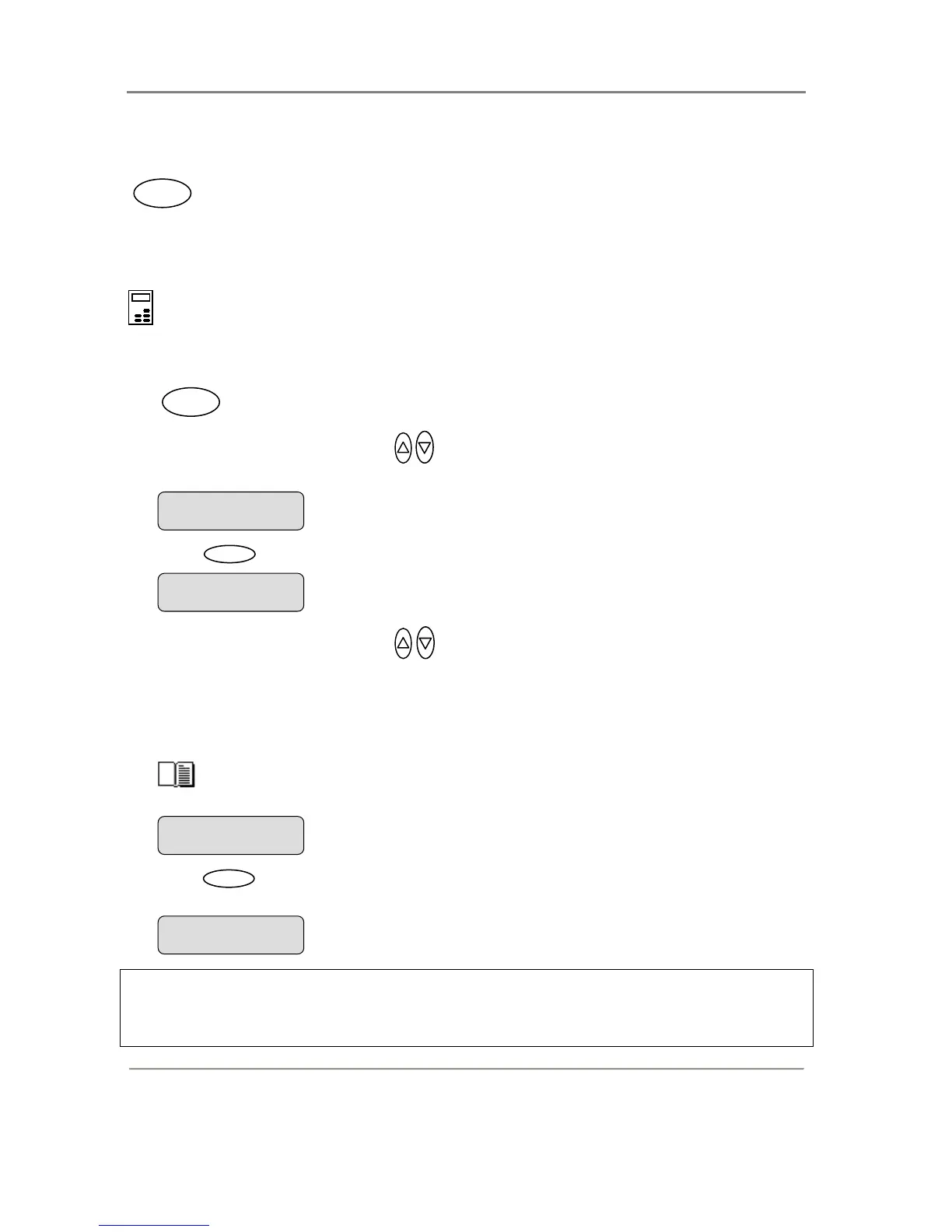
To set the Scan-to-File Size:
On the iJET Panel –
1. If you are not already in the Scan-to-File menu, start/enter the menu with the Scan to button
as described in the beginning of this section.
2. Press the arrow up/down buttons
to move through the Scan-to-File Menu options until
the display shows Size.
3. Press
Enter
to move the “>” marker down to indicate you want to change the Size value.
4. Press the arrow up/down buttons
to change the Size value.
5. The Auto option will detect the edges of the original and set the scan area to the full original
size. This is the recommended setting. If necessary, you can later crop the image in an
image editor after it has been saved to the target PC.
The standard sizes shown are those that belong to the Paper Series you selected through Menu >
Advanced > Options > Paper Series.
See this guide’s section on “Personalizing and Localizing the System” for details on
selecting a Paper Series preference.
6. Press
Enter
to accept the selected value and move the “>” marker back up to the Scan-
to-File Menu level so you are ready to move on to the next Scan-to-File setting.
NOTE: About the Size value: Size is a global system variable that can be changed in 3
different ways: 1. With the Size button 2. With the Menu button > Size option and 3. With the
Scan-to button > Size option. This means that when you change the size for a copy job, it will
also apply for a scan-to-file job and vise versa until you change it again.
.
Size
> Auto
The “>” marker is back up to the Scan-to-File Menu
level.
> Size
Auto
The “>” marker is down to the value level so you can
change the value.
Size
> A3
> Size
A3
Scan to
Size













 To Next Page