Using the scanner, how do I …? 5-11
5.3.2 How do I… Set Original Type B&W?
The original type setting – Org. Type-BW is your central input parameter for B&W or graytone
copying and relates to controlling image capture. The Org. Type-B&W setting tells the system to
use specific internal image enhancement processes that are optimal for the original in question.
For example, selecting the “Blueprint” option will tell the scanner to optimize for cleaning up
background noise and enhancing image quality. The option you choose will be applied by the
system when you press the B&W Copy button.
The available options for Org. Type-B&W are described below.
Org. Type -BW
Photo
Photo is suitable for photographic images that contain many shades of gray.
Blueprint
Suitable for Blueprint and other originals with heavily distorted foregrounds and
backgrounds. The shades that create image noise are close to the shades that
represent the image's data and the two are hard to differentiate.
Sepia
Suitable for Sepia and other originals with heavily distorted foregrounds and
backgrounds where the shades that create image noise are close to the shades that
represent the image's data and the two are hard to differentiate.
Line
For copying clean and clear line drawings and text. Takes advantage of B&W
thresholding
CAD
Suitable for black and white CAD drawings and graphics with a high level of detail.
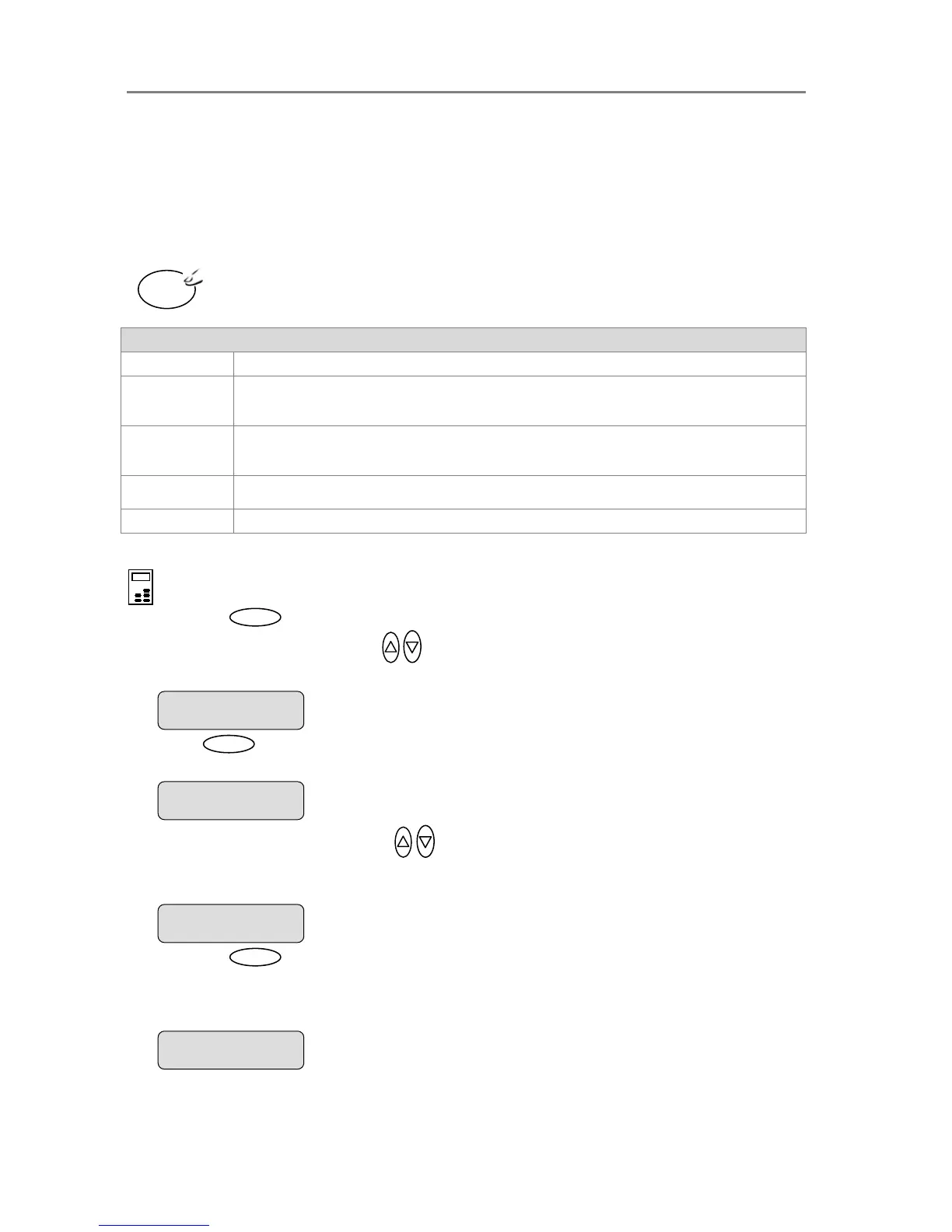
To set the Original Type for B&W copying::
On the iJET Panel –
1. Press the button to enter the main Menu.
2. Use the arrow up/down buttons
to move through the Menu options until the display
shows Org. Type-B&W as shown below.
3. Press
Enter
to move the “>” marker down to indicate you want to change the Org. Type-
B&W value.
4. Press the arrow up/down buttons
to change the Org. Type-B&W value that matches
the original and copy job. The display shown below is set for Line originals (documents with
line drawings and text).
5. Press the
Enter
button to accept the selected value. The “>” marker will move up to the
Menu level indicating that the value is set and you can step on through the menu options if
needed. The new Org. Type-B&W value will be applied every time you press the B&W Copy
button until you repeat the steps above to change it.
B&W
Copy
Org. Type-B&W
> Line
The ”>” marker is on the Menu level. You can continue
navigating the menu options with the arrow up/down
buttons.
> Org. Type-B&W













 To Next Page