Using the scanner, how do I …? 6-10
6.2.7 Set the File Format Quality
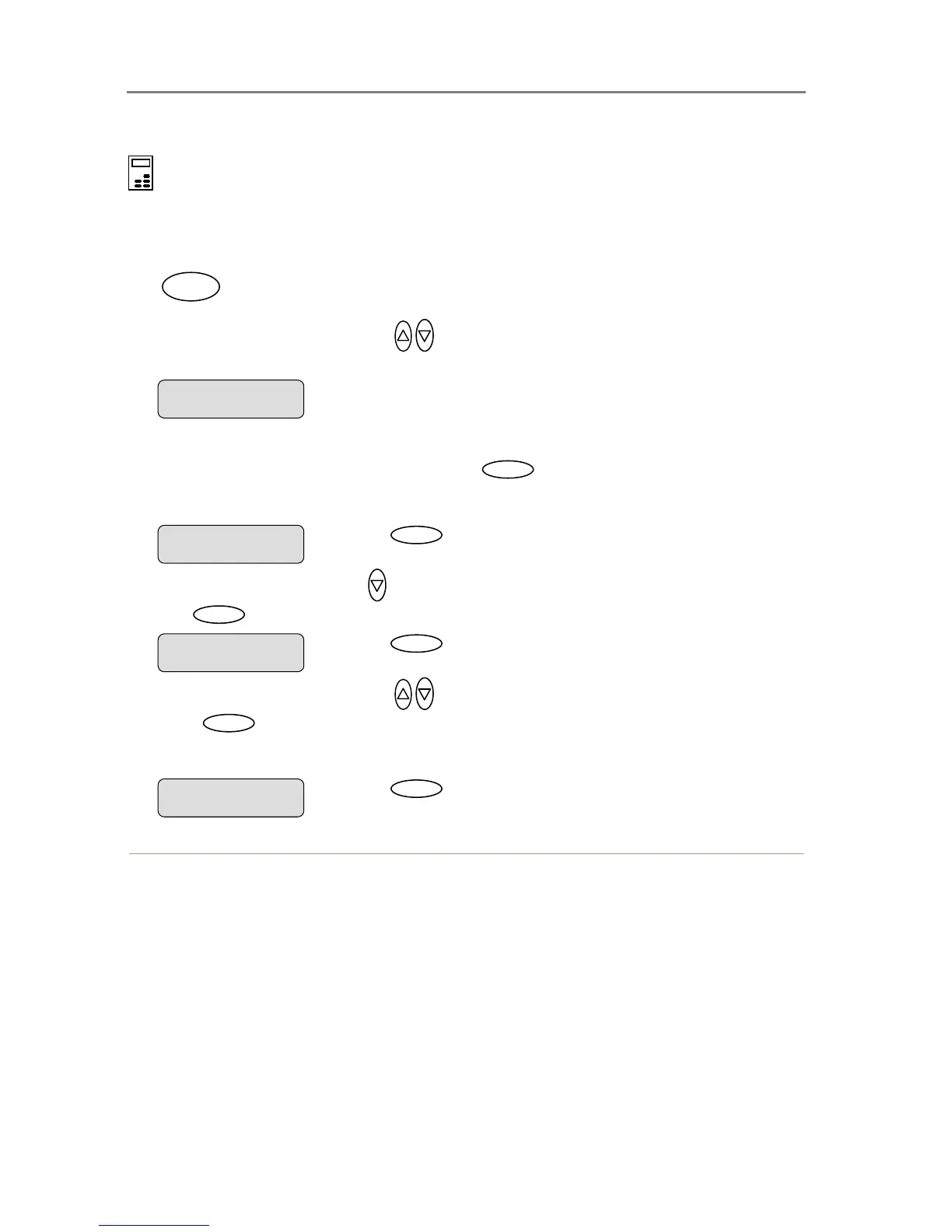
On the iJET Panel –
1. If you are not already in the Scan-to-File menu, and want to change the Quality value
for the current file format setting - start/enter the menu with the Scan to button as
described in the beginning of this section.
.
2. Press the arrow up/down buttons
to move through the Scan-to-File Menu options until
the display shows File Format. Then move on to step 4.
3. If you are in the Scan-to-File menu and have just selected a File Format as described
in the previous section - When you pressed
Enter
to accept the File Format, the “>”
marker moved back up to the option text “File Format”. From here you can move forward in
the Scan-to-File Menu to set the File Format quality parameter.
4. Press the arrow down button
to move to the File Format’s Quality parameter option and
then
Enter
to indicate you want to change it.
5. Press the arrow up/down buttons
to change the value displayed.
6. Press
Enter
to accept the new quality value for the current File Format The “>” marker
moves back up back up to the Scan-to-File Menu level. From here you can move on and
make more Scan-to-file menu settings.
> File Format
JPEG
Scan to
Press
Enter
to indicate you want to change the
value. The > marker will move down..
JPEG Quality
> 70
Press
Enter
to accept the parameter value.
> JPEG Quality
100
Press
Enter
to accept the File Format. The “>
“marker moves back up.
> File Format
JPEG













 To Next Page