Using the scanner, how do I …? 6-7
6.2.4 Set the Scan-to-File Resolution
This is where you determine image quality. Note that high resolutions create large files. 300 dpi
or more is adequate for printing. Certain maps and CAD drawings with high levels of detail
require high resolutions. CAD processing of the image may also require that you select a high
resolution. The Dpi (dot per inch) range selectable is from 50 to 9600. Dpi value settings below
or equal to the scanners optical dpi will give pure optical resolutions without interpolation.
Interpolation involves resampling through adding pixels between original pixels to increase
resolution beyond the actual number of CCD cells (optical resolution). The new pixel’s colors
and intensities are calculated on the basis of their surrounding pixels. See your scanner model
specifications to view the scanner’s optical resolution.
To set the Scan-to-File Resolution:
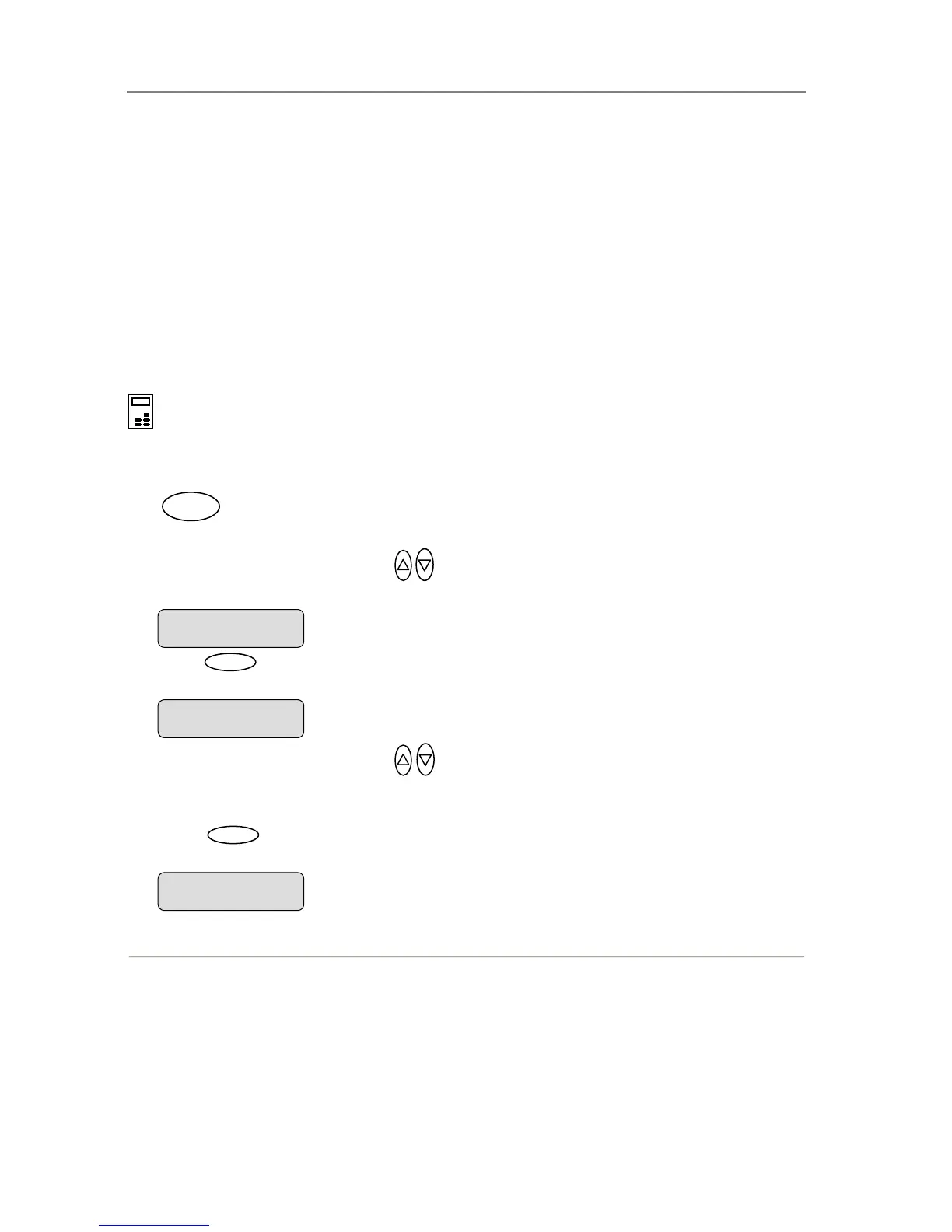
On the iJET Panel –
1. If you are not already in the Scan-to-File menu, start/enter the menu with the Scan to button
as described in the beginning of this section.
.
2. Press the arrow up/down buttons
to move through the Scan-to-File Menu options until
the display shows Resolution.
3. Press
Enter
to move the “>” marker down to indicate you want to change the resolution
value.
4. Press the arrow up/down buttons
to change the Resolution value. You can select
from a list of pre-defined resolution (dpi) values (50, 100, 200, 300 …9600). Resolution
values above the scanner’s optical resolution will use interpolation.
5. Press
Enter
to accept the selected value and move the “>” marker back up to the Scan-
to-File Menu level so you are ready to move on to the next Scan-to-File setting.
The “>” marker is back up to the Scan-to-File Menu
level.
> Resolution
353
The “>” marker is down to the value level so you can
change the value.
Resolution
> 200
> Resolution
200
Scan to













 To Next Page